
We are integrated with shipping provider – blowhorn
1. Login to your Unicommerce account and Go to settings > Shipping Provider.
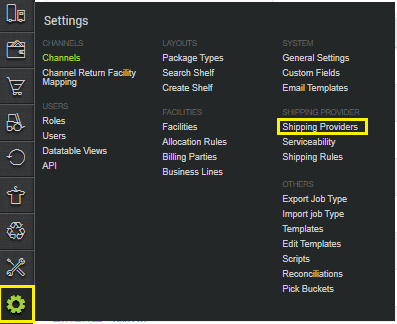
2. Click on “Add Shipping Provider“.

3. Search for “blowhorn”, then click on blowhorn to fill the details.
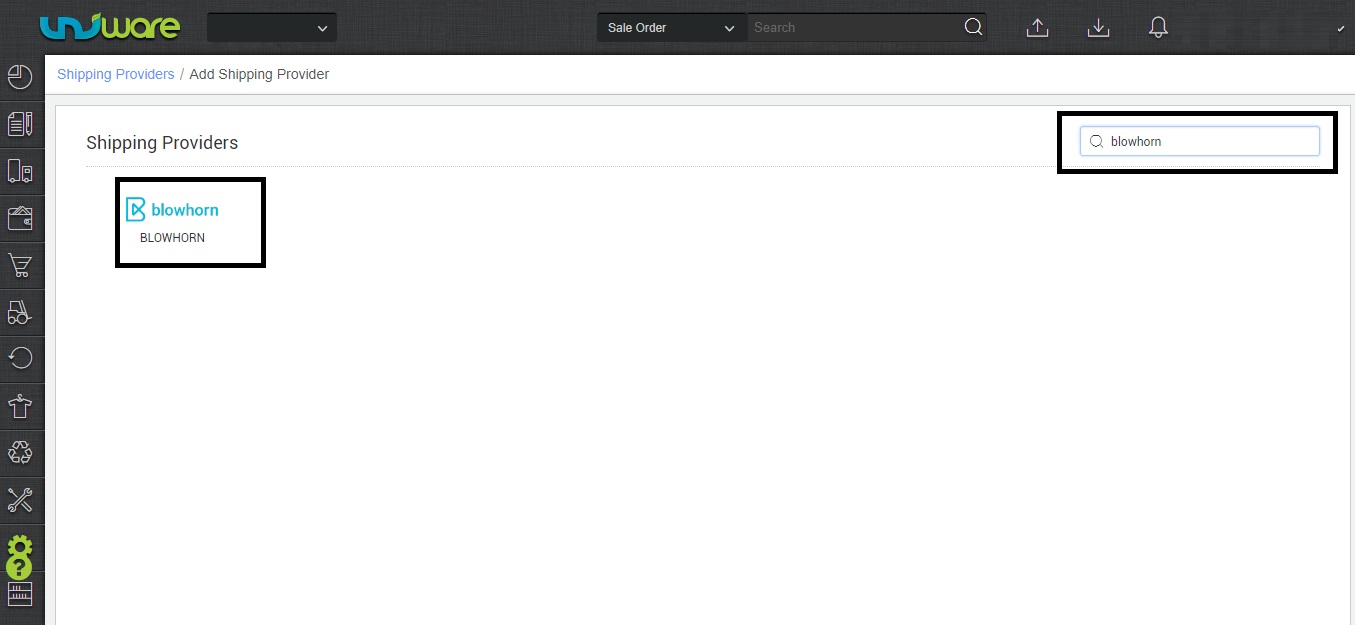
4- Now fill the details as per the below pointers.
General Information
- Shipping Provider Name: Enter the Shipping provider name
- Enabled : Yes/No. To mark shipping provider enabled or disable in Uniware.
- Tracking Enabled: Yes/No. Mark this “Yes“, if shipping provider provides tracking info.

Forward Shipment/Reverse Shipment
- Select Serviceability as Any facility to any Place / This Facility to selected Pincodes / Any Facility to Selected Pincodes. (in this case you need to define serviceability)
- Forward Shipment: Add both COD and Prepaid Shipping Methods having AWB Generation selected as API.
- Reverse Shipment: Prepaid Shipping Methods having AWB Generation selected as API.
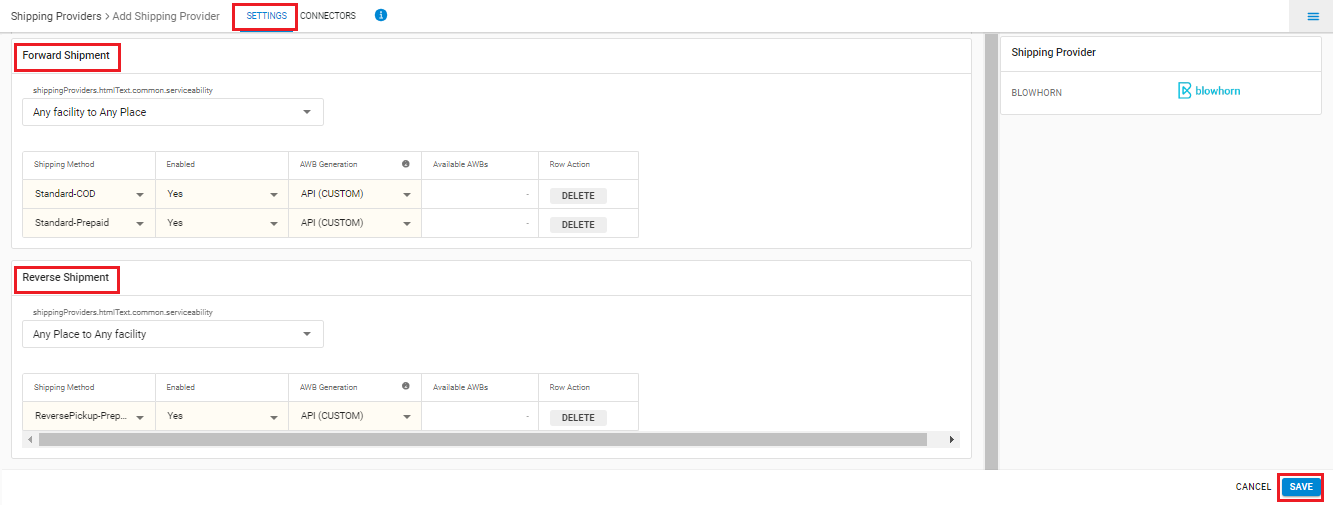
5- Now save the detail by pressing button Save.
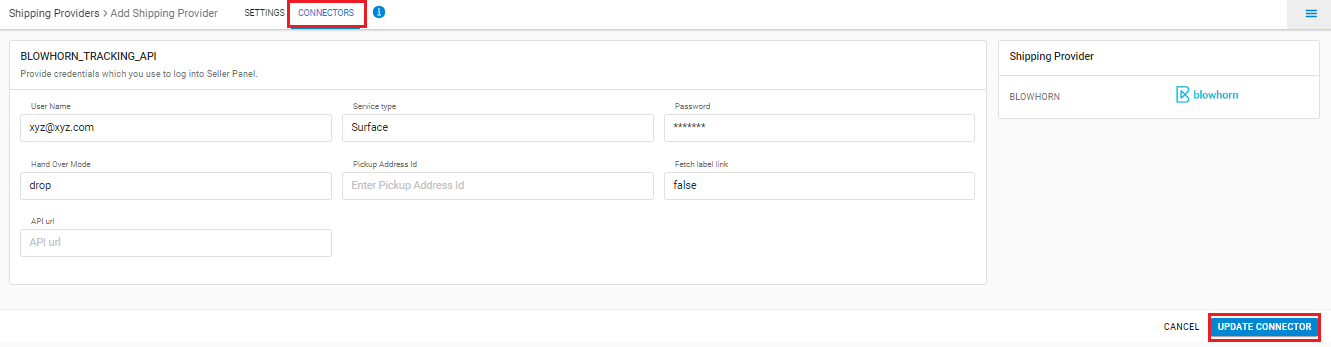
6. Click on Connectors and update the credentials for API settings, will be provided by the blowhorn team for every seller.
| PARAMETER (M: Mandatory) | DESCRIPTION/VALUES |
| User Name | This will be provided by the blowhorn team. |
| Service Type (M) | Surface/Air/road User can use the keyword specified by the Shipper. Generally use Surface. |
| Password | This will be provided by the blowhorn team. |
| Hand Over Mode | Blank (Default)/Pickup/Drop/Pick User can use the keyword specified by the Shipper. Generally use Drop. |
| Pickup Address Id (M) | Blank (Default) |
| Fetch Label Link (M) | Use False as Label pdf is provided by blowhorn team. |
| API Url | Blank (Default) |
Below are the feature highlights of this integration:
- Forward and Reverse shipment supported.
- AWB will be fetched from Blowhorn.
- Tracking is provided in Uniware for Blowhorn shipped orders.
- Label format will be provided by Uniware.