
Swiggy Instamart is available in Uniware under Quick Commerce service for order processing.
Pre-requisite to configure the Channel:
-
Applicability: This integration is supported for all Uniware Sellers.
Follow these simple steps to integrate in Uniware:
1- In the Uniware menu, select Settings > Channels

2- Then press the button
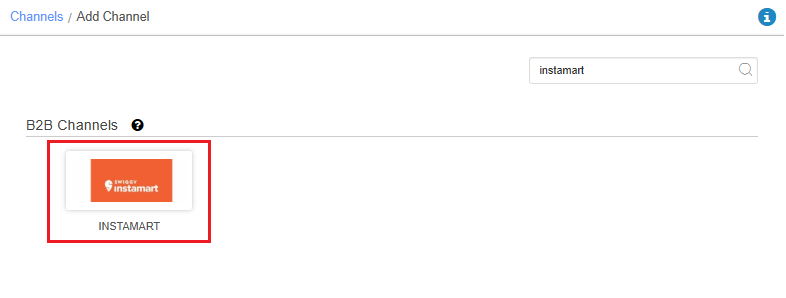
Search and Select “Swiggy Instamart“.
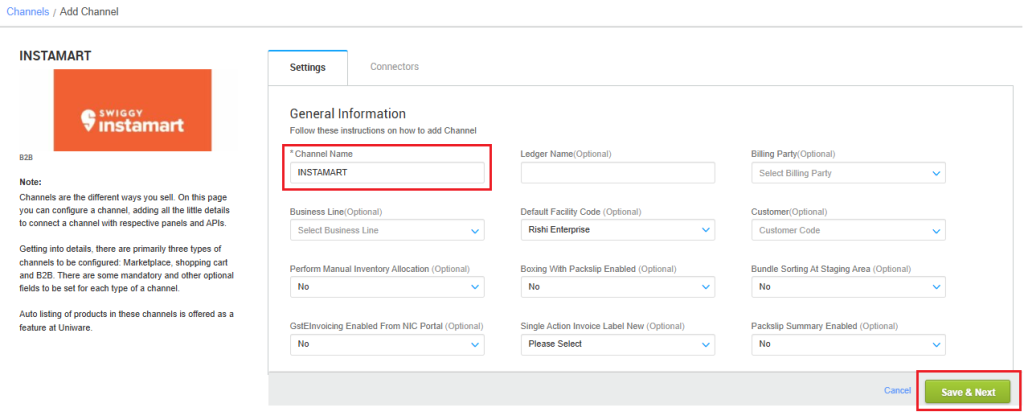
3- Fill the Channel Name e.g. Swiggy Instamart and save the channel details.
4- Fill in the credentials to configure the connectors.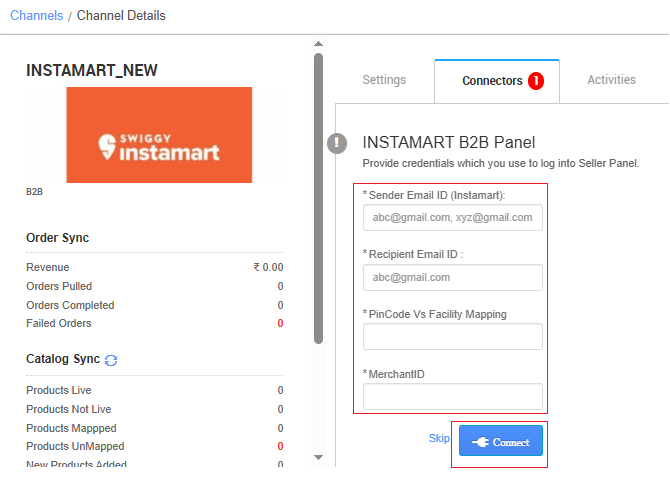
| Parameter | Value/ Description |
| Sender Email ID (Instamart) | Will be provided by the Instamart team |
| Recipient Email ID | Will be provided by the Instamart team |
| Swiggy Instamart Facility/Pincode vs UC facility Mapping | When a seller creates an account on Swiggy Instamart, he has to provide the facilities by which he will be fulfilling the inventory against each Swiggy Instamart warehouse, it could be 1-1 or 1-Many.In Connectors, he will have to provide the mapping of UC facility’s pincode to UC facility code. so UC could understand from which facility seller will be fulfilling the PO.
e.g. |
| MerchantID |
This is a unique identifier for seller at the Swiggy Instamart end.
Example: 12345
Below are the important points that need to be kept in mind while adding the channel:
-
- We only support API integration.
- Only Swiggy Instamart Facility vs UC facility Mapping and Vendor Code are mandatory.
- Note: Ensure all outlets are successfully mapped to the facility. If not, orders will not be created in Uniware.
- In this integration, Catalog won’t be sync automatically, it has to be done manually else order will be created in Failed orders.
- Item code that is listed on Swiggy Instamart portal will be present in PO, same will be treated as seller SKU code and mapping can be done with this against UC sku code.
-
-
Fill below mandatory columns with details as suggested and upload the sheet in Uniware via import file name as “Channel Item Type“
- Channel Name– Name of the channel added in Uniware for Swiggy Instamart.
- Channel Product Id– Item code that is listed on Swiggy Instamart portal.
- Seller SKU Code– Item code that is listed on Swiggy Instamart portal.
- Uniware SKU Code– Uniware SKU codes created in UC corresponding Seller SKU.
-
-
- Sale order will be treated as COD under B2B transaction.
- Invoice code, Tax details are provided by uniware.
- Orders will be treated as self-shipped i.e. shipping will be handled by the seller and Tracking Details & Labels will be handle by seller in UC.
- Order splitting is allowed.
- Instamart will push cancellation to UC. Returns will be managed through Integration in future phase.
- Seller-side cancellation is not allowed
- Customer/Channel side cancellation is allowed
- After order processing, sellers will handle all remaining aspects using their existing procedures.
- Supports Purchase Order (PO) sync via PDF (.pdf) files only.
- We only support API integration.