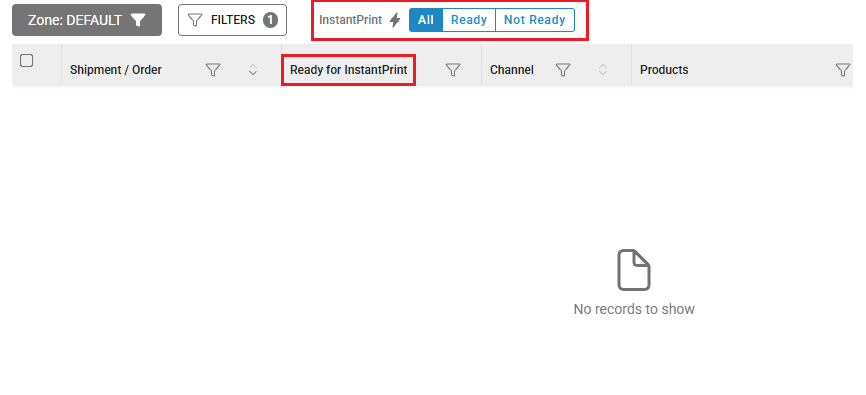
The Instant Print feature enables you to streamline your packing process by quickly generating invoices and labels. By allowing you to manually retrieve and prepare orders in advance, this feature reduces the time spent on generating invoices and labels, making the entire order fulfillment process faster and more efficient.
Note: However Instant Print shall be triggered only on shipments whose channels have prefetch setting enabled.
Use Case Scenario
If picking and packing in your warehouse begin at 10 AM, the user can manually trigger Instant Print at 8 AM. So, when actual operations start, invoices and labels will be generated at lightning speed, ensuring a seamless workflow.
Applicability
Version: Standard, Professional and Enterprise clients
Traceability: None, SKU and Item Trace
Screen Navigation
For the Shipments under New section in the Shipments tab:
All shipments will be visible in “Shipments” section under the fulfillment tab, where you can take action as per single or bulk order processing.
Previously, the checkbox for bulk action was only available at none traceability, and was not present in SKU and item traceability. Now, the checkbox is available for all traceability.
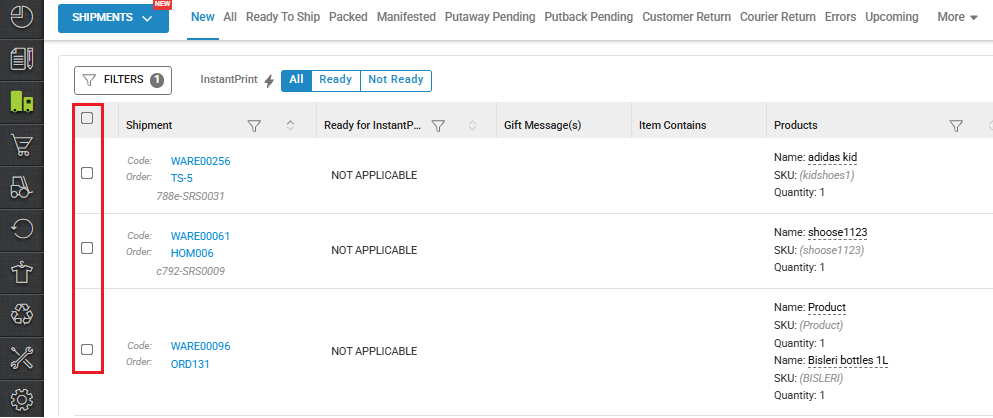
Note: The bulk action checkbox applies only to the Instant Print feature. For any other actions apart from Instant Print, bulk selection will remain available only for none traceability, as before.
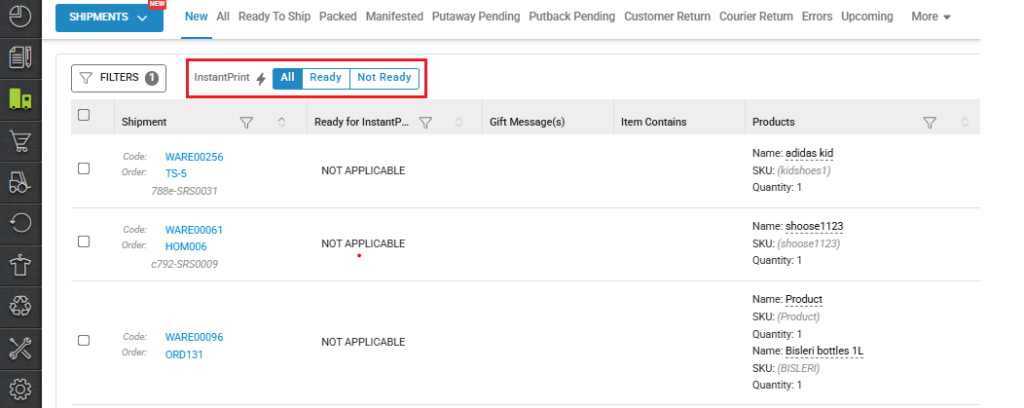
This page contains a new Instant filter, which has 3 values:
-
ALL: It shows all the packages which are not applicable, not ready, in progress, and ready state.
-
Ready: It shows all the packages which are in ready state after Instant Print (prefetch is completed).
-
Not Ready: It shows all the packages which are in not ready state, i.e, not yet scheduled, or failed for Instant Print.
This page now includes a new column, “Ready for Instant Print“. When you apply its filter, you’ll see four values:
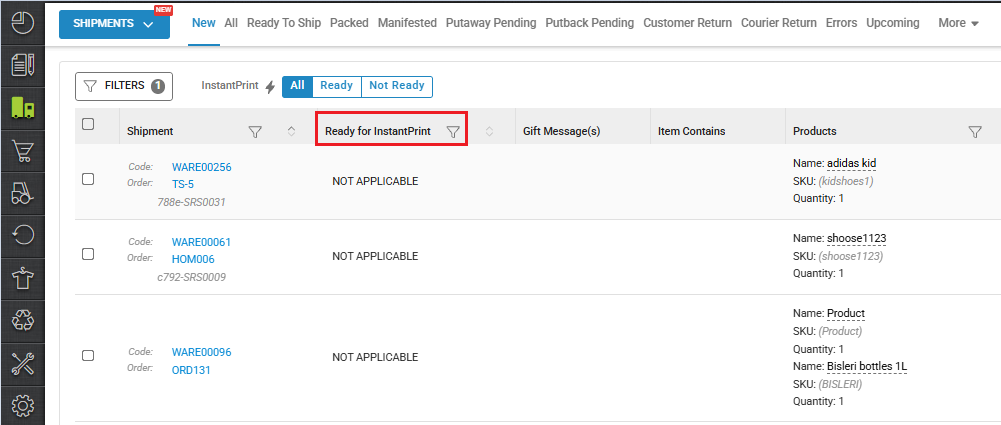
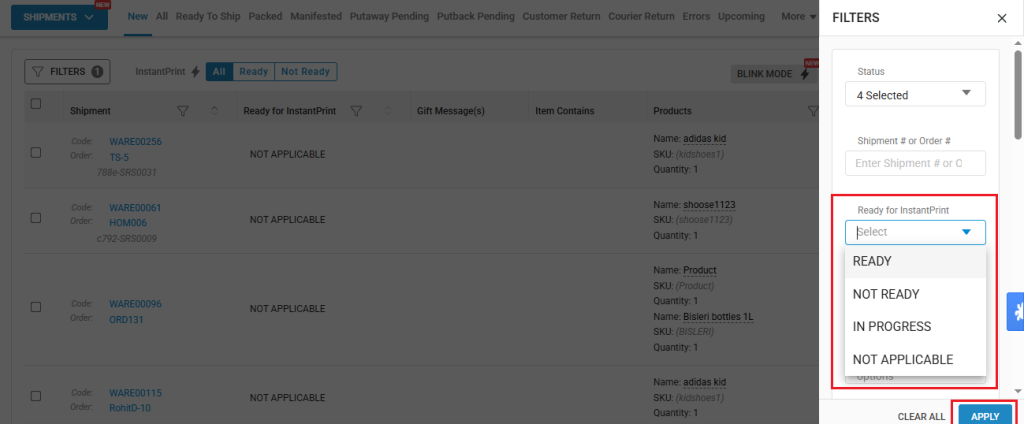
- Ready: Prefetch is completed.
- Not Ready: Prefetch is either not yet scheduled, or failed. In this case, there is not auto retry, and the prefetch will have to be manually triggered again, using Instant Print.
- In Progress: Prefetch is created, scheduled, or running.
- Not Applicable: Shipments whose channels have prefetch setting disabled, or they have passed the packing state (invoice and label have already been generated) .
For the Shipments in Picklist:
In picklist, you can not perform any actions for Instant Print. You can only view the shipments under the Instant Print filter. This allows picking of those items, whose prefetch has already been completed.
This filter has 3 values:
-
ALL: It shows all the packages which are not applicable, not ready, in progress, and ready state.
-
Ready: It shows all the packages which are in ready state after Instant Print (prefetch is completed).
-
Not Ready: It shows all the packages which are in not ready state, i.e, not yet scheduled, or failed for Instant Print.
This page now includes a new column, “Ready for Instant Print“. When you apply its filter, you’ll see four values:
- Ready: Prefetch is completed.
- Not Ready: Prefetch is either not yet scheduled, or failed. In this case, there is not auto retry, and the prefetch will have to be manually triggered again, using Instant Print.
- In Progress: Prefetch is created, scheduled, or running.
- Not Applicable: Shipments whose channels have prefetch setting disabled, or they have passed the packing state (invoice and label have already been generated) .
Procedure
For the Shipments under New section in the Shipments tab:
- Login in your uniware account.
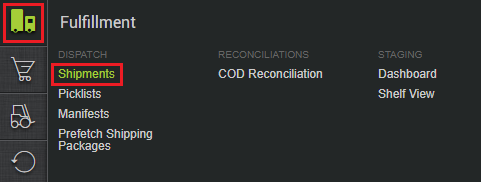
- Navigate to the Fulfillment > Shipments.
- Select the shipment (you can select single or multiple shipments), and click on the PREPARE FOR Instant Print button.
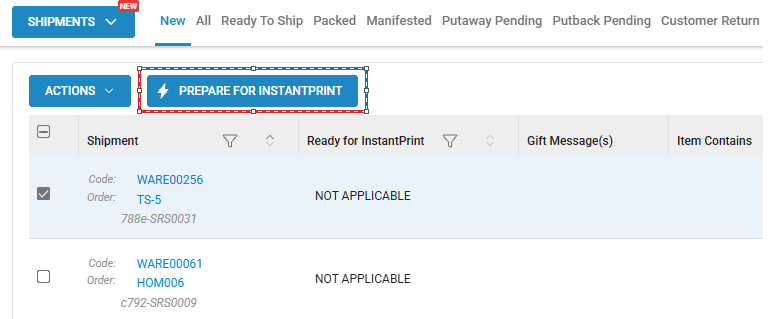
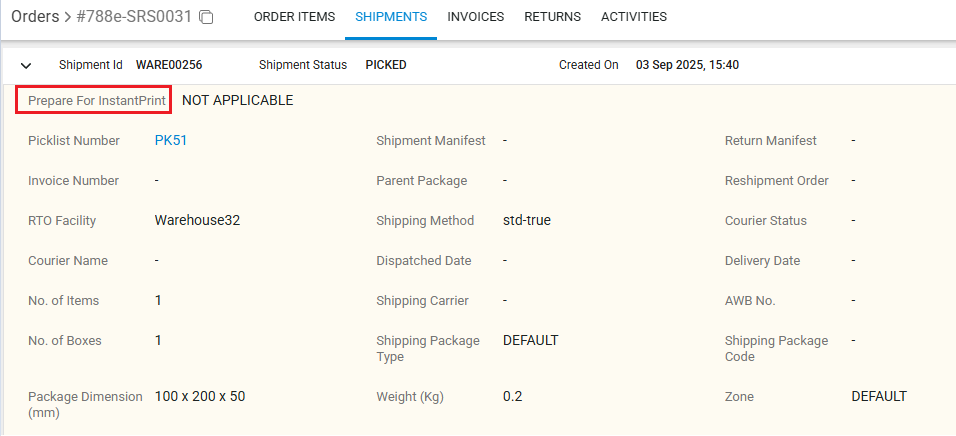
Note: Shipments with a “NOT APPLICABLE” status cannot be processed for Instant Print (manual prefetch). This is because their channels have the prefetch setting disabled. - You can also view the Instant Print status on the individual shipment page under the “Prepare for Instant Print” field.
For the Shipments under Picklists:
- Login in your uniware account.
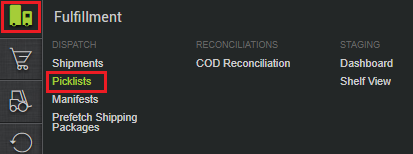
- Navigate to the Fulfillment > Picklists.
- Click on the CREATE MANUAL button.

- You will be redirected to the Manual Picklist page. Here, you can view the shipments under the Instant Print filter. You can also use the filter under the Ready for Instant Print column.
Note: In picklist, you can not perform any actions for Instant Print. You can only view the shipments under the Instant Print filter.