
Smart Fill (B2B) : Optimised Inventory Allocation & Fill Rate Planning
Overview
Smart Fill (B2B) is a new inventory planning feature that allows sellers to consciously allocate limited stock across multiple orders before committing it to the warehouse. It optimises inventory allocation and fill rate.
In B2B e-commerce, When stock is limited, this often results in scarce inventory being consumed by low-priority orders, causing critical stock-outs for high-value clients and urgent shipments.
To solve this, Smart Fill introduces a “planning-first” workflow. It gives sellers early visibility and manual control over their inventory, enabling them to make SKU-level decisions and prioritise the right orders before any Stock on Hand (SOH) is deducted.
Key Difference
In B2B workflows, the system does not allocate orders automatically; instead, operators manually allocate them. However, because they lack system visibility, operators frequently prioritize the wrong orders.
The Smart Fill , sellers have window to decide which customer gets priority, especially when stock is low.
The Smart Fill provides sellers with the visibility and control necessary to allocate limited SOH across frequent B2B orders.
Comparison
Current Seller’s Problem vs Smart Fill Solution
| Current Seller | Smart Fill |
|---|---|
| Low priority consume all available stock | Sellers prioritize high-value orders / Urgent customer manually. |
| Realising stock-outs only when it’s too late to reverse. | Identify shortfalls upfront on a single demand vs Supply stock in “Single Window”. |
| Insufficient shipments and complex reconciliation. | Consolidate orders to fill rate & reduced partial shipments. |
Key Capabilities
Upfront Shortfall Visibility: View demand vs Stock on Hand (SOH) on a single screen with clear indicators for SKU-level shortages.
Strategic Prioritisation: Manually select specific B2B orders for processing based on customer value or urgency.
Simulated Allocation: Plan allocations temporarily to see the impact on fill rates without triggering immediate stock deductions.
Intelligent Inventory Calculations: To ensure accuracy, the system calculates eligible inventory by factoring in your reservation pools, specific storage areas, and dispatch tolerance.
Dynamic Re-balancing: Adjust quantities at the order level or remove orders entirely during the preview stage to achieve optimal balance.
Flexible : Sellers can attach new allocations to any existing shipment before generating an invoice.
Future Inventory Visibility: Track upcoming stock across other facilities, GRN, and Work Orders.
Smart Fill Work-flow
SELECTION → PLANNING → VALIDATION → FINALISATION
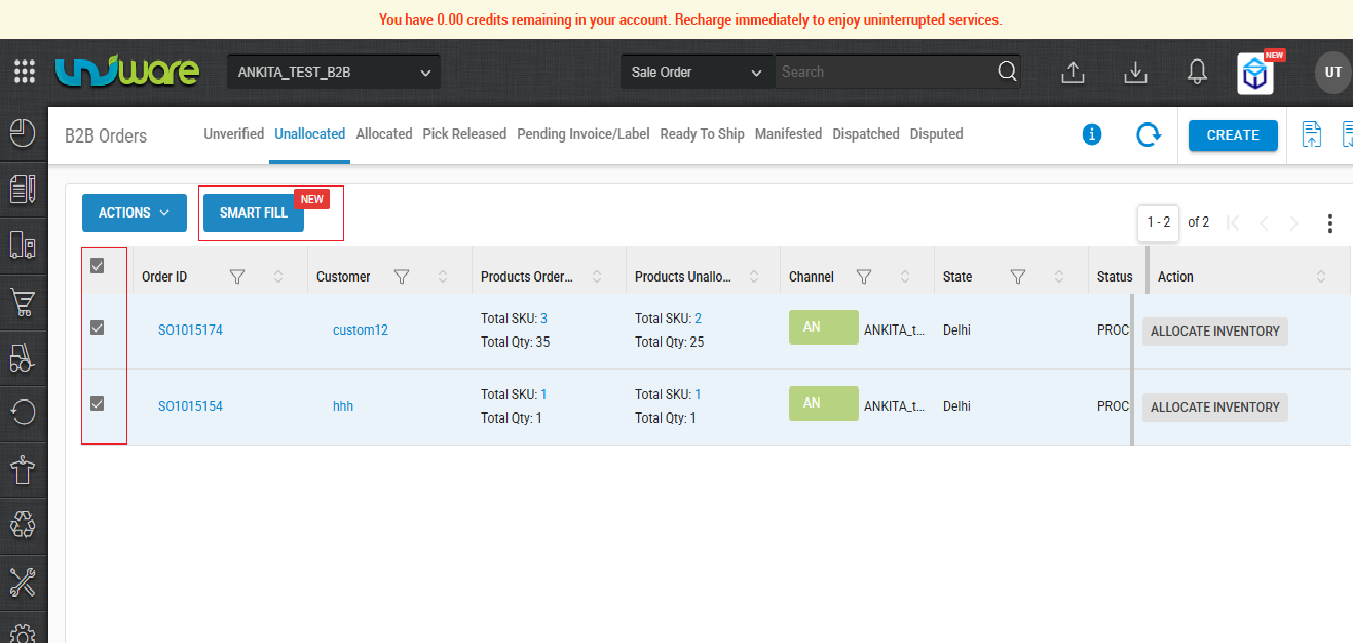
- Selection: Select multiple unallocated B2B orders to initiate the Smart Fill workflow.
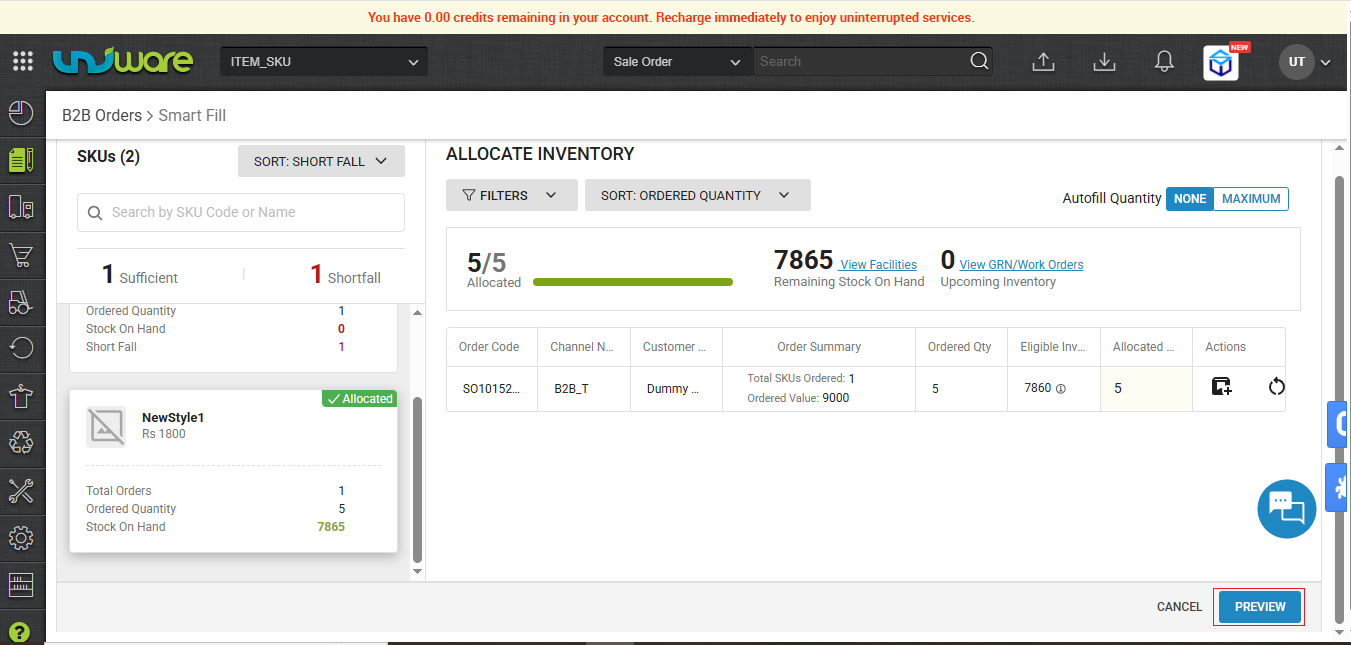
- Planning: View SKU-wise demand against available stock and edit allocation quantities directly on the grid.
- Validation: Click Preview to re-validate inventory in real-time. The system flags any planned allocations that exceed eligible stock.
- Finalisation: Click Allocate Inventory, Temporary plans become final, SOH is deducted, and orders transition to the “Allocated” status.
Advantages for Sellers
- Business Impact : Improve B2B fill rates & helps sellers to decides importance of Order as per business requirement.
- Reduced Rework: Prevents last-minute pick failures in the warehouse by confirming stock is available before sending the order to the floor.
- Strategic Allocation & Customer Satisfaction: Allows sellers to give 50% of an order to 5 different clients rather than 100% to just two, keeping more customers happy.
- Error Prevention: Eliminates the “hard-to-reverse” mistakes that happen when inventory is automatically committed.
Prerequisites
-
B2B Order Processing feature must be enabled for the tenant.
-
Must be active, available Stock on Hand (SOH) in the facility.
-
User must have the necessary role permissions to allocate inventory manually.
How It Works
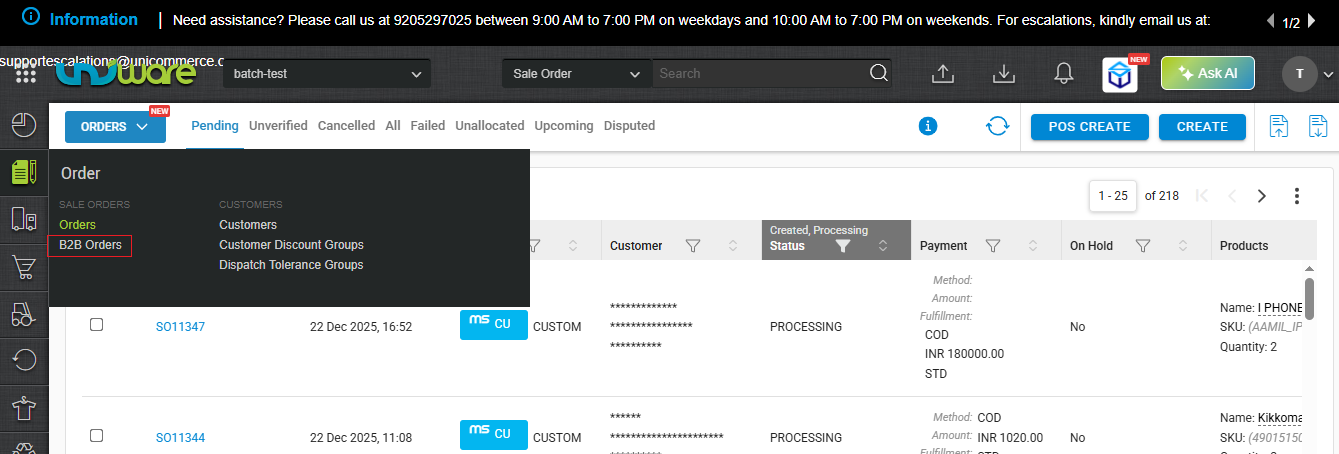
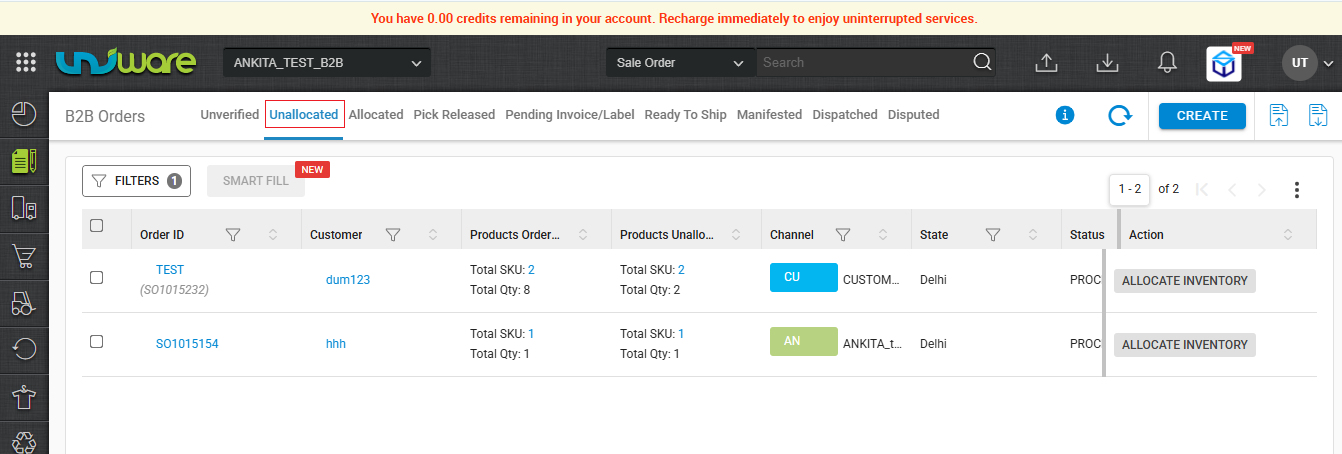
Hover on Order & Click on B2B Order → Click on Unallocated →Mark require Check Box & Click on Smart Fill → Click on Preview → Click on Allocate Inventory
Step 1 : Hover on Order and Click on B2B Order
Step 2: Click on Unallocated
Step 3 : Mark required check box & click on Smart Fill
Step 4: Click on Preview
-
- Left Side: This section displays SKU-wise demand against your SOH and highlights any shortfalls.
-
- Right Side: This section displays specific orders for the selected SKU. Enter your allocation quantities in the editable fields here.
- Right Side: This section displays specific orders for the selected SKU. Enter your allocation quantities in the editable fields here.
Sellers can edit allocations at the SKU level & able to view Fill Rate of Order SKU wise.
| Note : The system does not deduct SOH until the Allocate Inventory is confirmed. |
Step 5: Click on Allocated Inventory
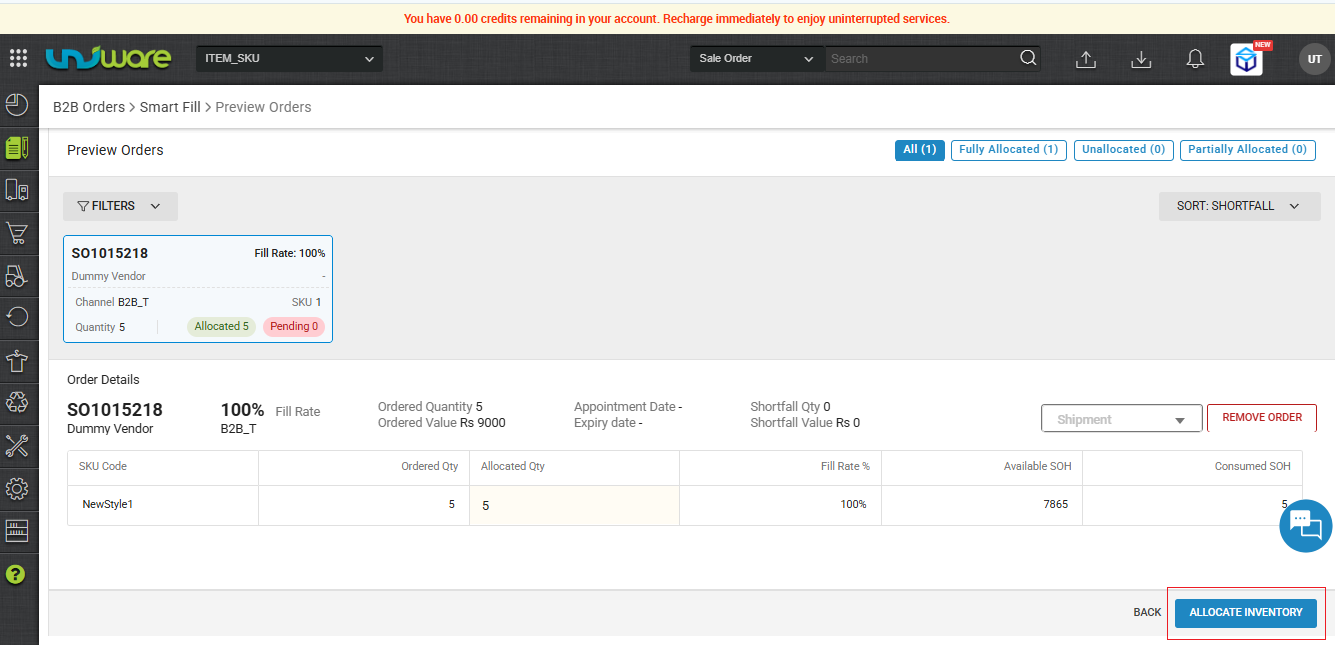
- Sellers can edit and view the SKU-level fill rate before clicking Allocate Inventory.
| Note : System deduct SOH & Order move to Allocated. |
Frequently Asked Questions (FAQs)
Q1: When is the actual Stock on Hand (SOH) deducted from my inventory?
Ans: SOH is only deducted at the very end of the process. During the “Planning” and “Preview” stages, the allocation is strictly temporary/simulated. The stock is officially deducted only when you click the Allocate Inventory button.
Q2: How does the system calculate my “Eligible Inventory” on the Smart Fill screen?
Ans: To ensure total accuracy, the system calculates eligible inventory by factoring in your reservation pools, specific storage areas, and dispatch tolerance.
Q3: Can I attach a Smart Fill allocation to an existing shipment?
Ans: Yes! During the preview stage, you have the option to attach the newly allocated items to an existing un-invoiced shipment to help consolidate your dispatch process.
| Note: The invoice for the existing shipment must not be generated yet. |
Q4: What happens if I try to allocate more stock than I actually have?
Ans: When you click Preview, the system performs a real-time validation. If your planned allocation exceeds the eligible stock, the system will flag the error so you can adjust the quantities before finalising.
Q5: Does Smart Fill give me visibility into upcoming stock?
Ans: Yes. The Smart Fill screen provides future inventory visibility, allowing you to track upcoming stock across other facilities, Goods Receipt Notes (GRN), and Work Orders.