
This feature allows us to give warehouses much better control over where and how stock is allocated for each channel.This enhancement is designed to bring allocation rules closer to real-world warehouse practices and reduce picking errors, returns, and inefficiencies.
Use Case Scenario
In a real warehouse scenario, staff often need to allocate stock based on specific rules—such as prioritizing inventory from a particular zone, using older stock first, or separating high-value items to controlled areas. With Advanced Stock Allocation, the system automatically applies these rules during order assignment, ensuring that pickers receive tasks aligned with warehouse layout, stock strategy, and operational priorities. This reduces manual decision-making, avoids incorrect picks, and streamlines overall fulfillment.
Introduction
Advanced Inventory Allocation empowers Warehouse Managers to create tailored stock allocation strategies by configuring:
- Storage Areas (Bulk vs Loose Storage Based Allocation):-
Assign Bulk shelves to B2B channels and Loose shelves to B2C channels to reflect actual warehouse segregation.
-
Priority Section Allocation (to prioritise specific zones within the warehouse):-
Set a priority picking section for a channel so allocation checks that section first before scanning other areas. Useful for prioritising Returned Inventory, RTD over Raw Material Inventory, Markdown inventory, etc. - LIFO/LEFO Allocation :-
Enable LIFO-based allocation for selected channels to ensure orders receive inventory with maximum shelf life. - Channel-level Requirements (B2B vs B2C segregation):-
Allocate stock for B2B orders from Bulk Sections in SPQ (Standard Pack Quantity) multiples, and fulfil the remaining quantity from Loose Sections.With this capability, teams can align the digital allocation process with the warehouse’s real physical layout and operational priorities.
Applicability
Version: Enterprise
Traceability: None, SKU, Item trace
Procedure
- Go to Settings → Advanced Stock Allocation
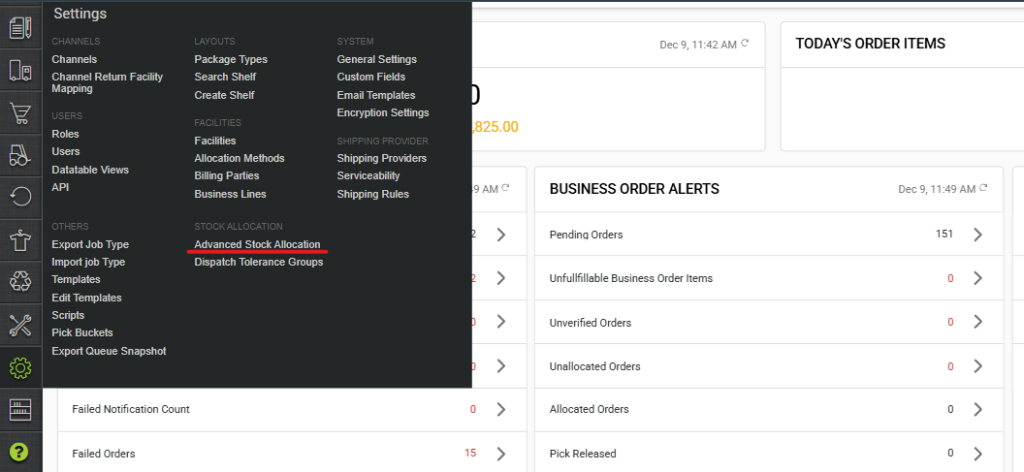
- To view this option, the user must have access to resource ‘Inventory_allocation_rule‘. This is available by default to ADMIN & WAREHOUSE MANAGER
- Click “Add Strategy”
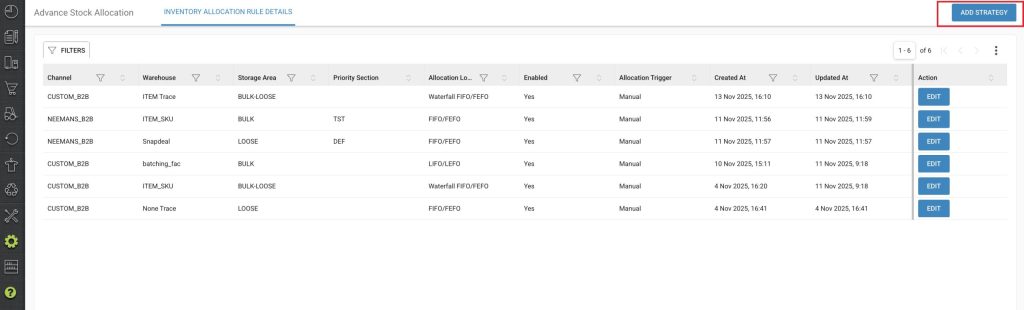
- Select a channel & a warehouse to apply a new strategy.
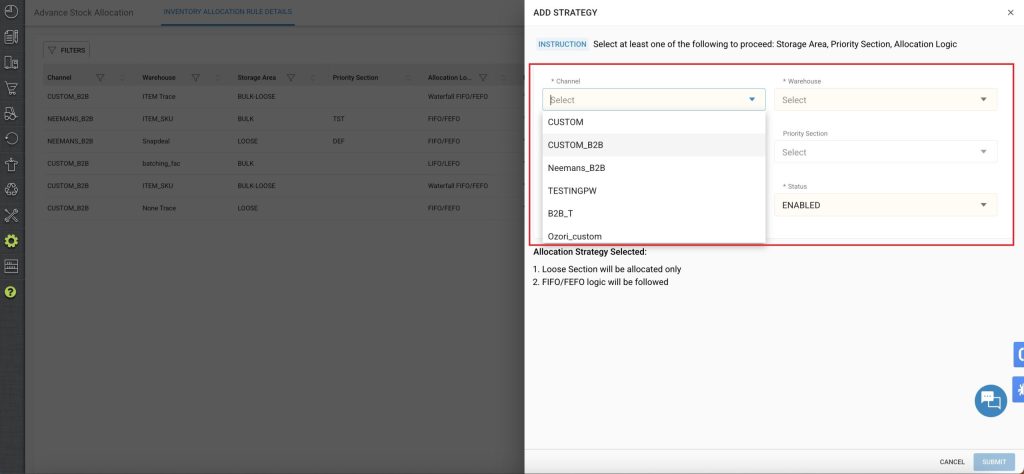
- FIFO/FEFO allocation logic & Loose section will appear by default as it is the default strategy in Uniware. You need to select any other option to create a new strategy
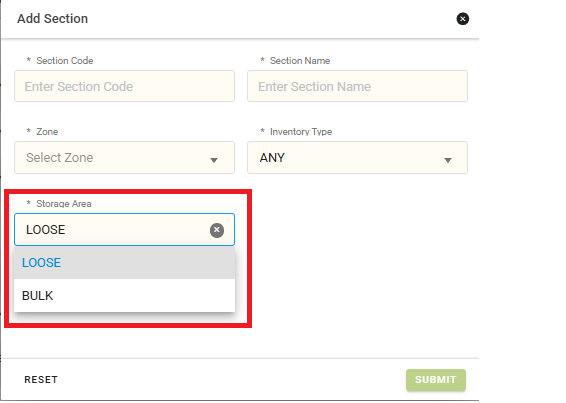
- Two storage types can be selected: Bulk & Loose. You can change the section storage type from the Edit Sections page.
- Four different allocation logic are available: 1) FIFO/FEFO in bulk sections (FIFO/FEFO in loose section is the default logic, no need to create a new strategy for the same) 2) LIFO/LEFO in bulk/loose sections 3)Waterfall Allocation – FIFO/FEFO 4) Waterfall Allocation – LIFO/LEFOWaterfall Allocation :-
In the Waterfall Allocation process, the system first looks up the SKU SPQ (Standard Package Quantity), where each SPQ is equal to 50. For an order quantity of 1020 units, allocation starts from the bulk stock. Since 1000 units are available in bulk, they are allocated first. The remaining 20 units, which do not complete a full SPQ, are then allocated from the loose stock.
- System automatically applies it to all future allocations for that channel.
If a strategy is disabled, allocation seamlessly reverts to the default FIFO/FEFO logic from Loose inventory.Configuration
Facility Level Config: “Enable Bulk Stock Allocation Strategy”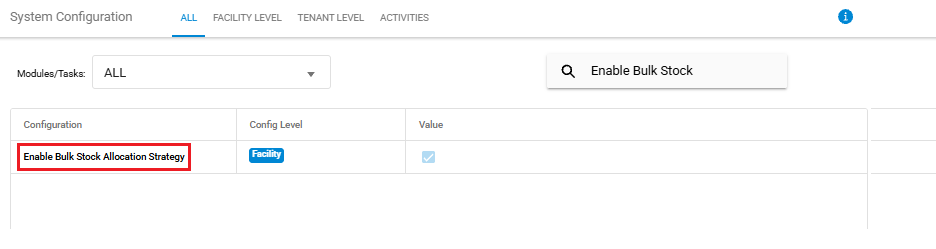
Limitation
Bulk Strategies will not work with Inventory Reservation Pool functionality. One of Bulk segregation or pooling will work at one point of time in the warehouse.