
Overview
It is physical container that assigned a unique, system-generated barcode label in unicommerce WMS.
It acts as scannable, trackable vessel that hold multiple SKU’s and used across multiple warehouse workflows.
Features
Handling Units (HUs) help you track and move inventory efficiently throughout your fulfillment center. Below are the core features of the HU system:
-
Unique Barcode Tracking : The system assigns a unique, sequential barcode ID (e.g., BOX00000001, BOX00000002) to every unit. This ensures that every package in your warehouse has a unique identity.
-
Customizable Package Types : Select the packaging that fits your shipment. While the system defaults to “BOX,” you can easily add other types like Pallets, Totes, or Crates in the settings.
-
One-Time Use Security : Protect your shipping accuracy with single-use barcodes. The system automatically expires a barcode once you complete an operation, preventing any accidental reuse of the same ID.
- Automated Label Management : Maintain a clean inventory flow by using fresh labels for every task. Once the system marks a label as “Used” or “Discarded,” it permanently removes it from circulation to avoid tracking errors.
Work-Flow
Handling Unit workflow completed in two Parts mentioned bellows
Part-1 : Create HU Pool
Part-2 : Print HU Labels
Part-1 : Create HU Pool
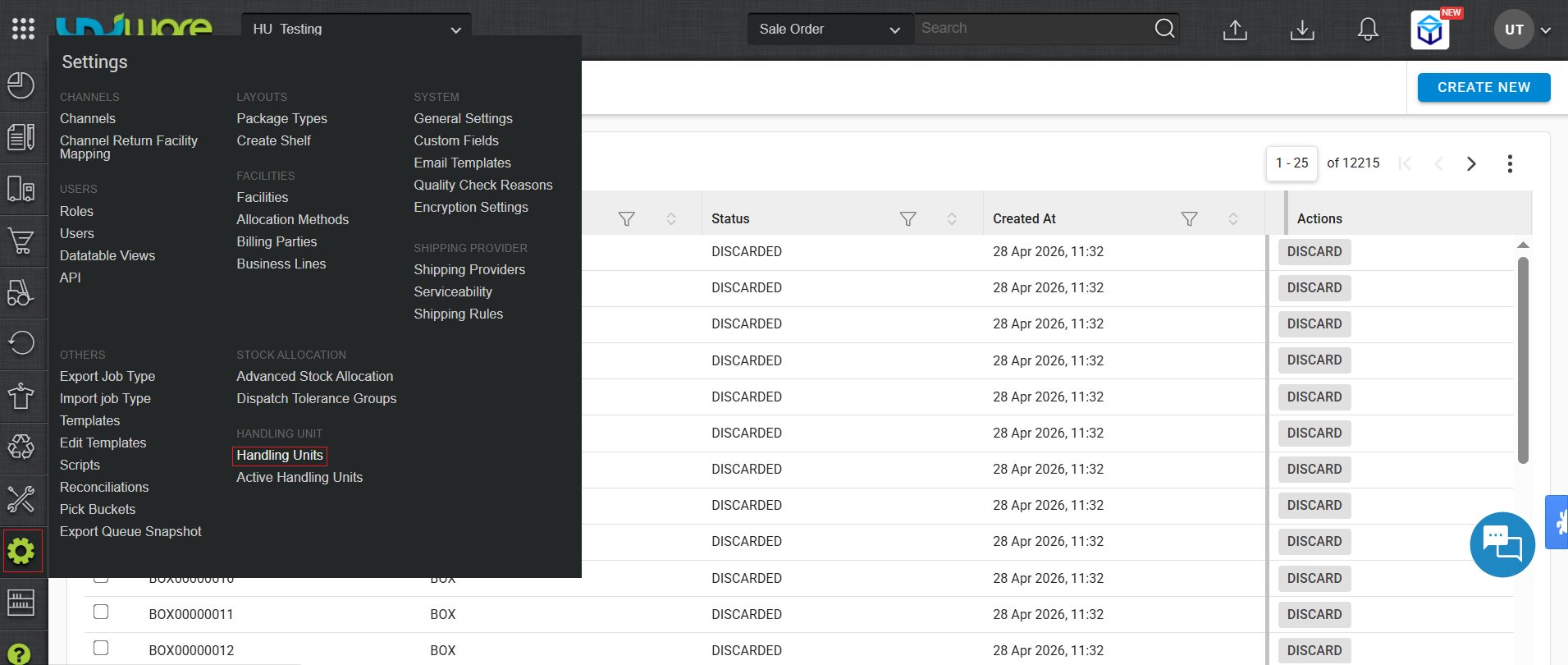
Step-1 : Visit Uniware Menu, Hover on Settings & Click
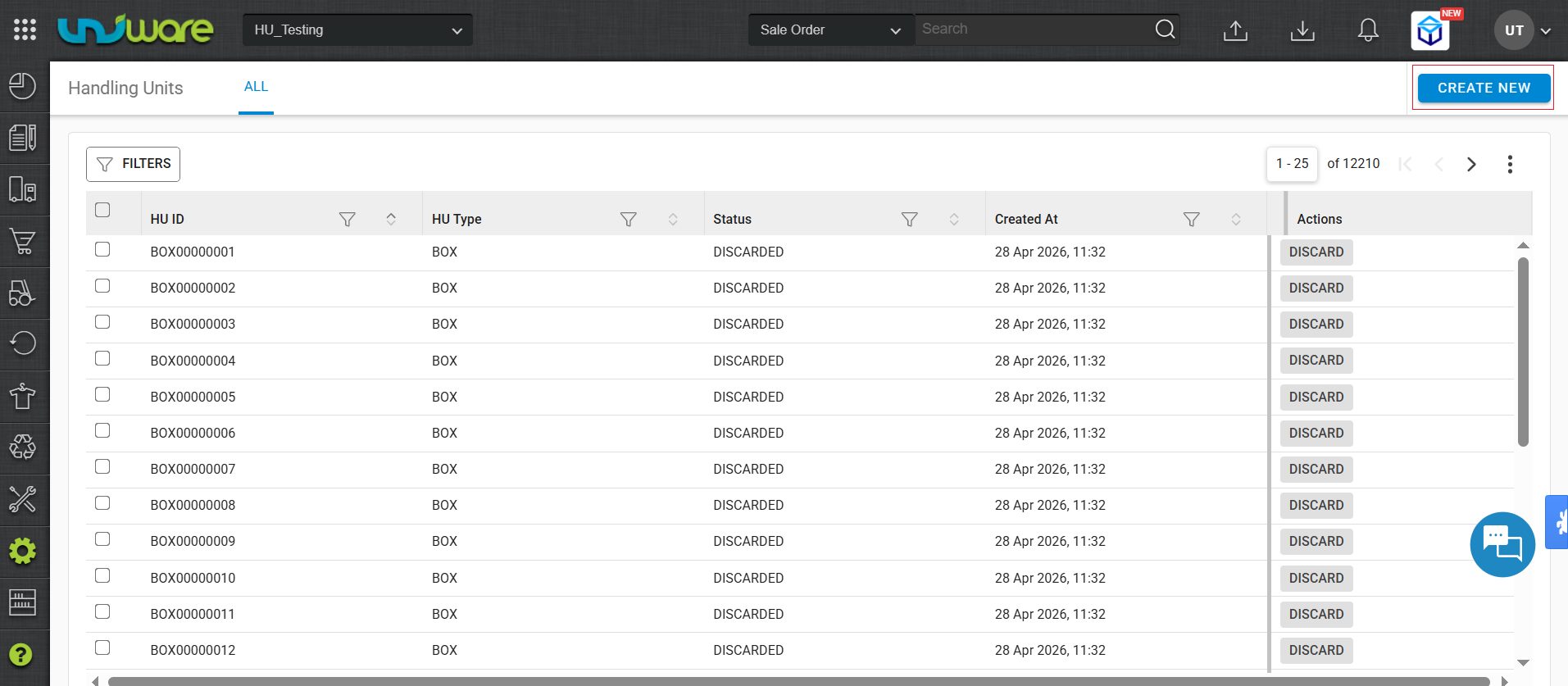
Step-2 : Click Create New
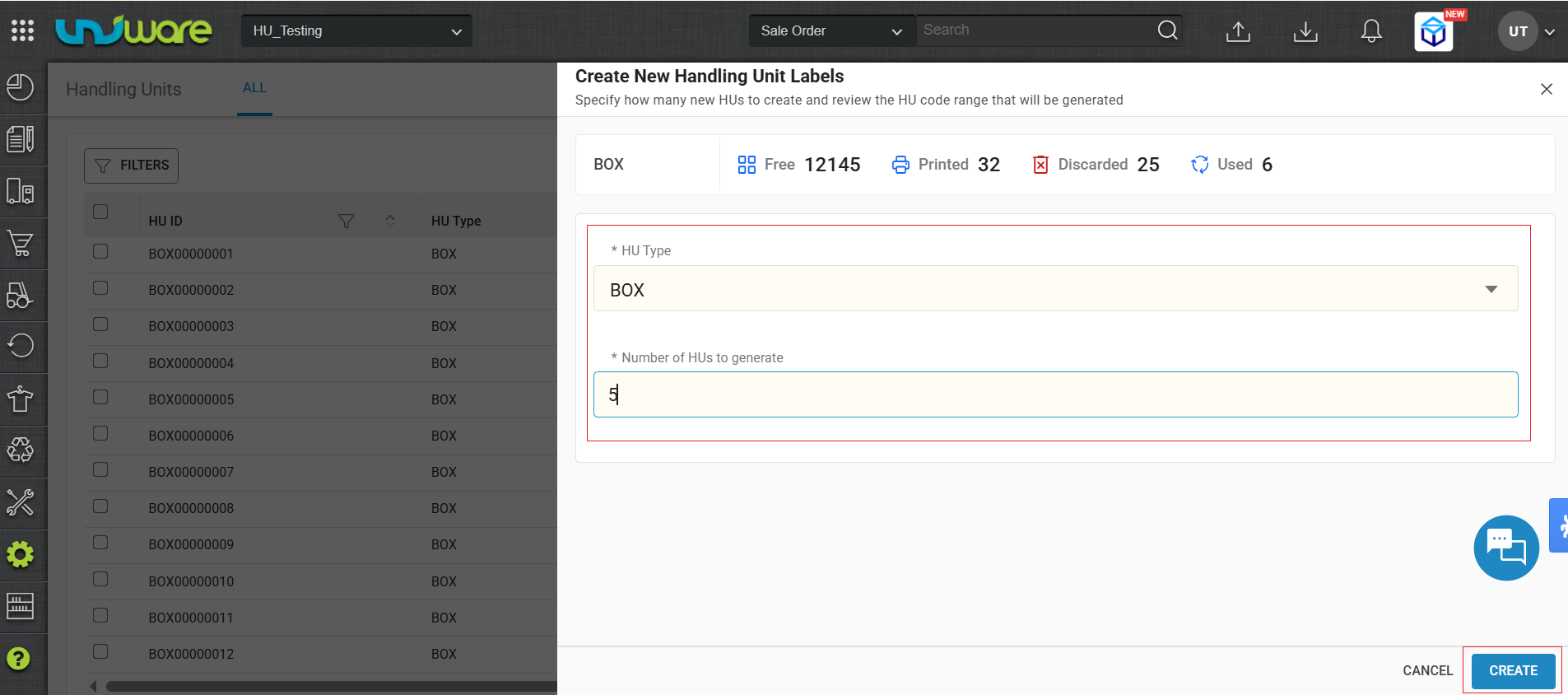
Step-3 : Filled Required Information and No of Barcode, click Create.
Step-4 : Display Created Barcode

Part-2 : Print HU Label
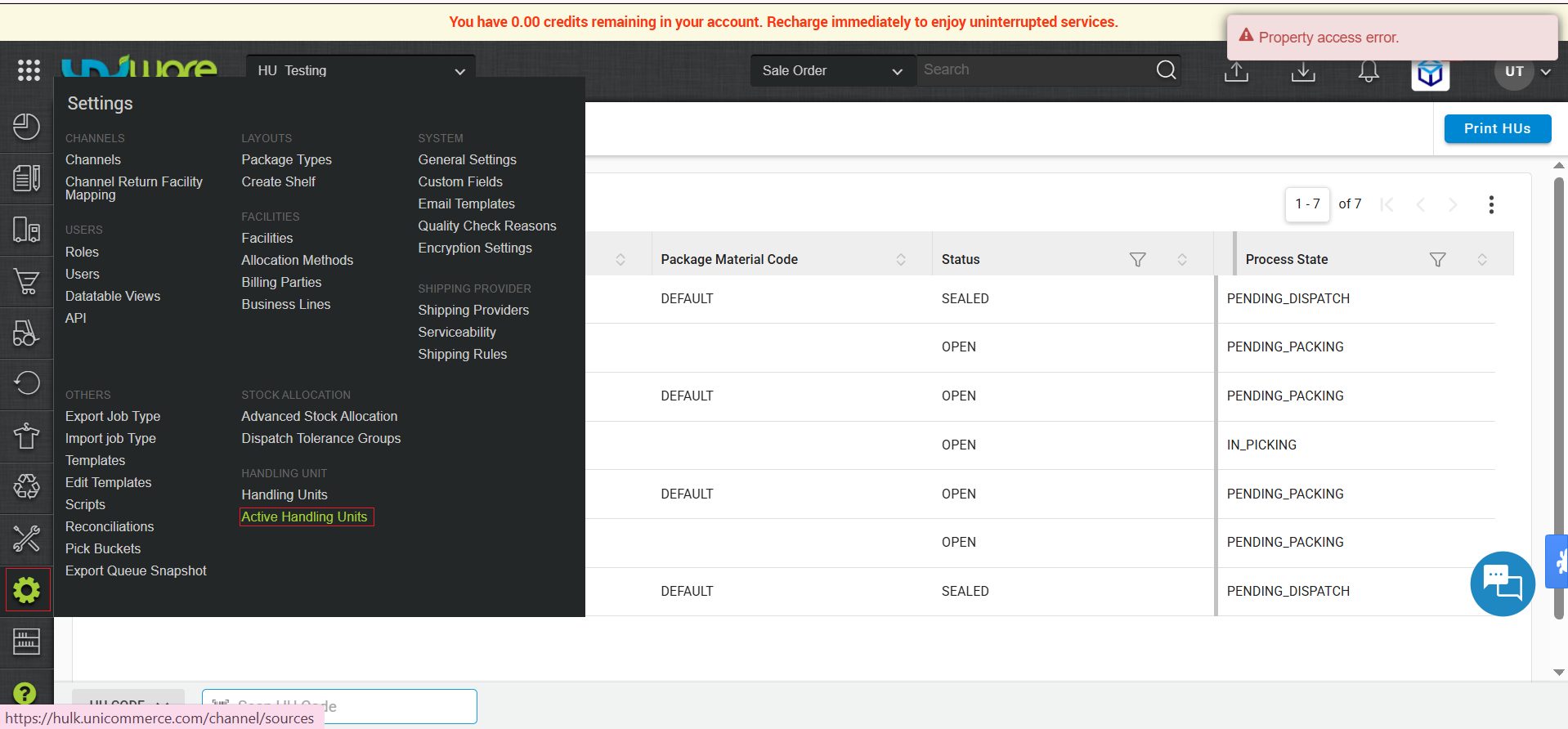
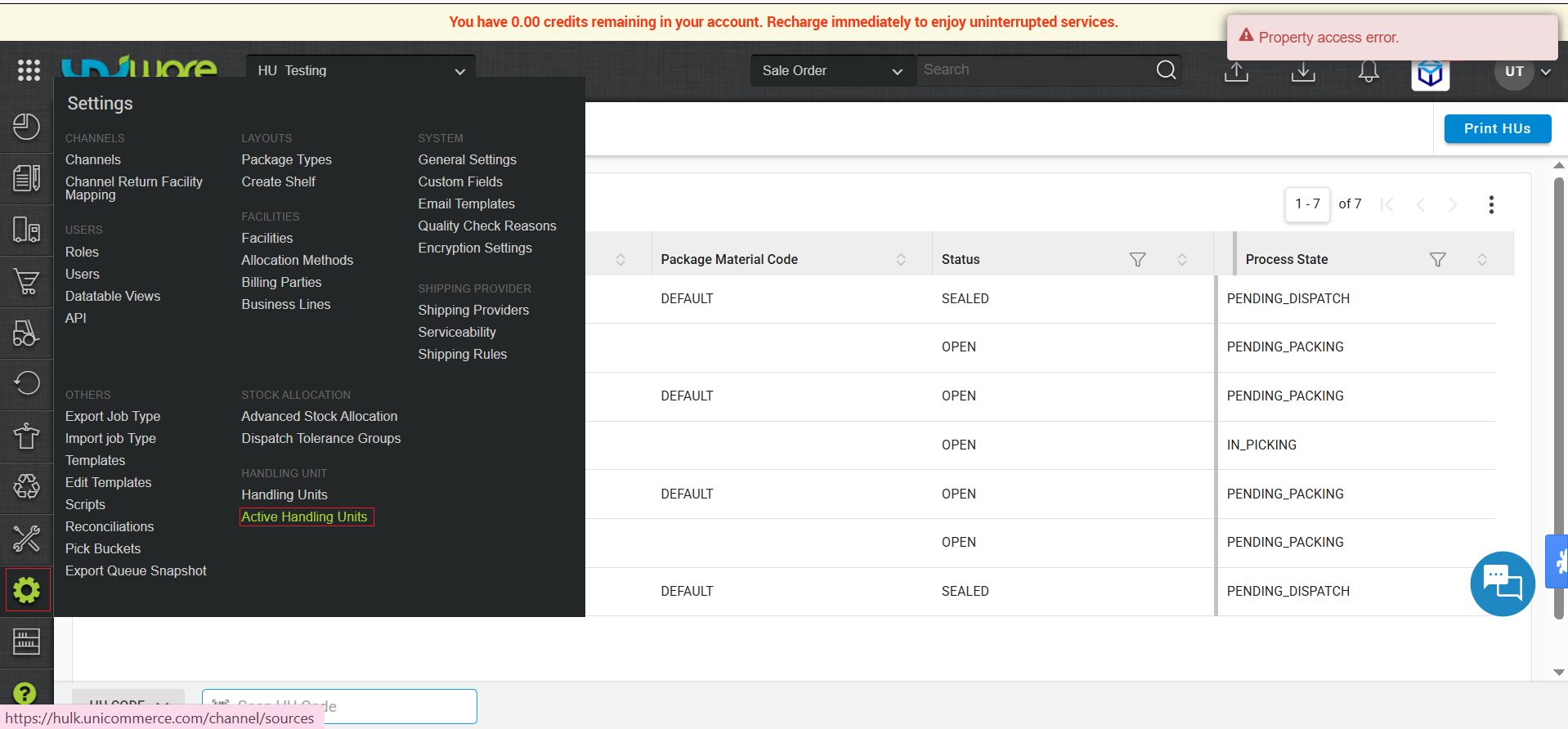
Step-1 : Visit Uniware Menu, Hover Settings & Click Active Handling Unit.
Step-2 : Click Print HUs
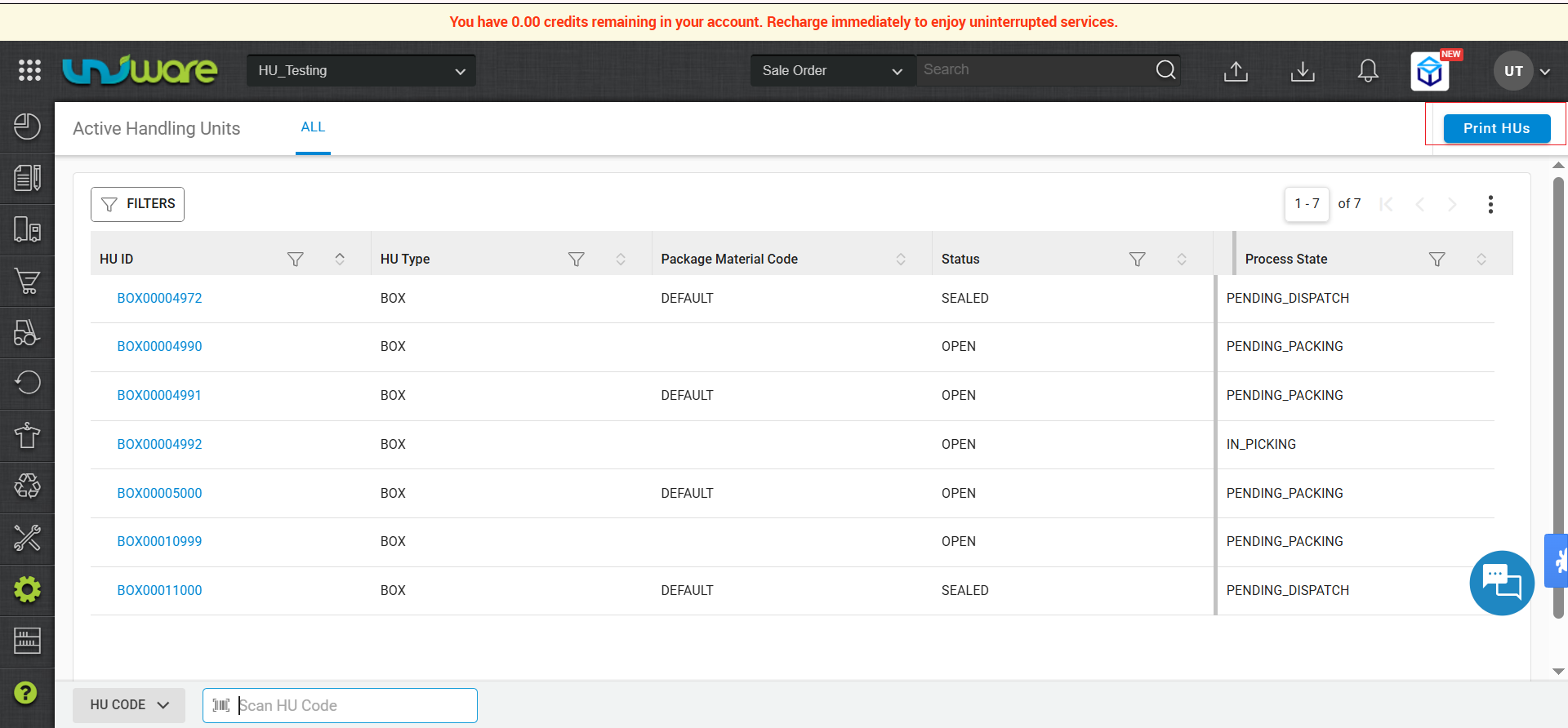
Step-3 : Filled Required Information & Click Print
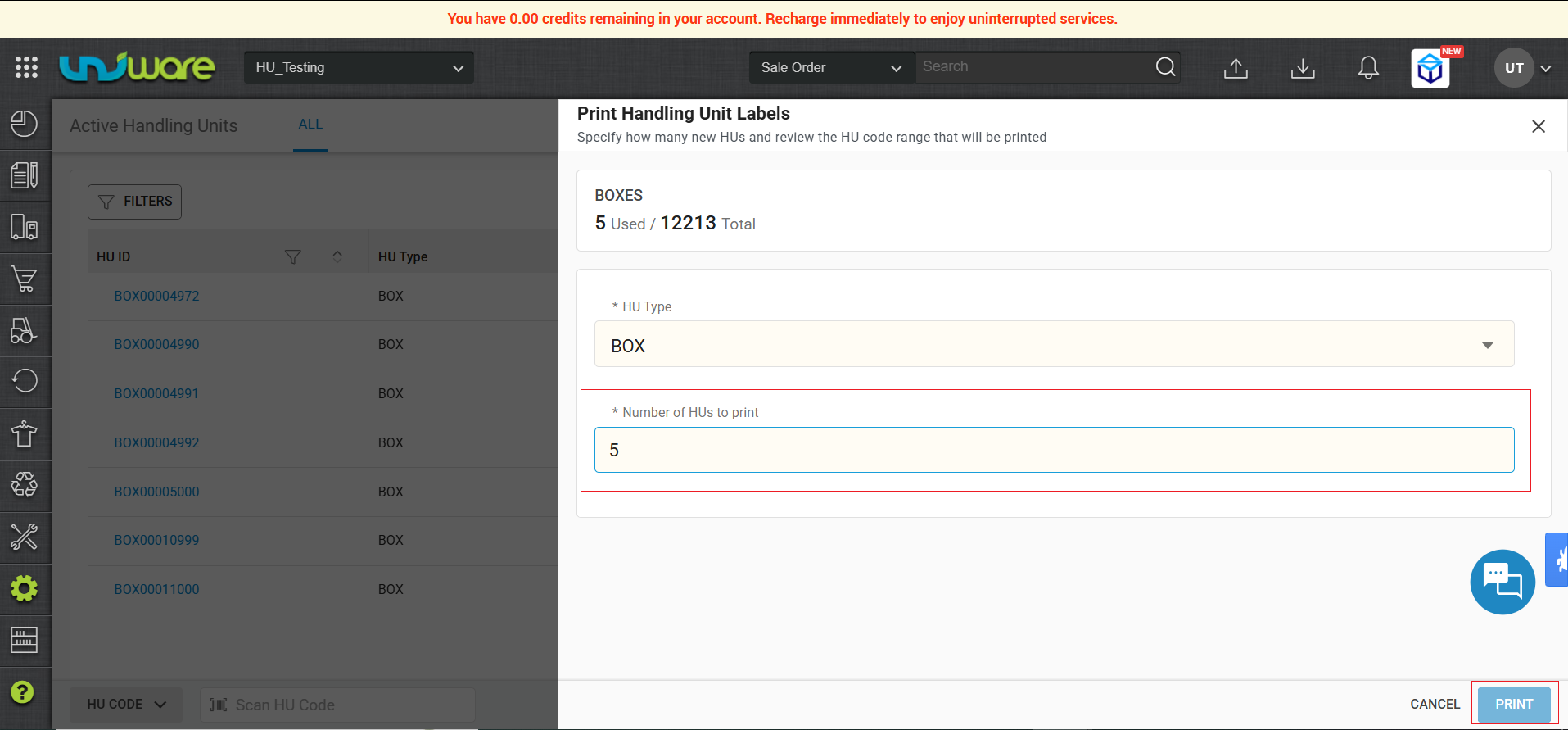
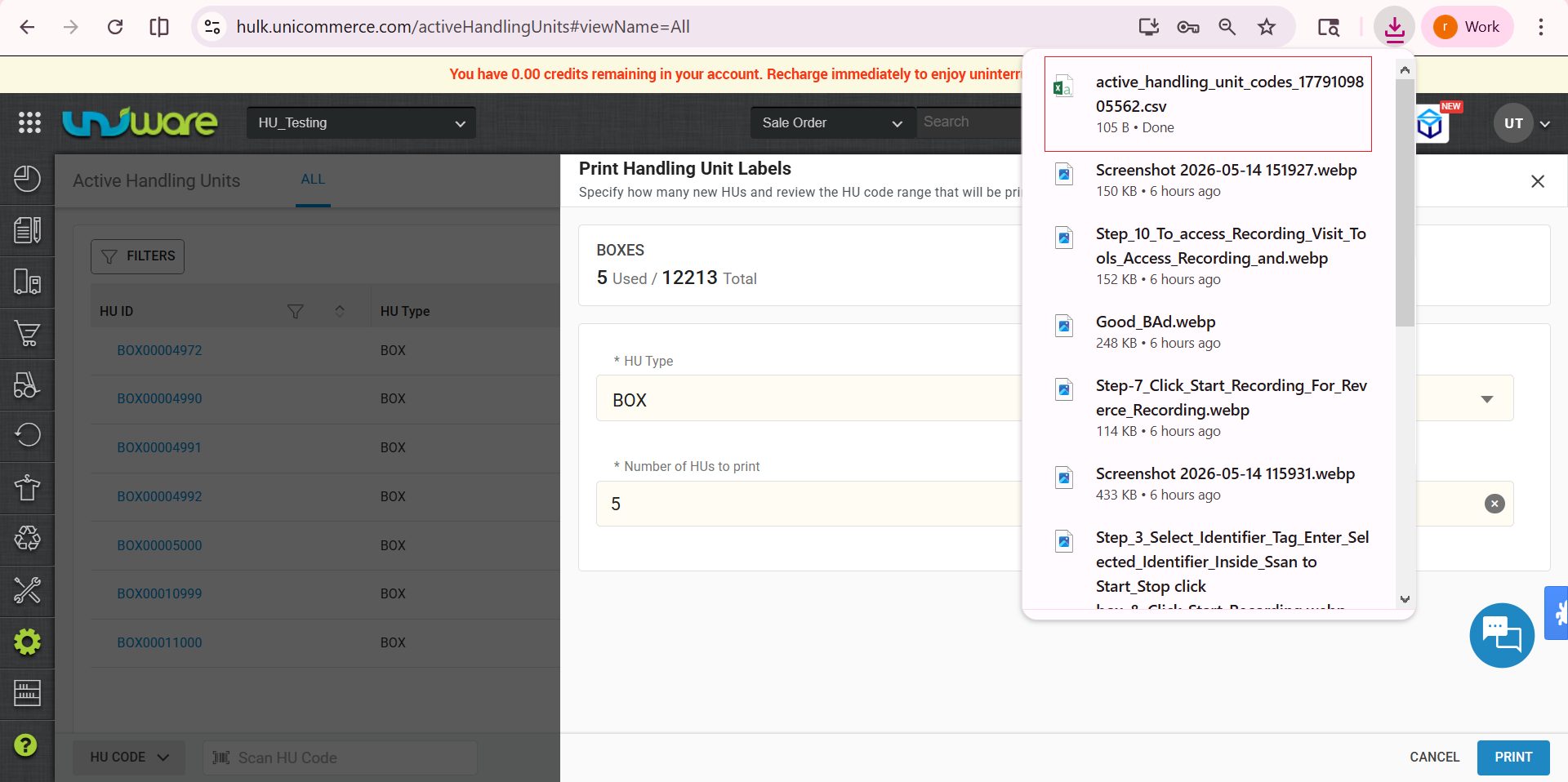
Step-4 : Print/Download Unique Hu’s Labels
Step : Hover Settings, Click Handling Unit to See Printed Records of HUs
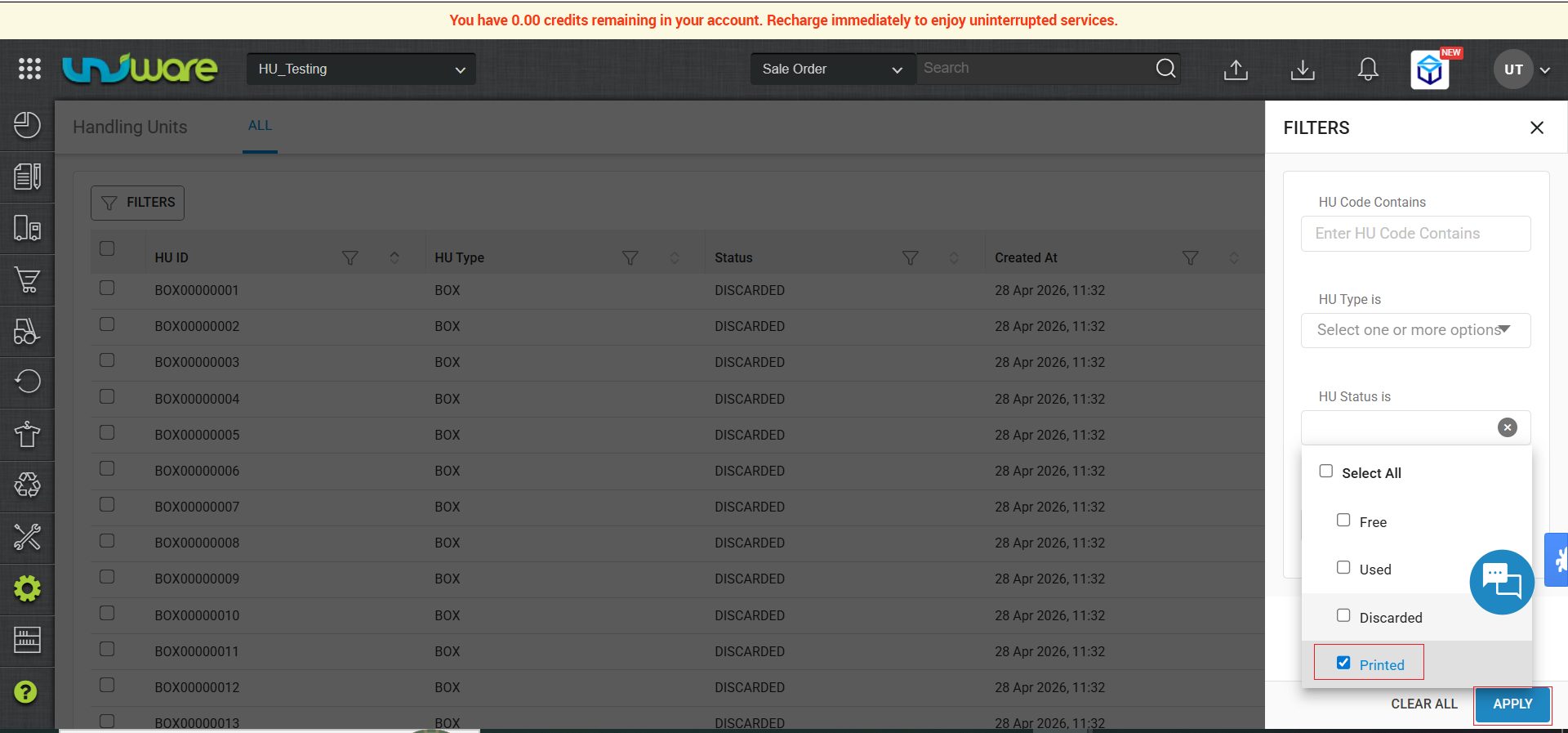
Step-6 : Apply Filter Printed and Click Apply , See Printed HU’s
Frequently Asked Question
Q: Can I reuse an HU after it has been used in an operation?
A : No. Once an HU is marked Used, the system permanently prevents it from being reused. Always use
labels from the FREE pool for new operations.
Q: What if a label is damaged, lost, or a box is misplaced?
A : You can discard the HU from the Handling Units screen (find the HU > DISCARD action). The discarded label is removed from the active pool. Then print a new HU label and use that for the operation.
Q: What is the difference between Used and Discarded?
A : Used means the HU was assigned to a warehouse operation that completed — the system sets this automatically. Discarded means the label was manually removed from the pool by a user before or without being used in any operation.
Q: How many HUs should I keep in the pool at all times?
A : Maintain at least enough FREE + PRINTED labels to cover one full shift of expected operations, plus a 20–30% buffer. Check the Handling Units list screen daily and top up before operations begin.
Q: What HU Types are available?
A : Currently Unicommerce supports BOX as the default HU type.