
Introduction
Overview
Uniware now allows eligible users to edit an Approved Purchase Order (PO) directly without cancelling it or creating a new one.
You can update the quantity of an existing line item or add a brand-new SKU to the same PO, while the PO number stays unchanged throughout the entire inward cycle.
Purpose
- Set a pre-configured exception limit to allow a buffer (but new SKUs still could not be added).
- Cancel the approved PO and raise a fresh one causing manual rework, duplicate records, and ERP reconciliation issues.
PO Edit After Approval removes this discrepancies, You can correct the PO in place, keep the original PO number, and proceed with the GRN no duplicate records.
Key Features
This are the Key Features
- In-Place Editing : Update an approved PO directly without cancelling or re-creating it.
- Stable PO Number : The PO number never changes, so vendor and ERP references stay intact.
- Quantity Update : Increase or decrease the ordered quantity on any existing line item.
- Add New SKU : Add a brand-new SKU to the approved PO subject to vendor-item mapping.
- Role-Based Access : Only users with the ‘Edit Approved PO’ permission can make changes.
- GRN Protection : Items already received via GRN are locked and cannot be edited.
- No Vendor/Price Edits : Vendor and price fields remain protected to preserve commercial integrity.
Pre-Requisites
Before you edit an approved PO, confirm that the following conditions are met:
PO Status
- The PO must be in Approved status.
- Editing is not available once the PO reaches Completed status.
- Partially received POs (some GRN done) are editable but only for line items not yet received.
User Permission
- Uniware user role must include the Edit Approved PO permission EDIT_PO_AFTER_APPROVAL & PO_APPROVE .
- This Edit action button option visible on ADMIN Role by default.
| Note : Contact your Uniware administrator to enable this permission for the relevant roles. |
SKU Rules (for adding a new SKU)
- The new SKU must already exist in the Uniware item master.
- The SKU must be mapped to the vendor associated with the PO. If the mapping is missing, Uniware will block the addition.
Editable & Non-Editable Fields
| Field / Scenario | Editable? | Reason |
| Line-item quantity (not yet GRN-ed) | ✅ Yes | Safe to update before goods are received. |
| Adding a new SKU (vendor-mapped) | ✅ Yes | Allowed with valid vendor-item mapping. |
| Items already received via GRN | ❌ No | GRN-ed items are locked to protect receipt integrity. |
| Vendor name | ❌ No | Vendor changes require a new PO. |
| Unit price / rate | ❌ No | Price changes require a new PO or commercial amendment. |
| Completed POs | ❌ No | All items fulfilled — PO is closed. |
Process Flow PO Edit After Approval
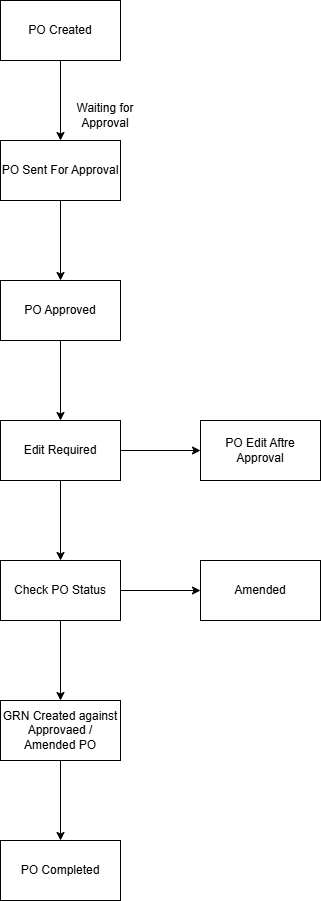
| Note : When you edit an Approved PO, Uniware automatically updates the PO status to Amended. This status acts as a clear signal to your team and ERP that the PO was modified post-approval with a complete change record in the audit trail. |
How to Edit a Purchase Order After Approval
Follow these steps to edit an approved PO in Uniware. Make sure you have the required permission before you begin.
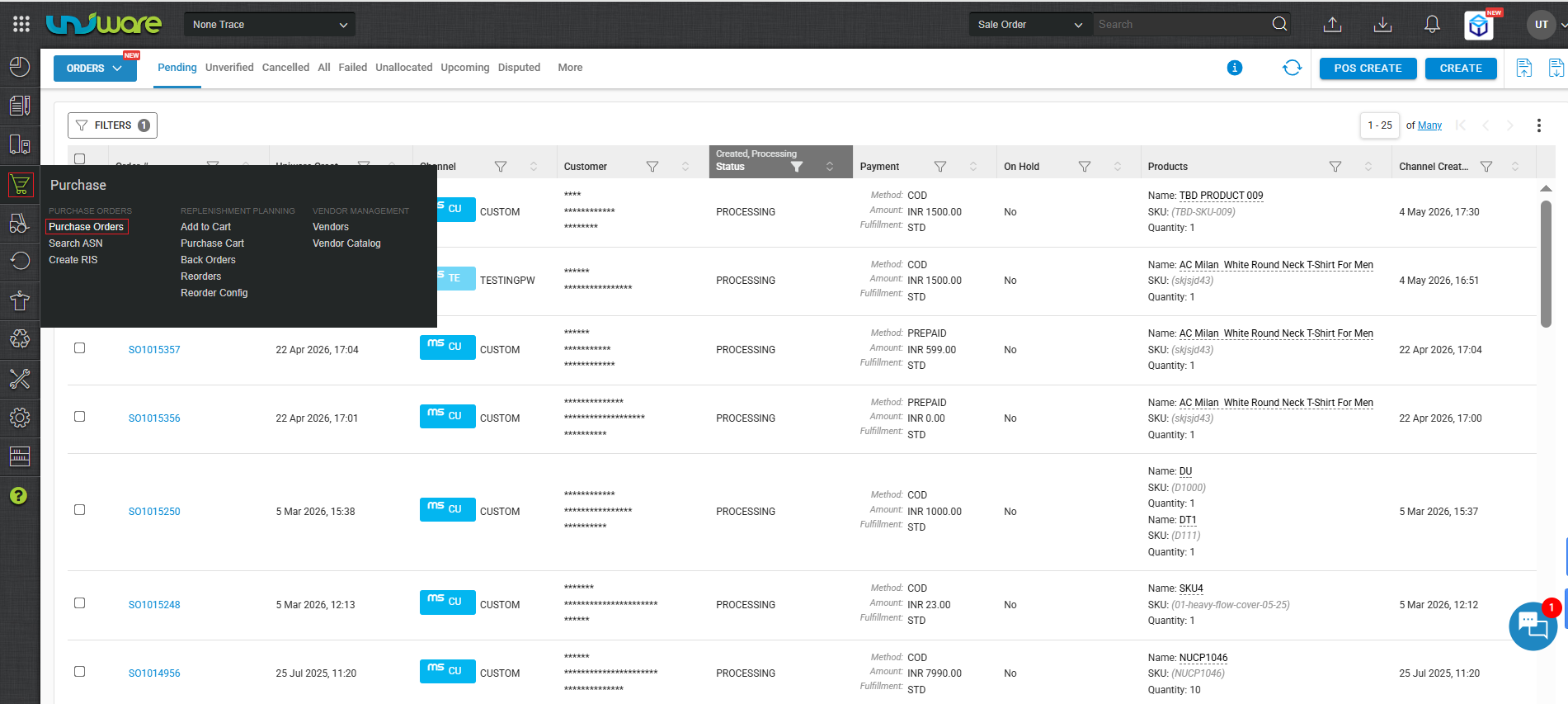
Step-1 : Login Uniware, Hover Purchase and Click Purchase Order.
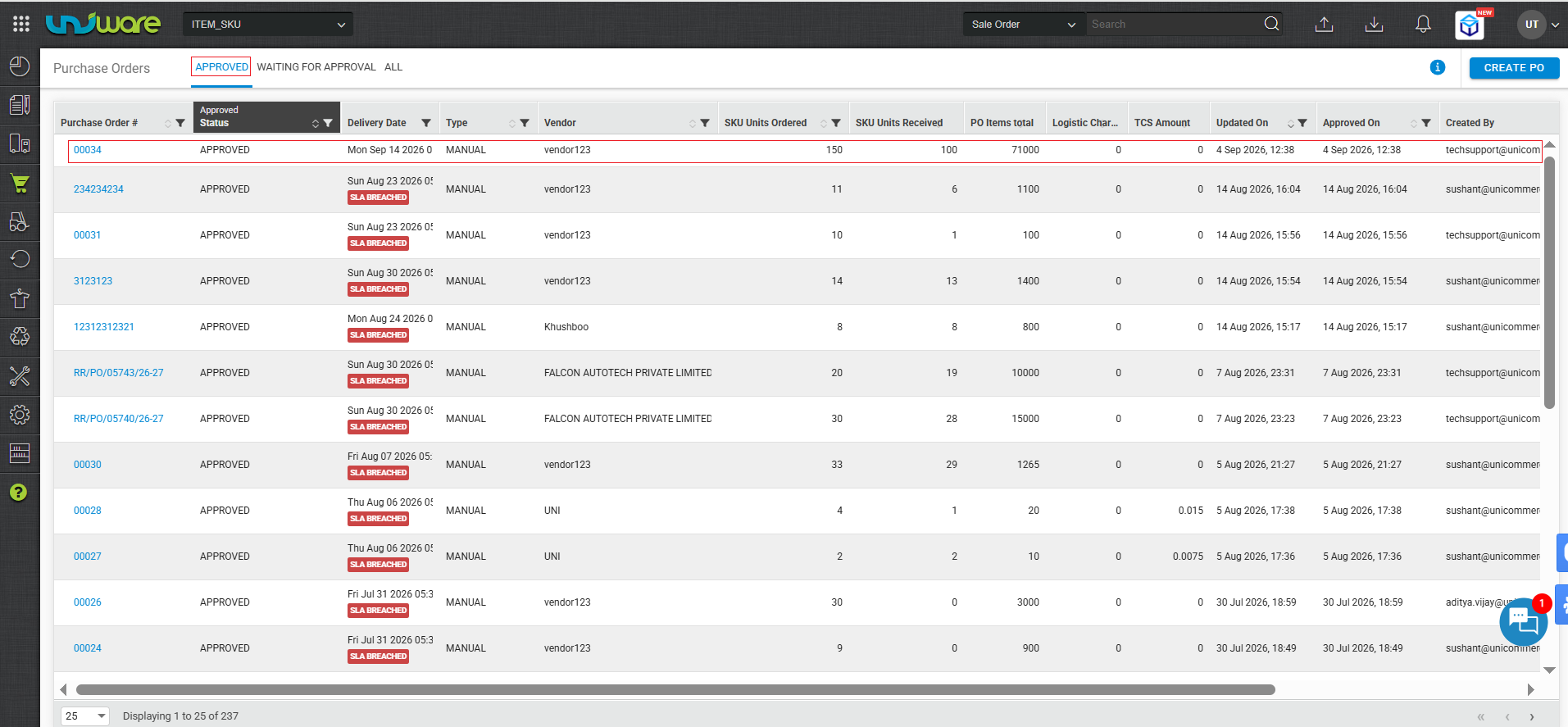
Step-2 : Visit Purchase Orders, Navigate to APPROVED Tab and Click on PO.
Step-3 : Click on Edit Button.
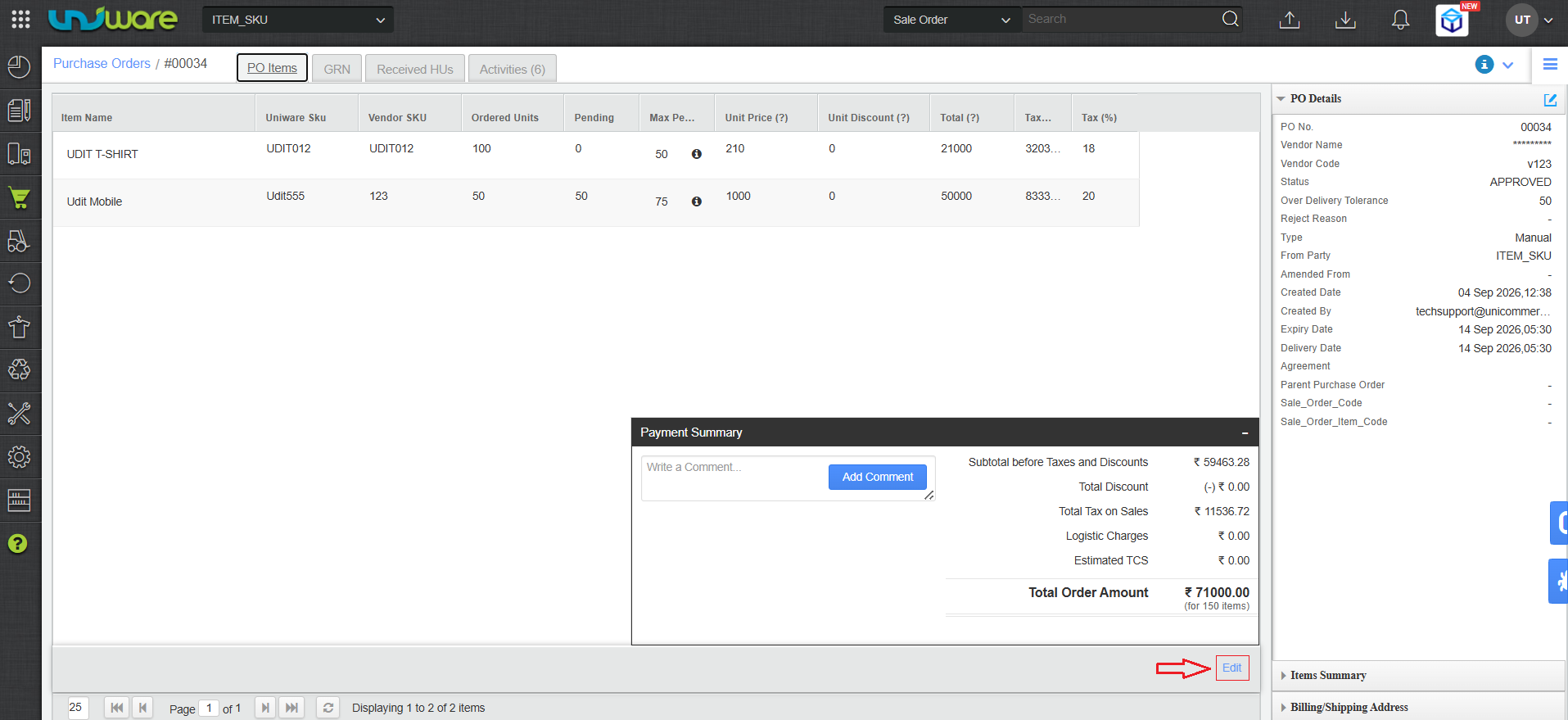
Step-4 : Make Changes and Click on SAVE.
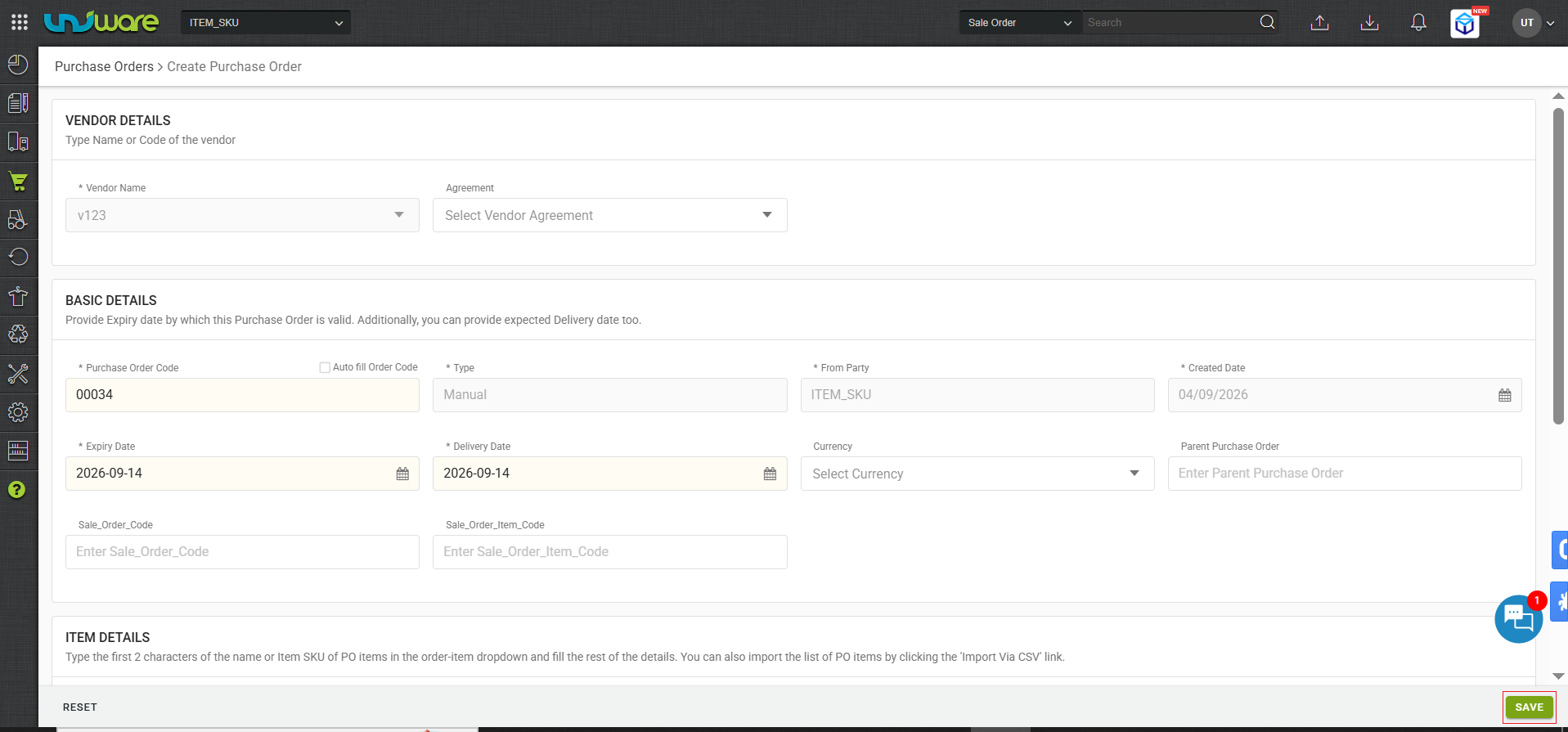
- Update Quantity of Existing Line Item.
- Add new SKU.
Note :
|
Important Points
Keep the following rules in mind when using PO Edit After Approval:
- PO Number Never Changes : The PO number remains the same after any edit. This ensures your vendor and ERP references stay consistent, and you avoid reconciliation mismatches.
- Status Changes to ‘Amended’: As soon as you save an edit, Uniware automatically updates the PO status from Approved to Amended. The PO is still active and a GRN can be created against it.
- GRN-ed Line Items Are Locked: If a GRN has already been created for a specific line item, that item’s quantity is locked. You cannot reduce the quantity below what has already been received.
- New SKU Requires Vendor-Item Mapping: You cannot add a SKU to the PO if the SKU is not mapped to the PO vendor. Set up the vendor-item mapping in Vendor Management before attempting to add the new SKU.
- Vendor and Price Fields Are Protected: Vendor name and unit price fields are locked throughout the edit. These changes require a new PO or a formal commercial amendment outside Uniware.
- Completed POs Cannot Be Edited: Once all items on a PO are received and the status moves to Completed, the PO is closed. No further edits are possible.
- Every Edit Is Audited: Uniware logs all changes with the user email, timestamp, and the old and new values. This log is immutable it cannot be deleted or altered.
- Role-Based Access Applies: Only users with the Edit Approved PO permission see the Edit button. If the button is missing, ask your Uniware administrator to assign the correct role.
Frequently Asked Questions (FAQs)
Q1. Can I edit a PO that is in ‘Waiting for Approval’ status?
A. No. This feature applies only to Approved POs. A PO that is still waiting for approval can be edited through the regular PO edit flow before approval.
Q2. Will the PO number change after I edit an approved PO?
A. No. The PO number stays the same. Only the status changes to Amended to indicate a post-approval modification.
Q3. Can I reduce the quantity of a line item that has already been partially received?
A. No. You cannot reduce the quantity of a line item below the amount already received via GRN. You can, however, increase the quantity.
Q4. I do not see the Edit button on an approved PO. What should I do?
A. The Edit button is visible only to users with the Edit Approved PO permission. Contact your Uniware administrator to enable this permission for your role.
Q5. Can I add a SKU from a different vendor to the PO?
A. No. Every SKU you add must be mapped to the vendor already on the PO. If you need items from a different vendor, create a separate PO for that vendor.
Q6. Can I change the vendor on an approved PO?
A. No. Vendor changes are out of scope for this feature. A vendor change requires a new PO.
Q7. Can I change the unit price of a line item?
A. No. Price changes are protected to preserve commercial integrity. Raise a new PO or a formal commercial amendment if the price needs to change.
Q8. What happens if I edit a PO that is already in Amended status?
A. You can continue to edit an Amended PO as long as it has not reached Completed status. Each subsequent edit is logged separately in the audit trail.
Q9. Does editing a PO affect the GRN that is already created?
A. No. Existing GRN records are not affected. The edit applies only to the PO future GRNs will reference the updated PO quantities.
Q10. How do I view all edits made to a PO?
A. Open the PO detail page and navigate to the Audit Log / Change History section. Every change is listed with user email, timestamp, and before/after values.
Q11. Can I edit a PO after it is Completed?
A. No. A Completed PO is fully closed. No edits are possible once all items have been received.
Q12. Is this feature available for all sellers on Uniware?
A. The feature requires the Edit Approved PO permission to be enabled for your account and user role. Contact your Unicommerce account manager or support team if this feature is not available in your Uniware instance.