
Purpose
The Handling Unit (HU) workflow digitally associates physical items with specific containers during the picking process.
Instead of picking a large pile of items and sorting them into boxes later, this system ensures the warehouse knows exactly which item is in which box at every second of the process
Key Objectives
To explain it even more simply, the workflow achieves three things:
-
Accuracy : It forces pickers to scan a box barcode (the HU) before they can scan an item. This creates a “digital twin” of the physical box in real-time.
-
Efficiency at the Dock: The system already knows what is inside the box (from Step 1), the packer at the dock doesn’t have to re-scan every single item. They just scan the box once, verify the contents on the screen, and print the label.
-
Real-Time Tracking: It provides “Process States” (Pending Picking, Pending Dispatch, Dispatched) so knows exactly where every box is located in the warehouse.
Prerequisites
- Handling Unit (HU) Barcode labels are printed & affixed to empty boxes on the warehouse floor.
- Pickers are equipped with handheld devices.
Configuration
- Enable Box HU- Facility Level
- Pre Packed with HU – Channel Level
1. Enable Box HU
This Configuration activates HU functionality for the facility.
How to Configure
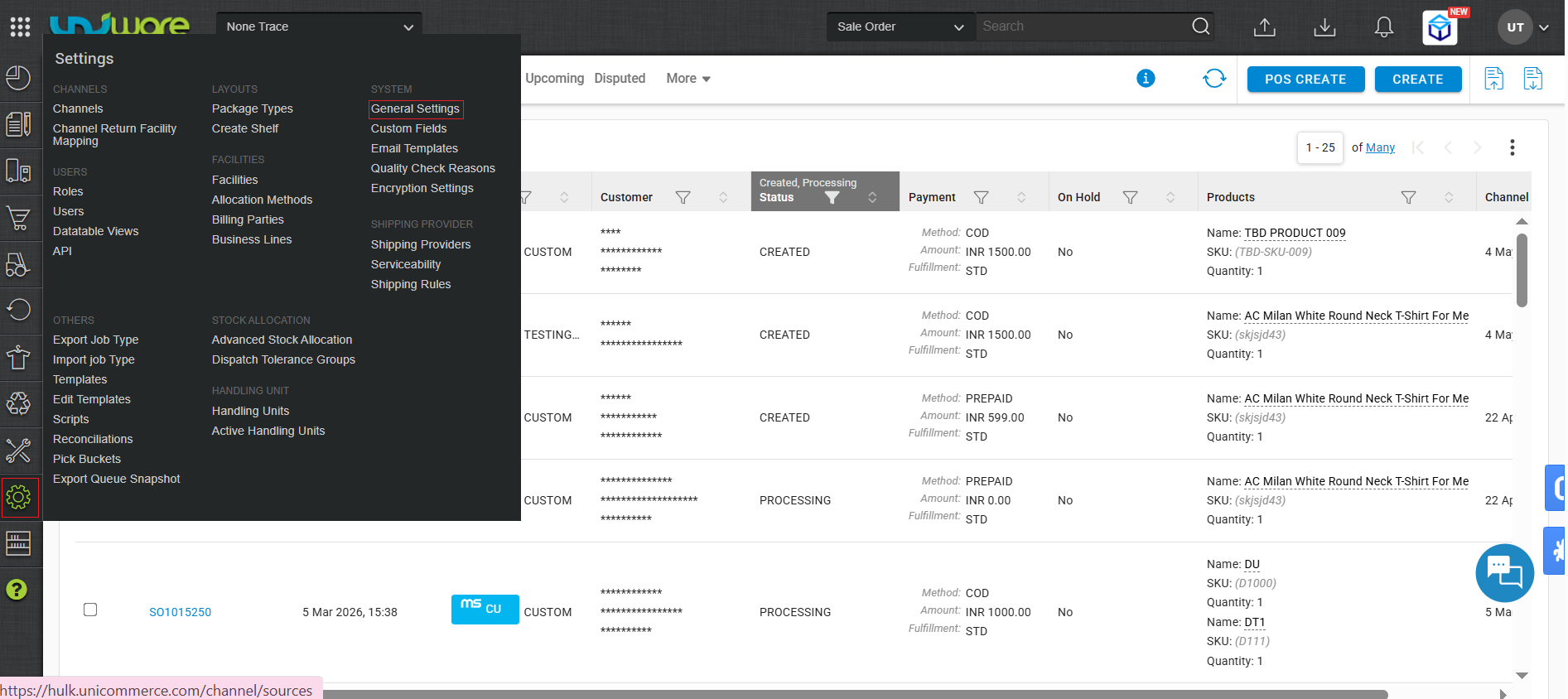
Step-1 : Visit Uniware Menu, Hover Settings Tab & Click General Settings
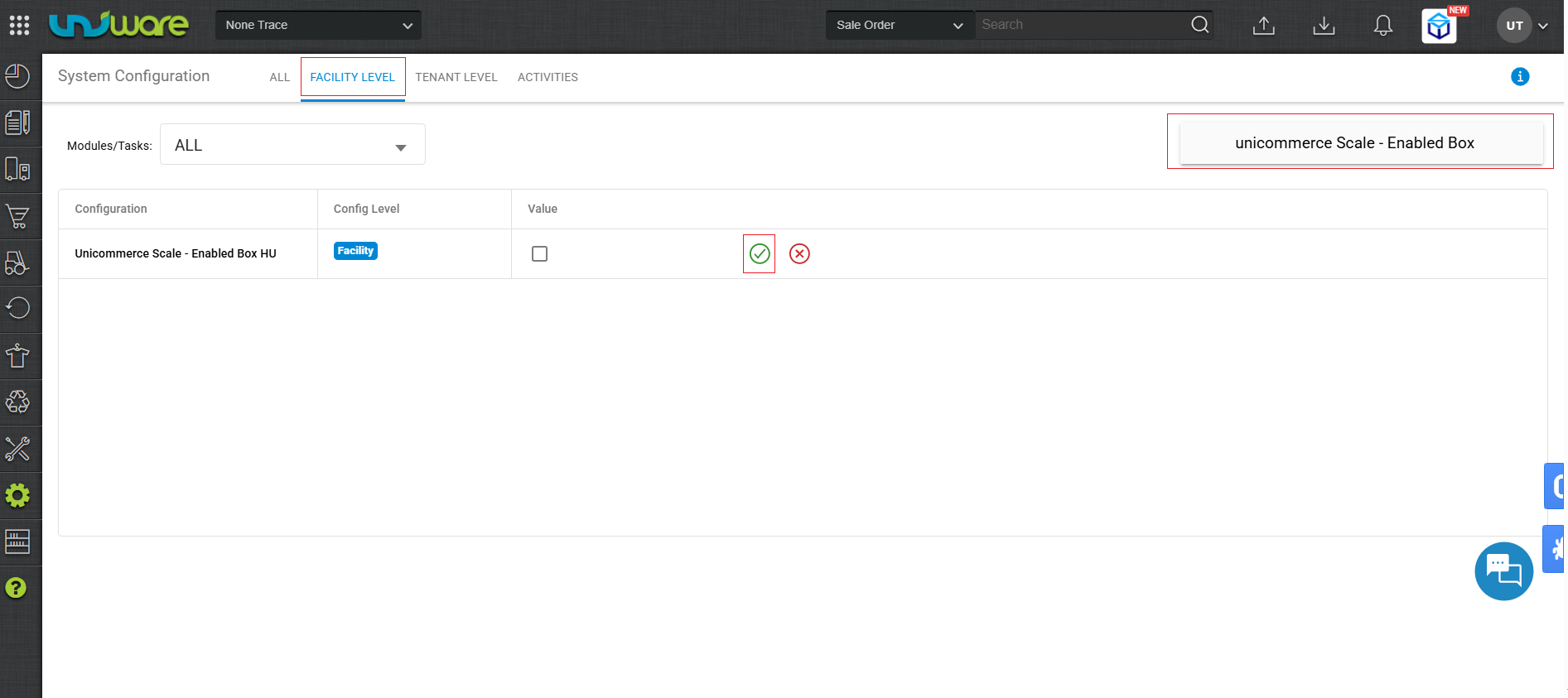
Step-2 : Click Facility Level Tab, Search & Mark Check Box of Unicommerce Scale – Enable Box HU.
Pre Packed with HU
How to Configure
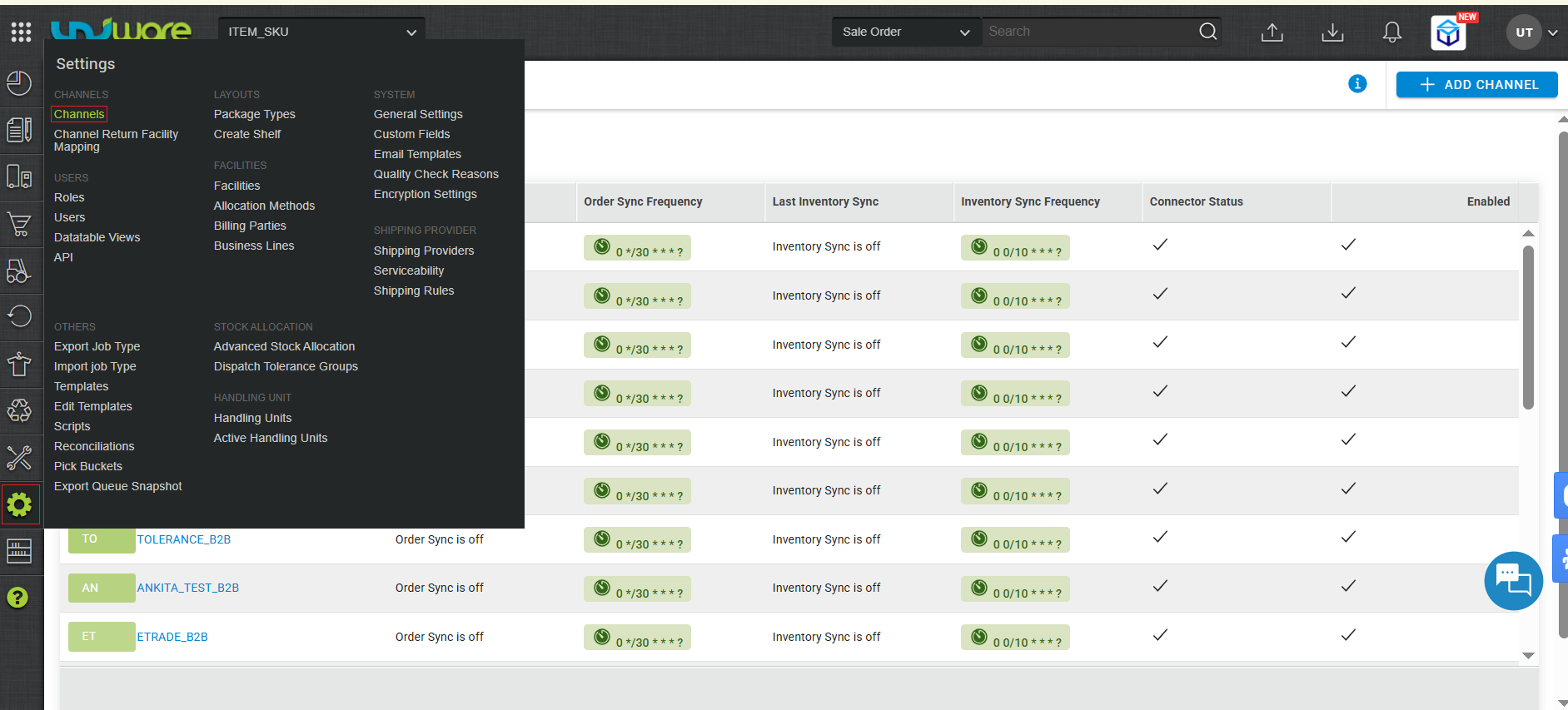
Step-1 : Visit Uniware Menu, Hover Tab Setting & Click Channels
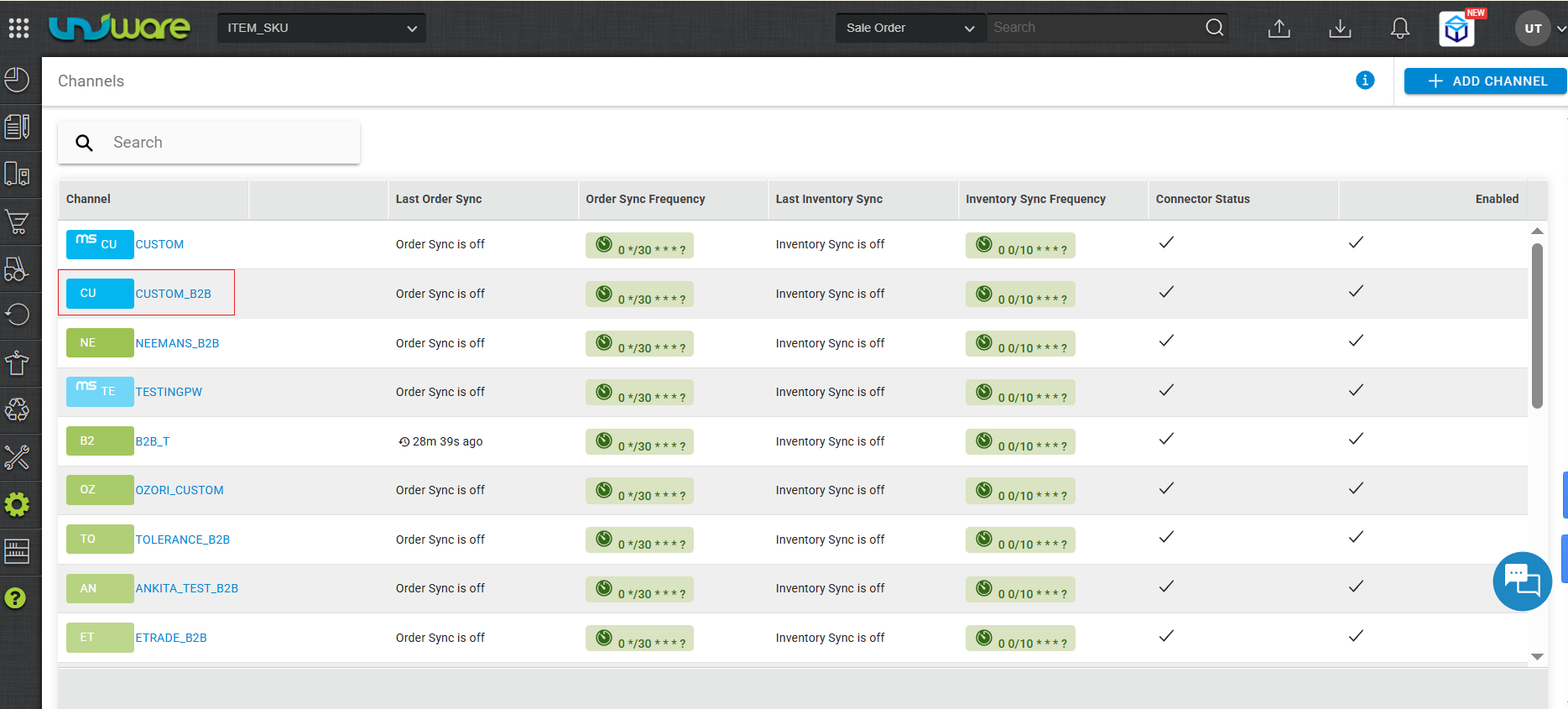
Step-2 : Click B2B Channel
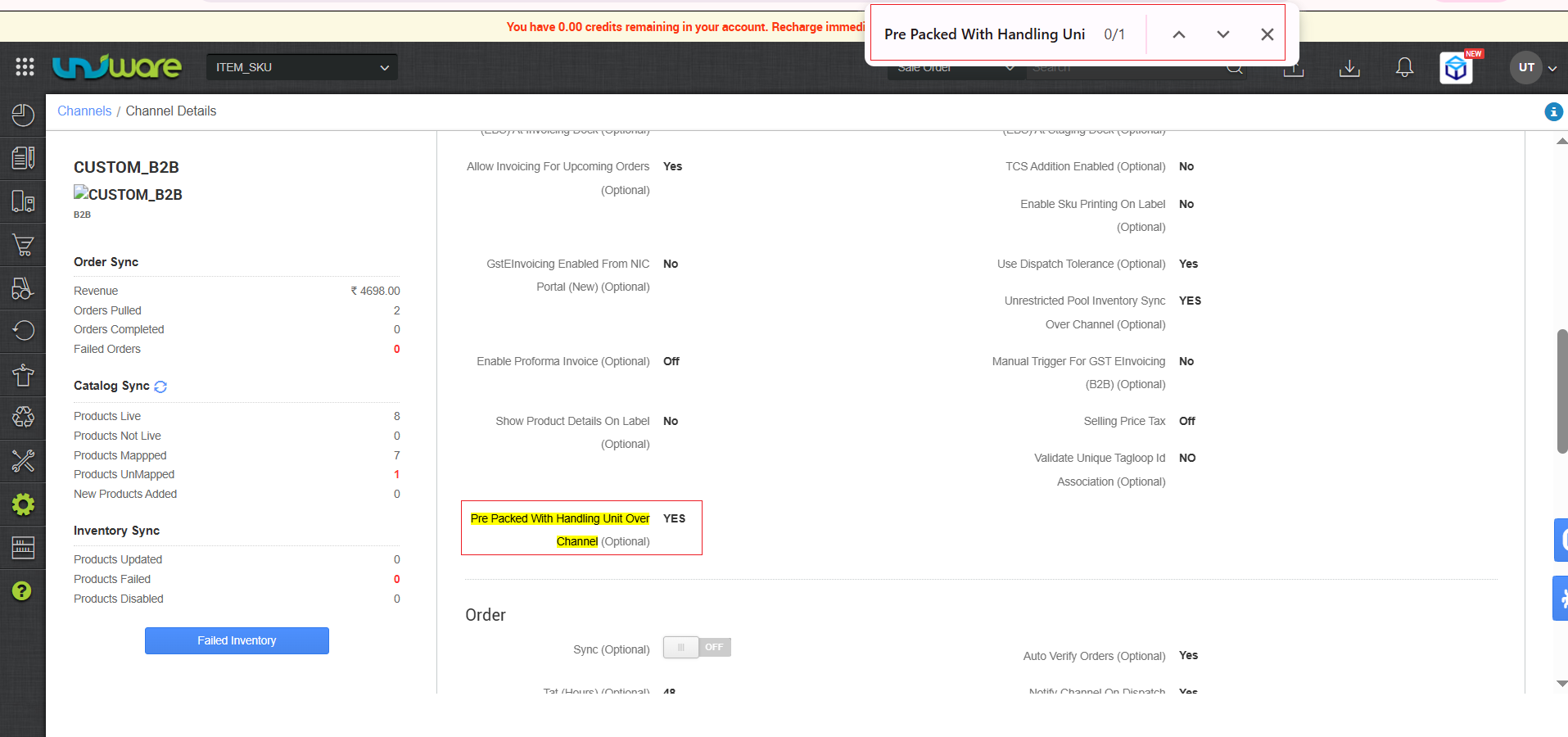
Step-3 : Go to Setting Tab, Search & Mark Yes to Pre Packed with Handling Unit over Channel.
WorkFlow
The B2B order processing workflow for handling units consists of three parts.
- Part-1 : B2B Picking on Handheld
- Part-2 : Packing at the Dock
- Part-3 : Dispatch
Part-1 : B2B Picking on Handheld
Step-1 : Open B2B Picklist on Handheld.
Picker Logs into Unicommerce Handheld Application & Open Assigned B2B Picklist.
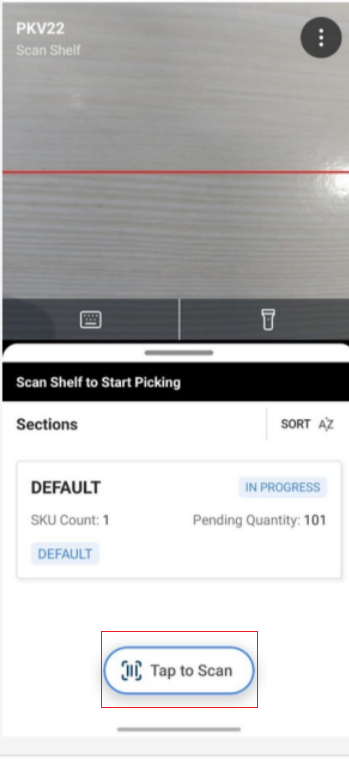
Step-2 : Scan Shelf Barcode on Clicking Tap to Scan
Scan shelf Barcode at Pick Location, This informed system from which shelf Item being collected.
The Screen shows picklist (e.g. PKV22) in Listed Status. Default section display SKU count and Pending Quantity.
Click on Tap to scan.
Step-3 : Scan Box HU Barcode on Clicking Tap to Scan
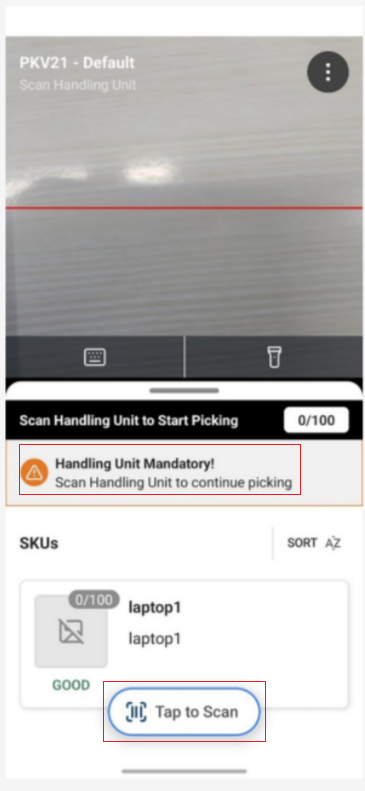
Note :
|
Step-4 : Scan SKU wise Items Into the Box
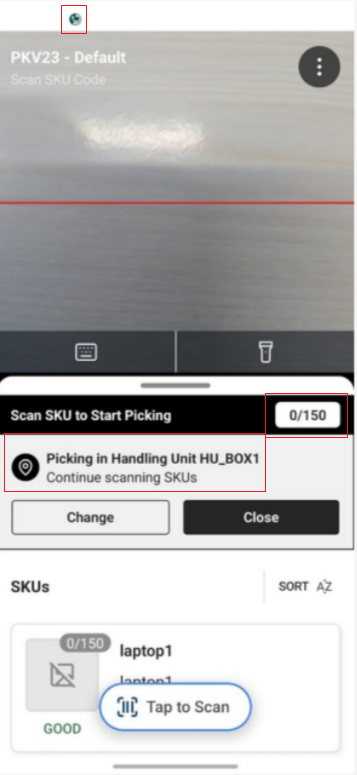
Scan every item one-by-one or in bulk & Every Scanned SKU is digitally linked with HU in real time.
The counter tracks scanned vs pending quantity (E.g. 0/150). Active HU shown display at top.
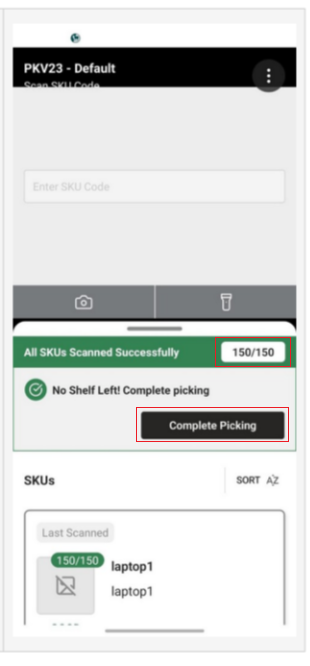
Step-5 : Scanned All SKU & Click Complete Picking
Once all SKUs scanned, Handheld Counter displays (150/150) & No Shelf left ! Complete Picking.
To close picklist click Complete Picking.
Part-2 : Packing at the Dock
After Complete Picking , Now Uniware WMS comes to the picture.
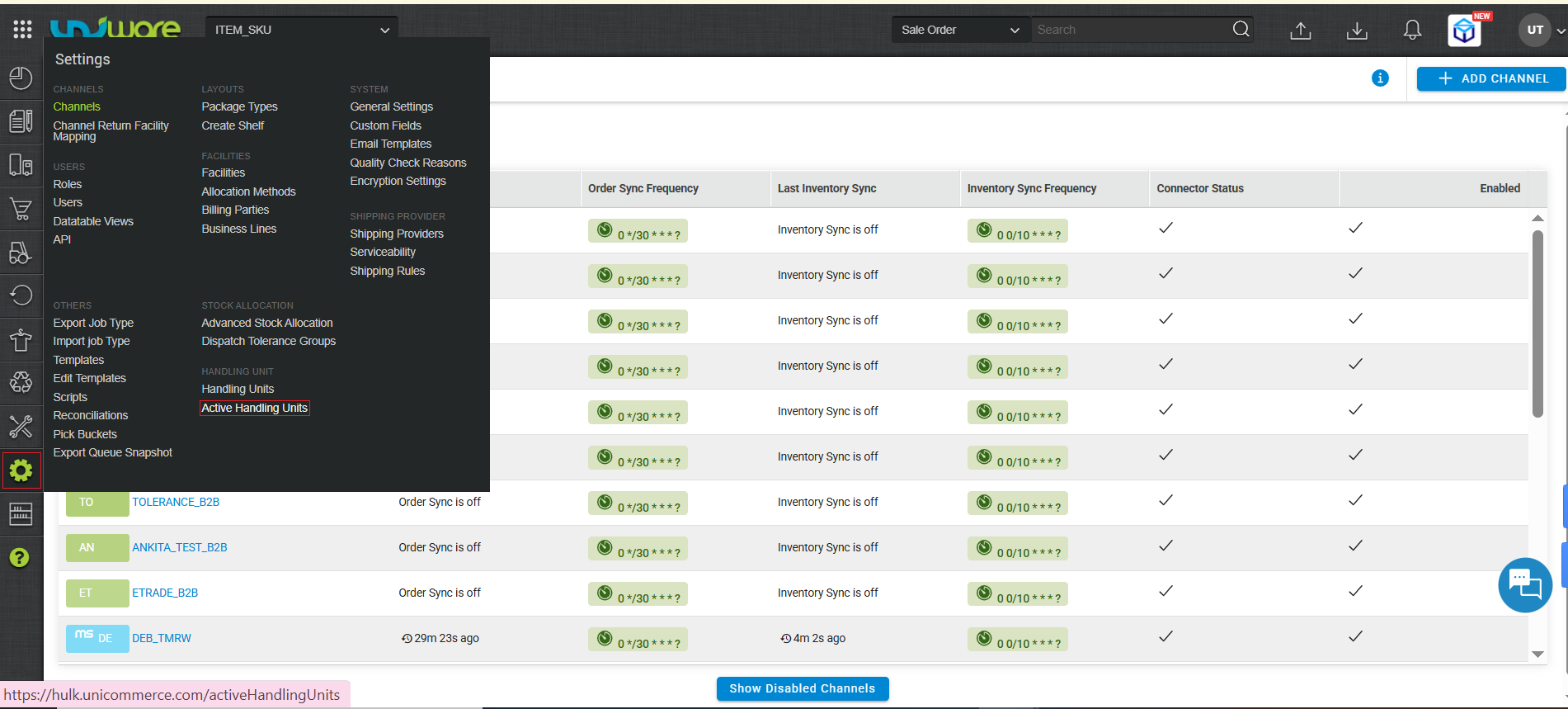
Step-1 : Visit Uniware Menu, Hover Setting Tab & Click Active Handling Unit
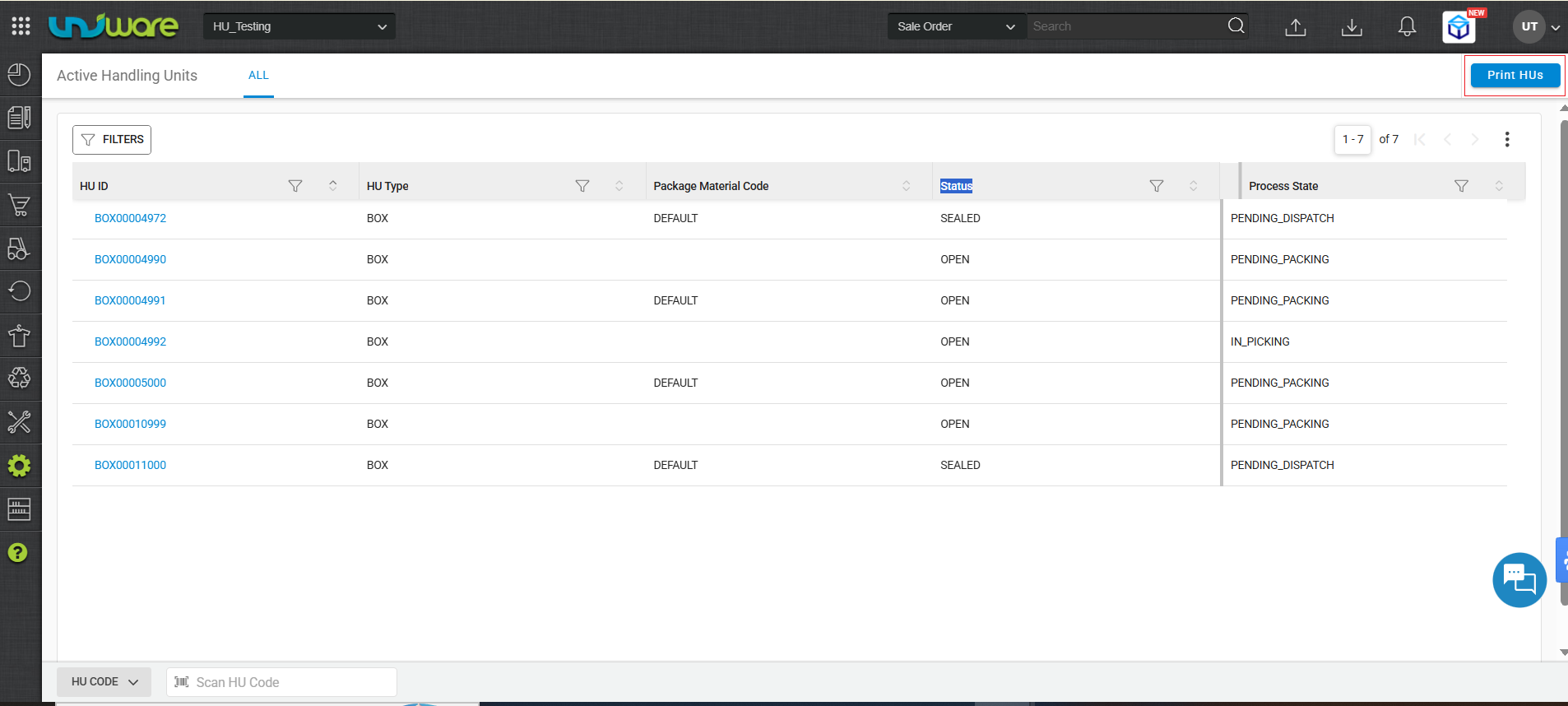
Step-2 : Click Print HU’s
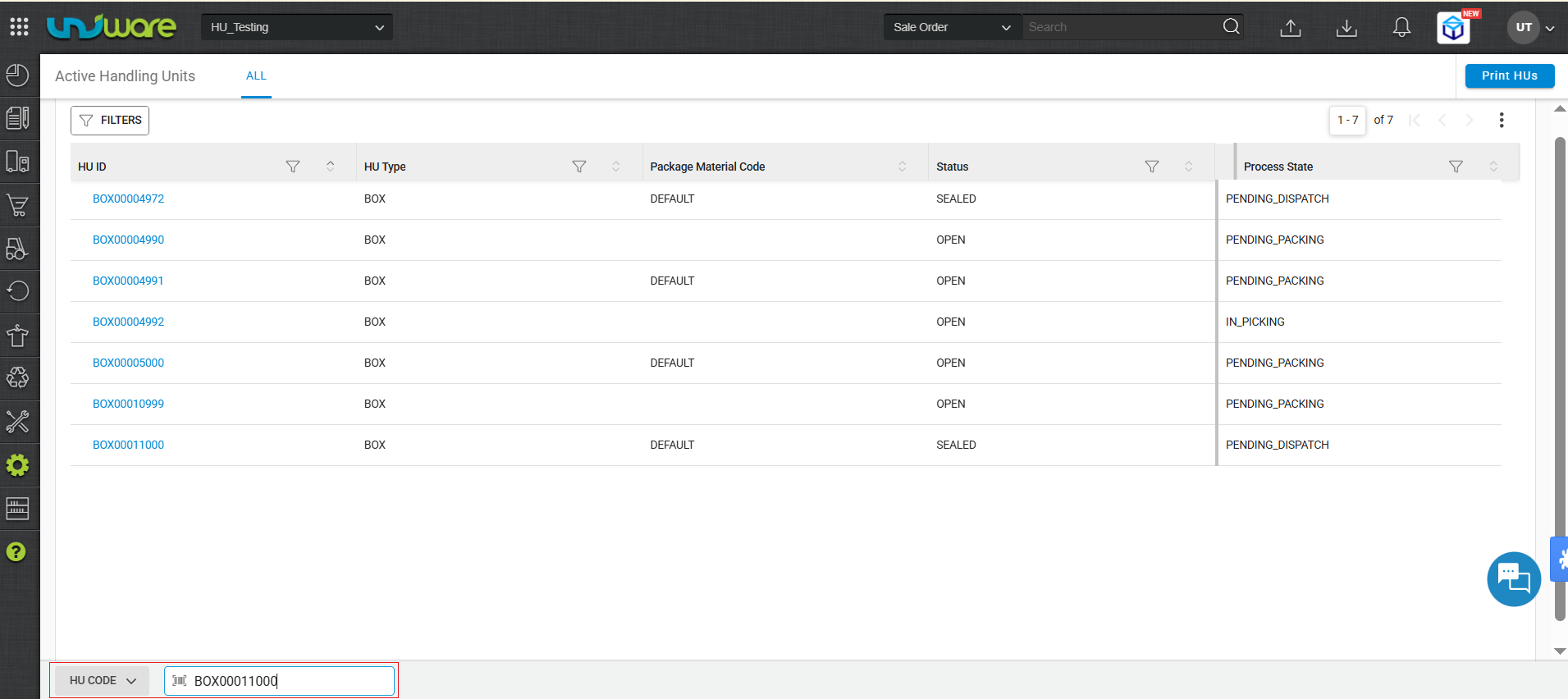
Step-3 : Enter Box Barcode Number and Hit Enter Button
Step -4 : Verify Box Details & Click Print Pack Slip
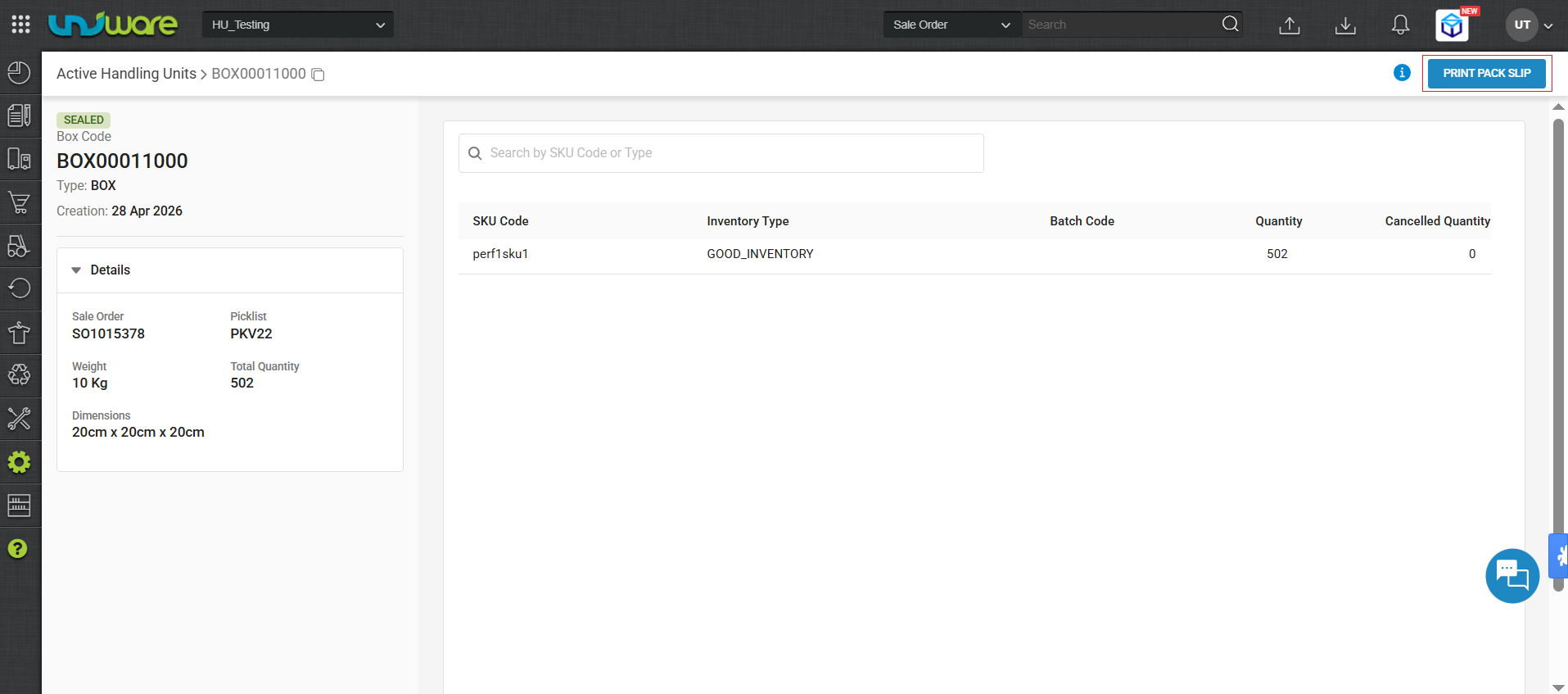
Step-5 : Click on Confirm Picking
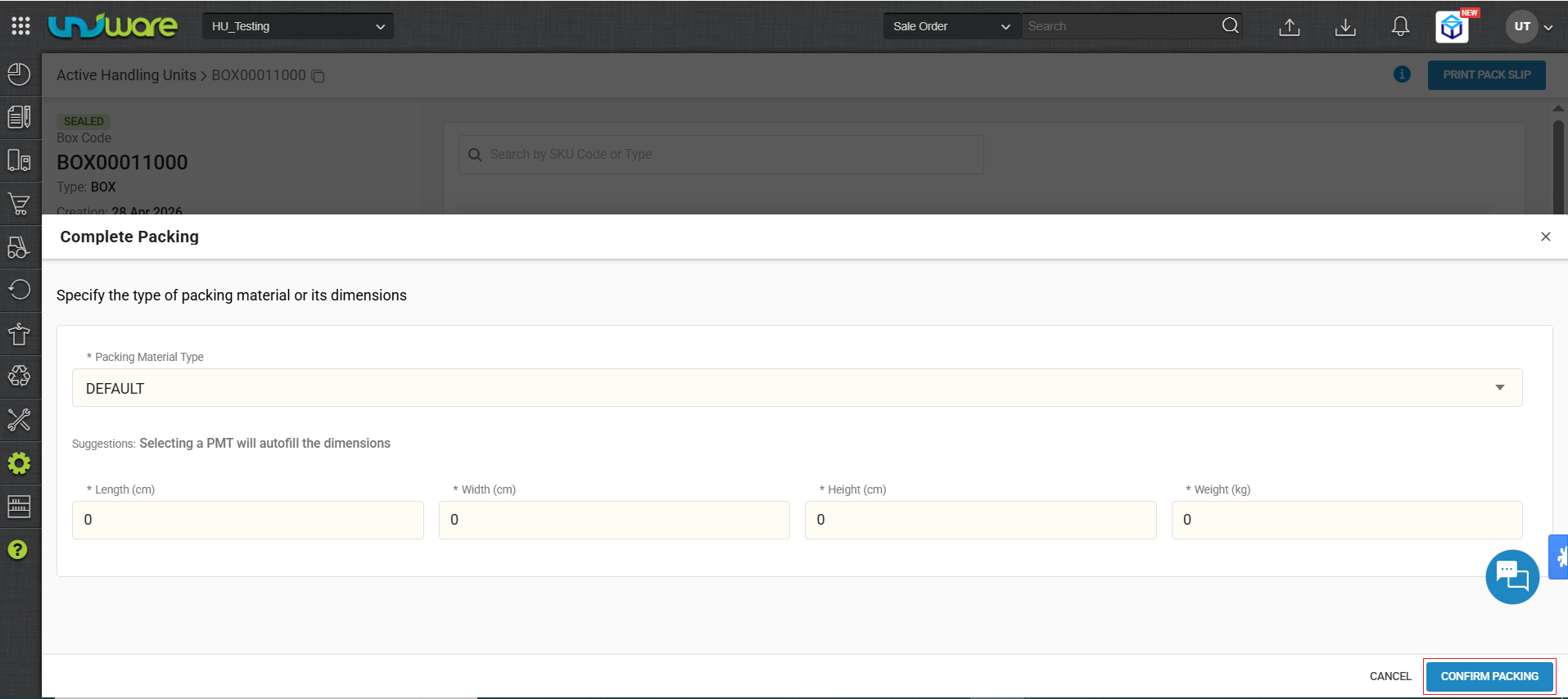
Part-3 : Dispatch
By following regular workflow of Order Dispatch in uniware.
Step-1 : Open B2B Sale Order
Visit Unicommerce Menu >> Orders >> B2B Orders >> Search by Order ID.
Step-2 : Generate Invoice
Generate Invoice for the Order. The System links it to all HUs and packed under this order.
Step-3 : Generate AWB Number
Generate AWB no, This is the primary shipment tracking reference for the carrier.
Step-4 : Mark as Dispatched
Mark the shipment as Dispatched in the B2B order workflow.
Frequently Asked Questions
Q: Can desktop picking be used instead of handheld?
Ans : No. HU assignment during picking requires a handheld device. The handheld application enforces the mandatory Scan Shelf → Scan HU → Scan Items sequence. Desktop picking bypasses this and does not support HU linkage.
Q: What if the picker scans the wrong HU barcode?
A : Stop the operation immediately. Since there is no discard option currently, leave that HU unused and pick a new labelled box. Print a fresh HU label if needed and restart the HU scan for that shelf.
Q: Can one HU be used across multiple picklists?
A : No. Each HU is locked to a single picklist once scanned. One physical box = one picklist = one HU barcode. This is enforced by the system and cannot be overridden.
Q: What if the PMT dimensions do not auto-fill at packing?
A : The selected Packing Material Type has no pre-configured dimensions, or no PMT was selected. Enter Length, Width, Height, and Weight manually in the Complete Packing dialog. Pre-configure PMTs in Settings to avoid this in future.
Q: Can I see which boxes are pending packing right now?
A : Yes. Navigate to Active Handling Units and filter by process_state = Pending_Dispatch. This shows all boxes where picking is complete and packing has not yet started.
Q: What if a box is lost between picking and the packing dock?
A: The HU remains in Pending_Dispatch state in the system. Contact your warehouse supervisor the items inside are still linked to the HU and the sale order. The physical box must be located or the order escalated for manual resolution.