
ClickPost || B2B Integration
Introduction
Unicommerce natively integrates with ClickPost B2B to help you process bulk Business-to-Business (B2B) shipments directly from the Unicommerce panel. This integration automates Air Waybill (AWB) and label generation for multi-box, high-volume B2B orders, eliminating the need for manual, off-system workflows.
Key Benefits of this Integration:
-
Automated Workflows: Eliminates the need for manual data entry between Unicommerce and ClickPost.
-
Simplified Shipment Creation: Easily generate tracking IDs and process multi-box shipments directly in the UC system.
-
Reduced Operational Friction: Speeds up warehouse dispatch times and reduces human error.
Prerequisites
Ensure you have the following before configuring the integration:
-
An active ClickPost B2B account.
-
Set up shipping provider’s priorities in your ClickPost B2B account.
-
API credentials provided from ClickPost :
-
Username
-
API Key
-
Configure ClickPost B2B
Follow these steps to enable and configure the ClickPost B2B shipping provider:
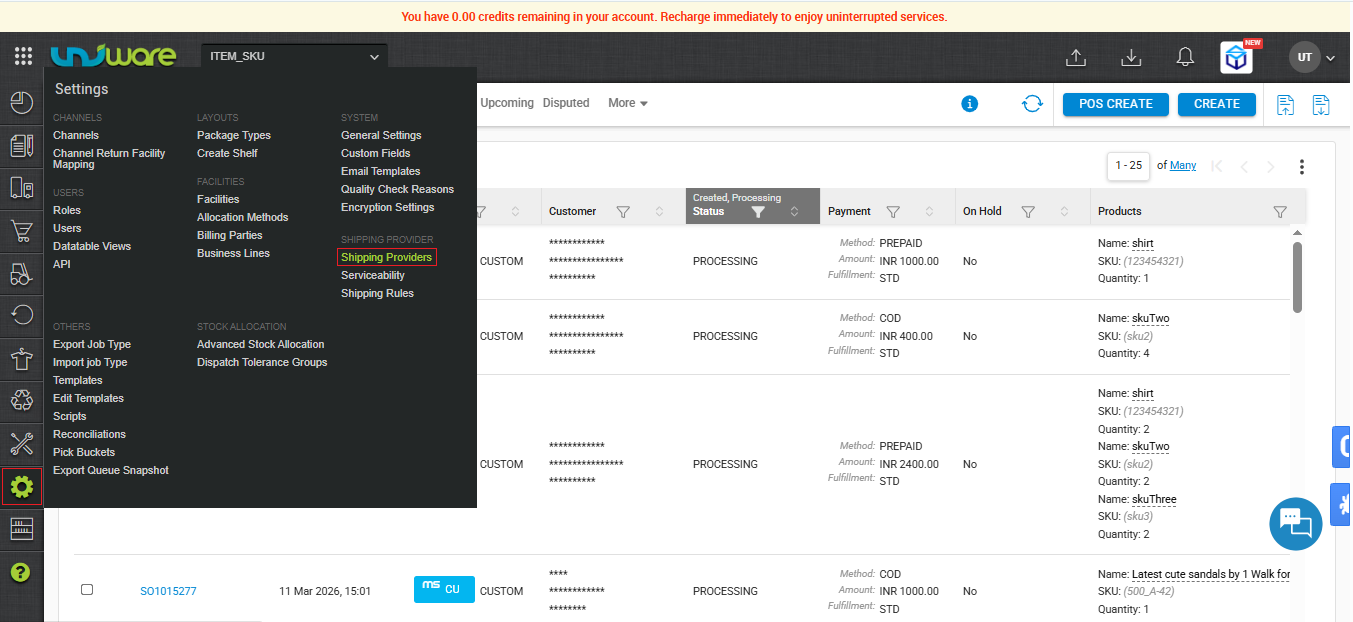
Step -1 : Visit Uniware, Hover on Settings & Click Shipping Provider.
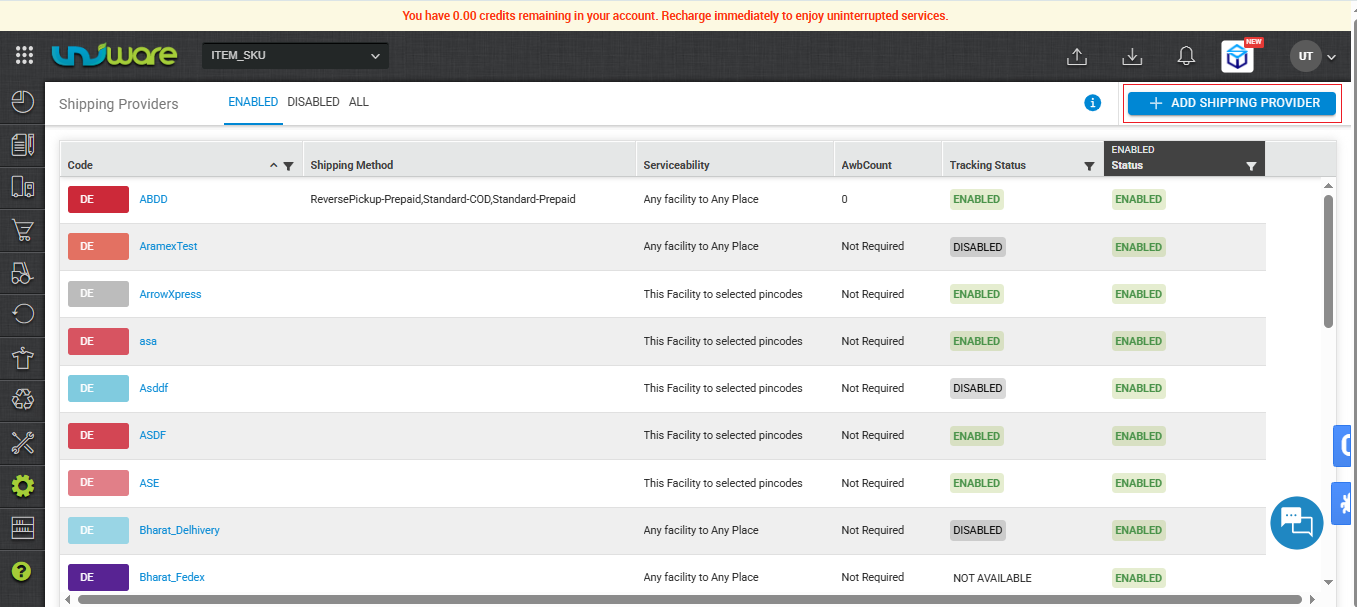
Step-2 : Click Add Shipping Provider
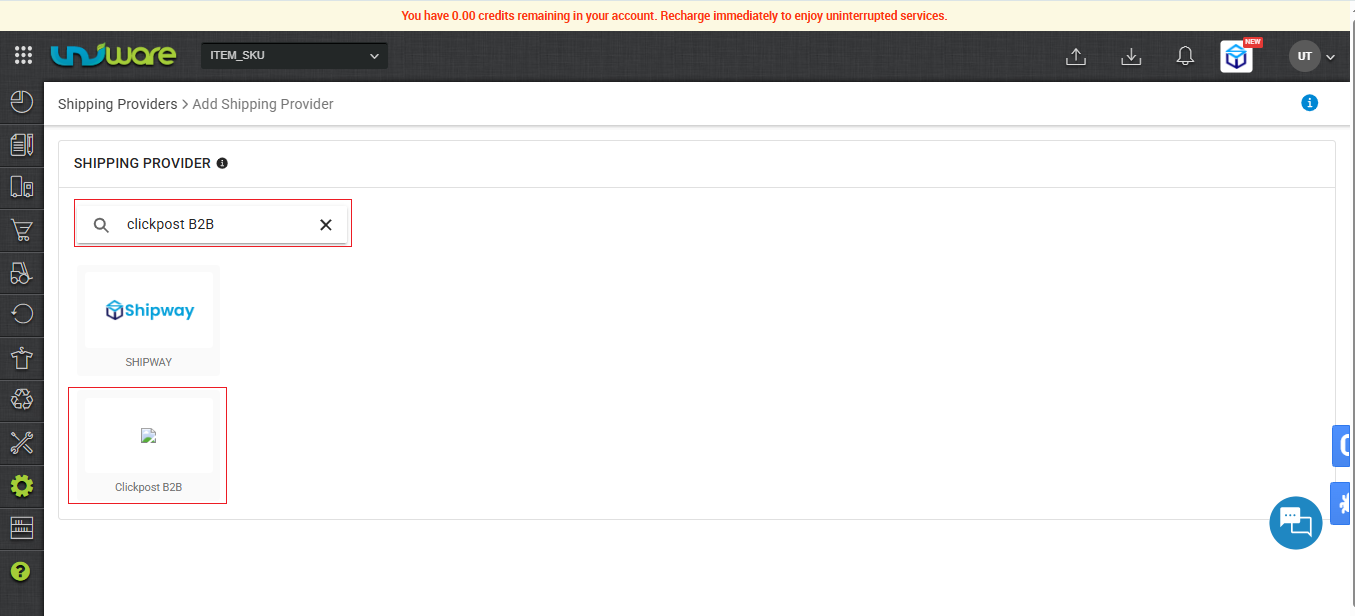
Step-3 : Search & Select ClickPost B2B.
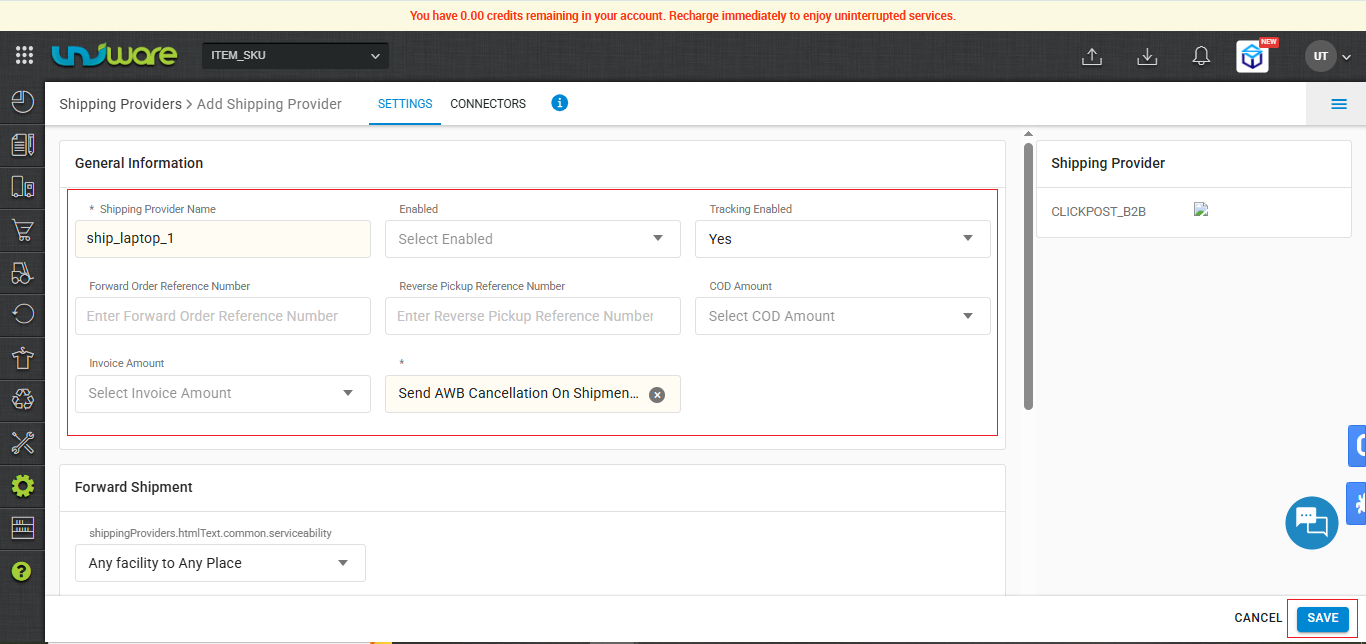
Step-4 : Filled Required Information & Click on Save.
Step-5 : Navigate Connector, Filled Credential & Click on Update Connector.
-
pickup_after (minutes): Enter the buffer time (in minutes) to be used to schedule pickup from the time of label generation of the shipment.
-
Appointment_after (days): Enter the number of days to be added from the current date to schedule an appointment of delivery.
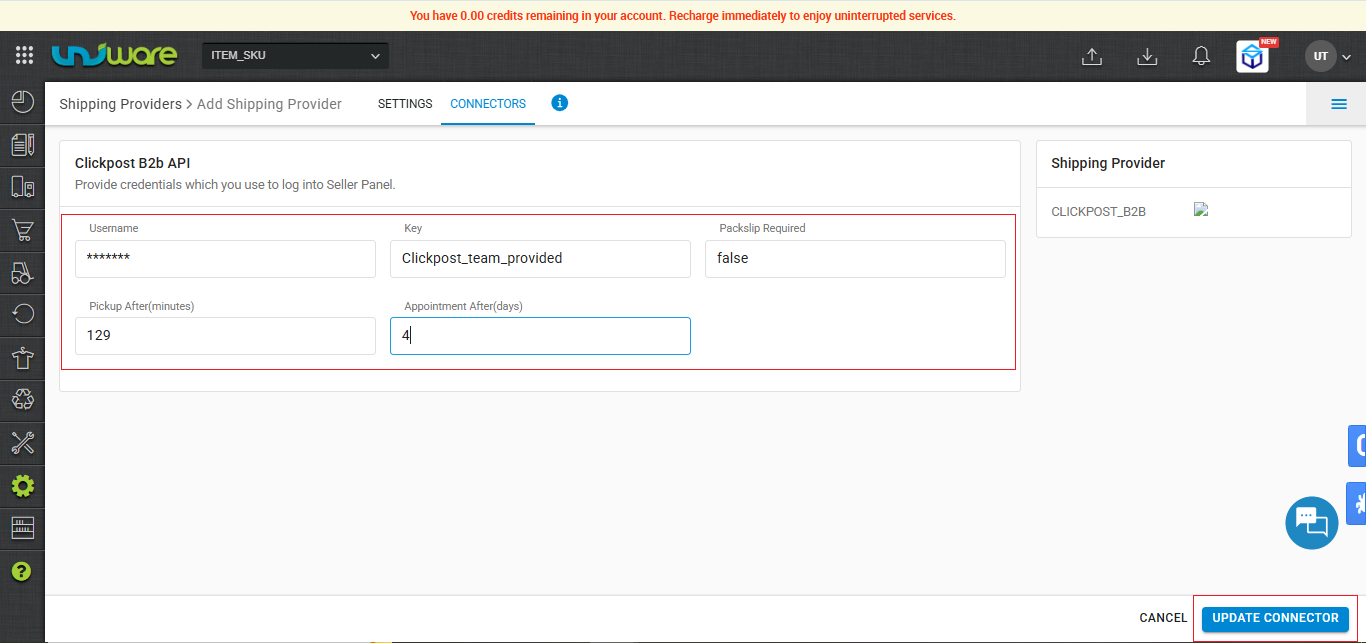
| Attribute | Description |
| Username | ClickPost B2B Username. Provided by ClickPost Team. |
| Key | ClickPost B2B API Key. Provided by ClickPost Team. |
| Packslip Required | True / False ( Default : False ) |
| Pickup After (Minute) | Provide valid number e.g. 1, 2 |
| Appointment After (Days) | Provide valid number e.g. 1, 2 |
Workflow
High-volume B2B shipments and multi-box orders can take 2 to 4 minutes to generate labels. To prevent timeouts, Unicommerce uses an asynchronous 3-Tier Priority System (P1, P2, P3) and a built-in polling mechanism.
1. Shipping Provider Allocation and Failover
When you schedule a shipment, Unicommerce fetch an ordered list of up to three preferred Shipping Providers (P1, P2, P3).
-
Unicommerce first attempts to create the order with the P1 provider.
-
If P1 returns an immediate error, Unicommerce automatically fails over to P2, and subsequently to P3.
2. Success Synchronous Acknowledge Status
In this case Instantly Send label & Order sent to the OMS (Order Management System).
3. Success Asynchronous Acknowledge Logic
If the assigned provider processes requests asynchronously,after successful acknowledgement from Clickpost, Unicommerce places the shipment into a LABEL REQUESTED intermediary status. This indicates:
-
Unicommerce successfully scheduled the shipment with ClickPost.
-
The shipping provider acknowledged the request but has not yet returned the final AWB/Label.
-
Unicommerce wait upto 12 min & pausing 2 minutes between each attempt (Recurrently hits upto 6 times).
-
Success : If Unicommerce retrieves the AWB, it updates the shipment to successful and completes the scheduling flow.
-
Failure : If the 12-minute window expires without returning a label, Unicommerce triggers the failover sequence to route the shipment to the next priority provider.
Frequently Asked Questions (FAQs)
Q. Why is my B2B shipment stuck in the LABEL REQUESTED status?
A. This status means Unicommerce has successfully scheduled the shipment with ClickPost, but the assigned courier is processing the request asynchronously. Unicommerce automatically polls the ClickPost API every 2 minutes (up to 6 times). Once it retrieves the AWB/label within the 12-minute window, the status will update to Success.
Q. What happens if the primary courier (P1) fails to generate a label?
A. Unicommerce utilizes an automated 3-Tier Priority System. If the primary provider (P1) returns an immediate error or fails to return a label after the 12-minute polling window, the system automatically triggers a failover and routes the order to your next preferred provider (P2, followed by P3).
Q. Does this integration support multi-box B2B shipments?
A. Yes. The integration fully supports multi-box shipments. Unicommerce captures the exact box count and transmits this data in the API payload to ensure accurate tracking and billing with ClickPost B2B.
Q. How does UC store child waybills (the AWB numbers for individual boxes in a shipment)?
A. The system displays the Parent AWB at the shipment level. The UC database stores all child waybills, but the user interface (UI) does not display them.
Q. Where do I get the Username and API Key required for the connector settings?
A. You must obtain your specific Username and API Key directly from your ClickPost account manager or the ClickPost B2B dashboard.
Q. Can I schedule a future pickup time for my B2B shipments?
A. Yes. During the connector configuration (Step 5), you can set the Pickup_after (minutes) and Appointment_after (days) parameters to automatically buffer the time before the carrier arrives for pickup.