
Overview
Ekart is deprecating its legacy v2 API infrastructure (api.ekartlogistics.com) in favor of the Elite platform (app.elite.ekartlogistics.in).
The migration involves the creation of a new integration source, Ekart 2.0, within the Unicommerce ecosystem to support the revised API schema and response handling.
Purpose
The primary objective of this migration is to maintain seamless logistics continuity for sellers. By transitioning to the Elite platform, the system achieves:
-
Enhanced Security: Transitioning from static tokens to time-bound OAuth2 Bearer tokens.
-
Operational Reliability: Aligning with Ekart 2.0’s latest service-level agreements (SLAs) and infrastructure.
-
Data Accuracy: Updating field mappings (such as weight in grams and epoch time for tracking) to ensure data parsing between Unicommerce and Ekart 2.0.
How to Integrate
Follow Bellow Mention steps to integrate Ekart 2.0 shipping provider with Uniware.
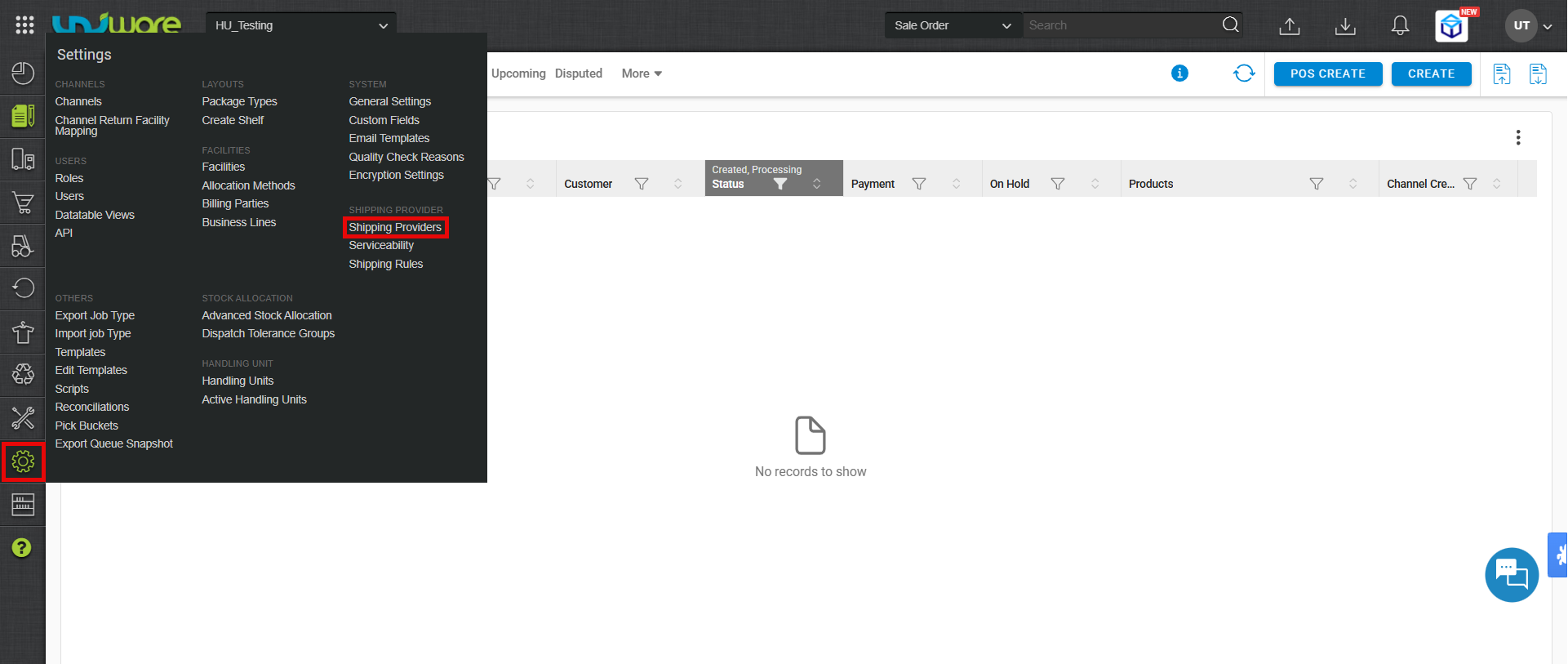
Step-1 : Visit Uniware Menu, Hover on Settings & Click Shipping Providers
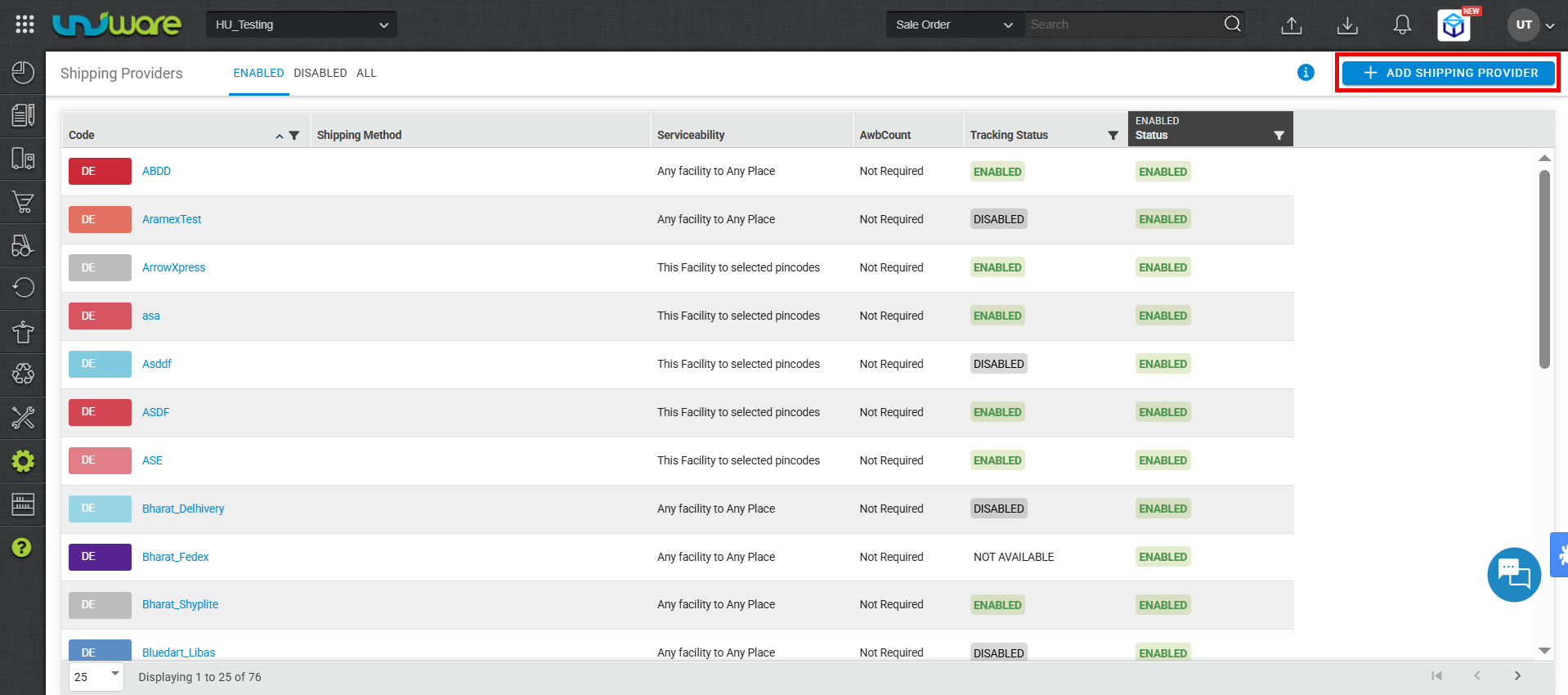
Step-2 : Click Add Shipping Provider
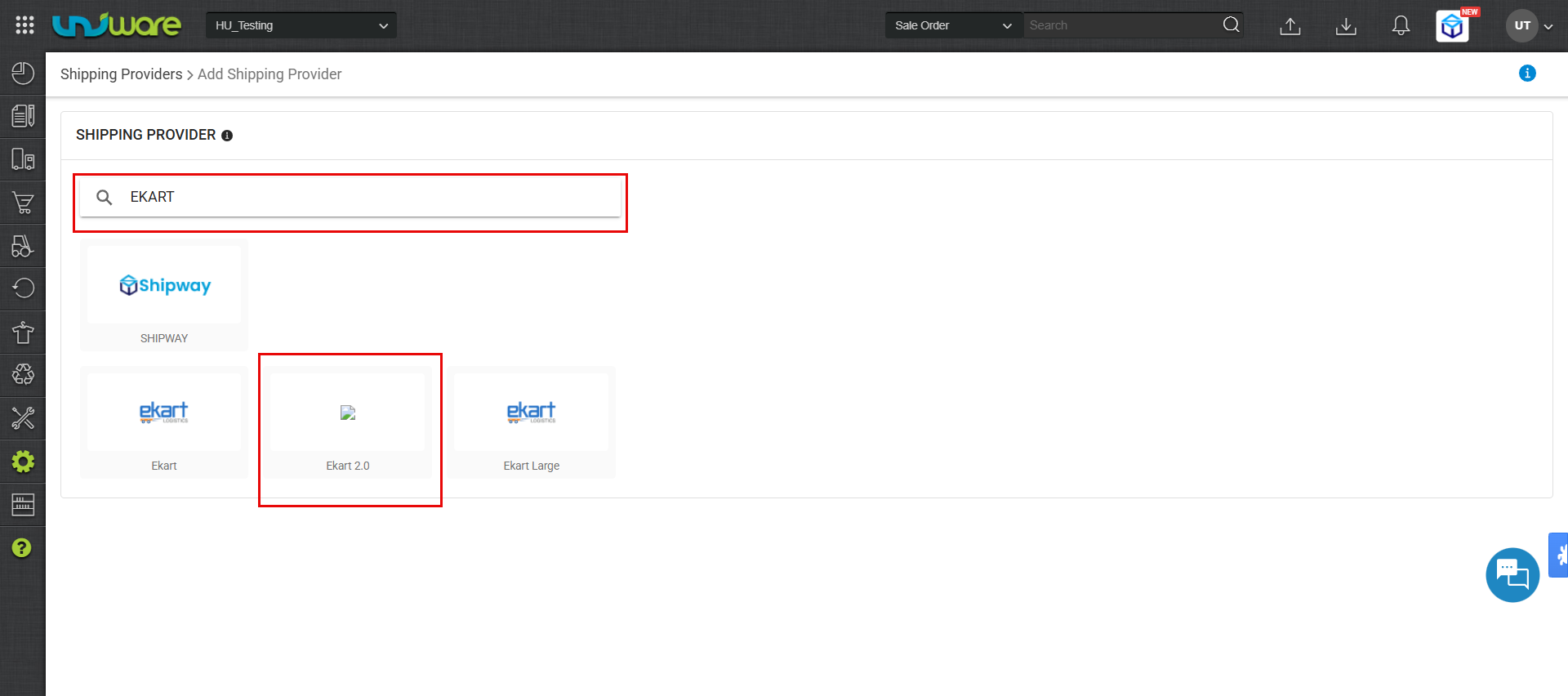
Step-3 : Search & Select Ekart 2.0 2.0
Step-4 : Filled Required Information & Click Save
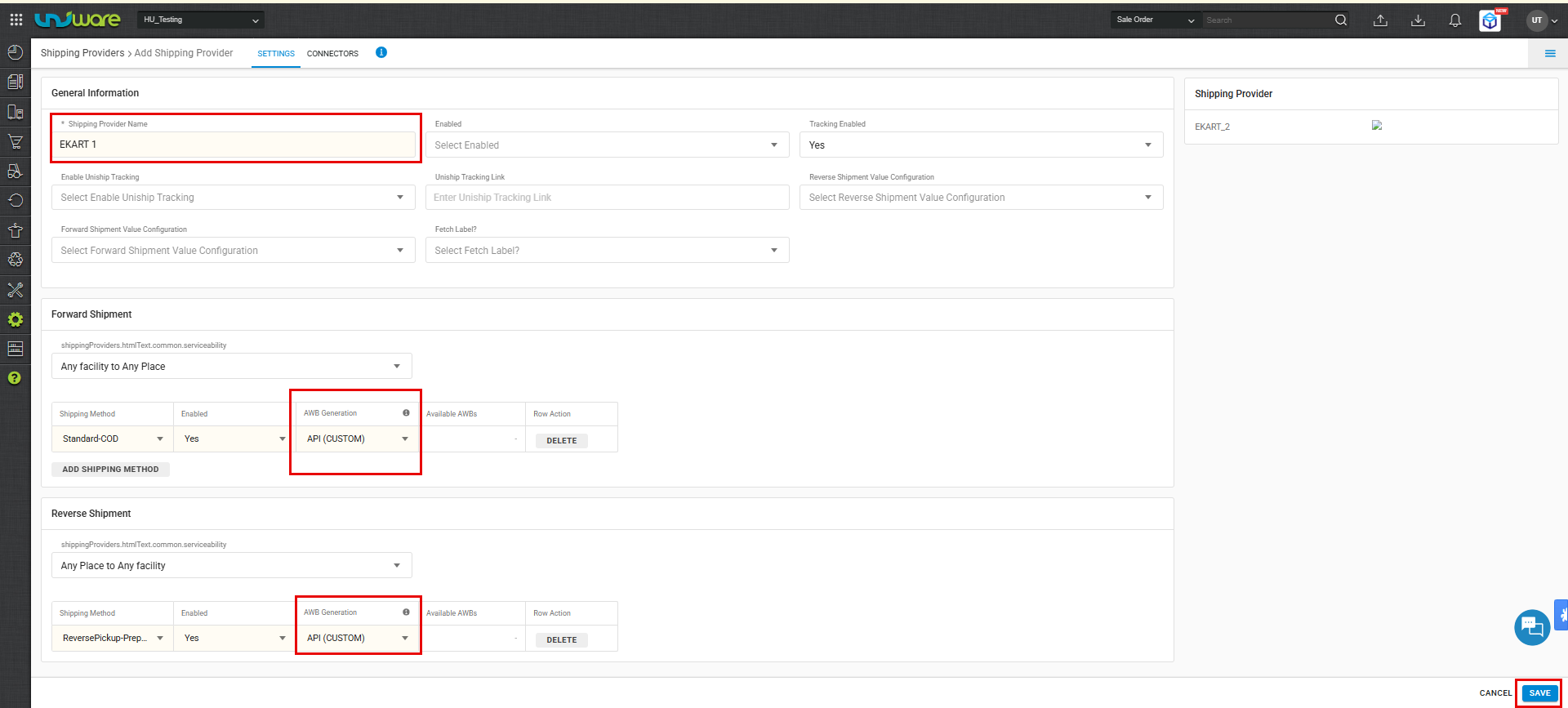
General Information
| PARAMETERS | DESCRIPTION/VALUES |
| Shipping Provider Name | Enter the Shipping provider name. As per seller convenience. For Example: Ekart 2.0 or ekart |
| Enabled | Yes/No, To mark shipping provider enable or disable in Uniware. Select this to “Yes” for enabling. |
| Tracking Enabled | Yes/No, Select this to “Yes” (Default), as shipping provider provides tracking info. |
Forward Shipment/Reverse Shipment (If Applicable)
| PARAMETERS | DESCRIPTION/VALUES |
| Serviceability |
|
| Forward Shipment |
Add both COD and Prepaid Shipping Methods having AWB Generation selected as API. |
| Reverse Shipment | Reverse Pickup-Prepaid Shipping Methods having AWB Generation selected as API. |
| Note : Must ensure that Fetch label link Should be False. |
| True : Forward Shipping label generates by Unicommerce. |
| False : Forward Shipping label generates by Ekart 2.0. |
Step-5 : Navigate to Connector Tab, Filed received data form client & Click Update Connector.
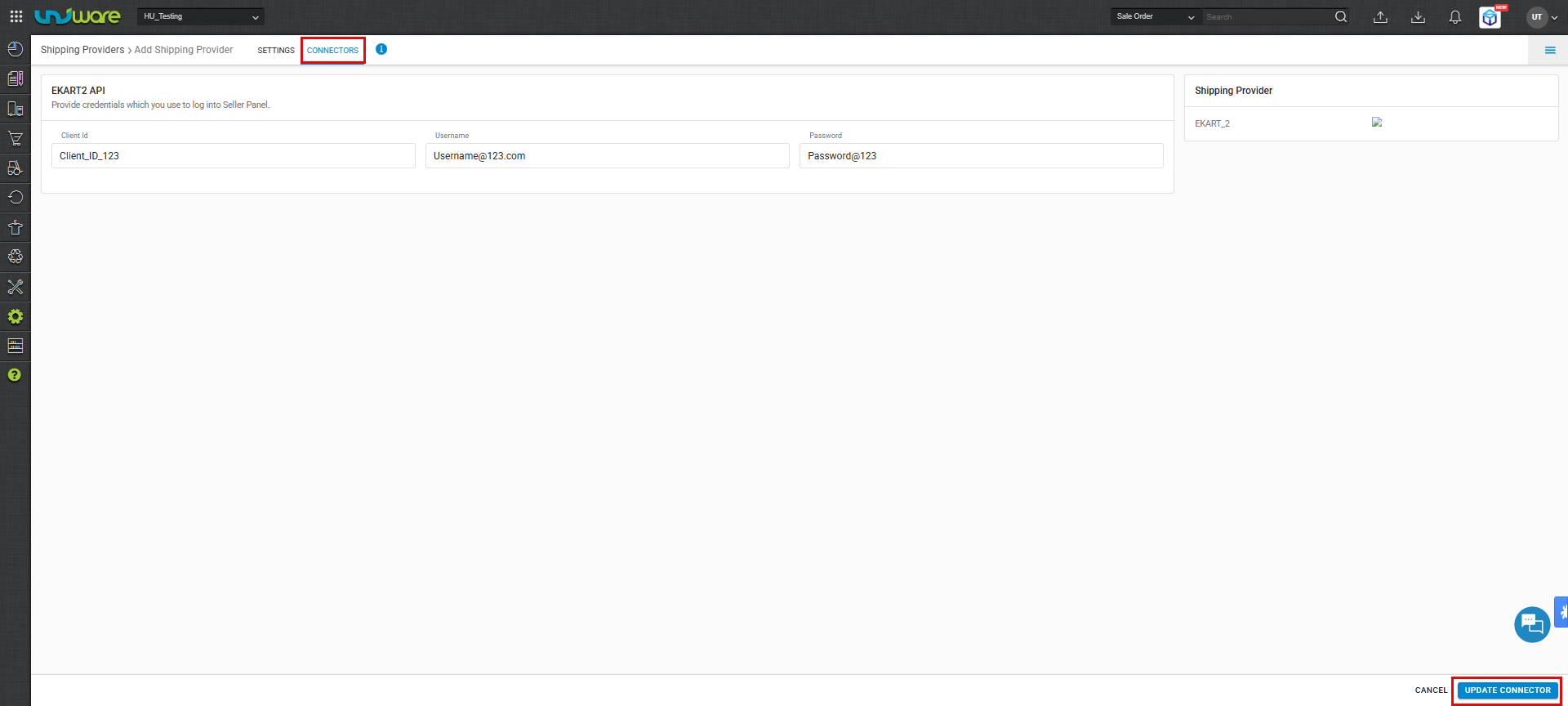
| PARAMETERS | DESCRIPTION/VALUES |
| Client ID | Provided By Ekart 2.0 |
| Username | Provided By Ekart 2.0 |
| Password | Provided By Ekart 2.0 |