
Introduction
Overview
The HU-Based Bin Putaway feature introduces a box-level approach to the (GRN) and putaway process.
Traditionally, warehouse staff scan every item twice: once during GRN and again during putaway. This feature eliminates that redundancy by grouping items into a Handling Unit (HU) such as a box during the initial Inwarding process.
Purpose
The primary goal is By mapping items to an HU at the start, you only need to scan the box barcode once to complete the putaway of all its contents.
This reduces repetitive manual labor while maintaining traceability at the SKU and Item levels.
Key Features
-
Box-Level Putaway: Complete the putaway of multiple items with a single scan of the HU barcode.
-
Pre-Printed HU Labels: Generate and print unique HU barcodes in bulk before the inwarding process begins.
-
Inventory Categorization: Specify inventory types (Good vs. QC Rejected) at the box level to ensure correct storage.
-
Real-Time Visibility: Monitor HU statuses (e.g., In GRN, Putaway Pending, On Shelf) through a centralized dashboard.
-
Full Traceability: Maintain granular tracking for both Item-level and SKU-level traceability modes.
Process Flowchart
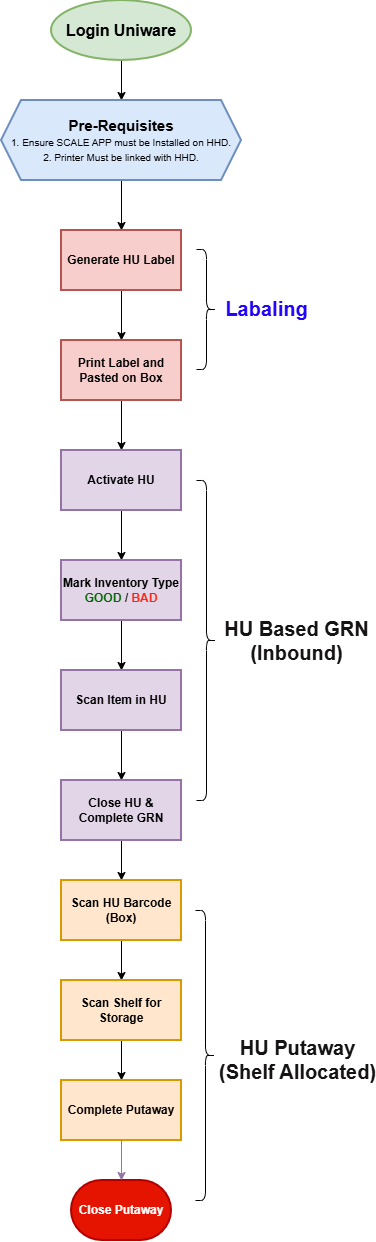
Prerequisites
Before using this feature, ensure you meet the following requirements:
- Hardware: A Handheld Device (HHD) with the Unicommerce Scale App installed.
-
Physical Supplies: Standardized boxes or totes and a thermal printer for HU labels.
-
PO Creation : Ensure PO must be in Approved state & ensure the validation should be Not Expired.
Workflow
Phase-1: Setup and Labeling
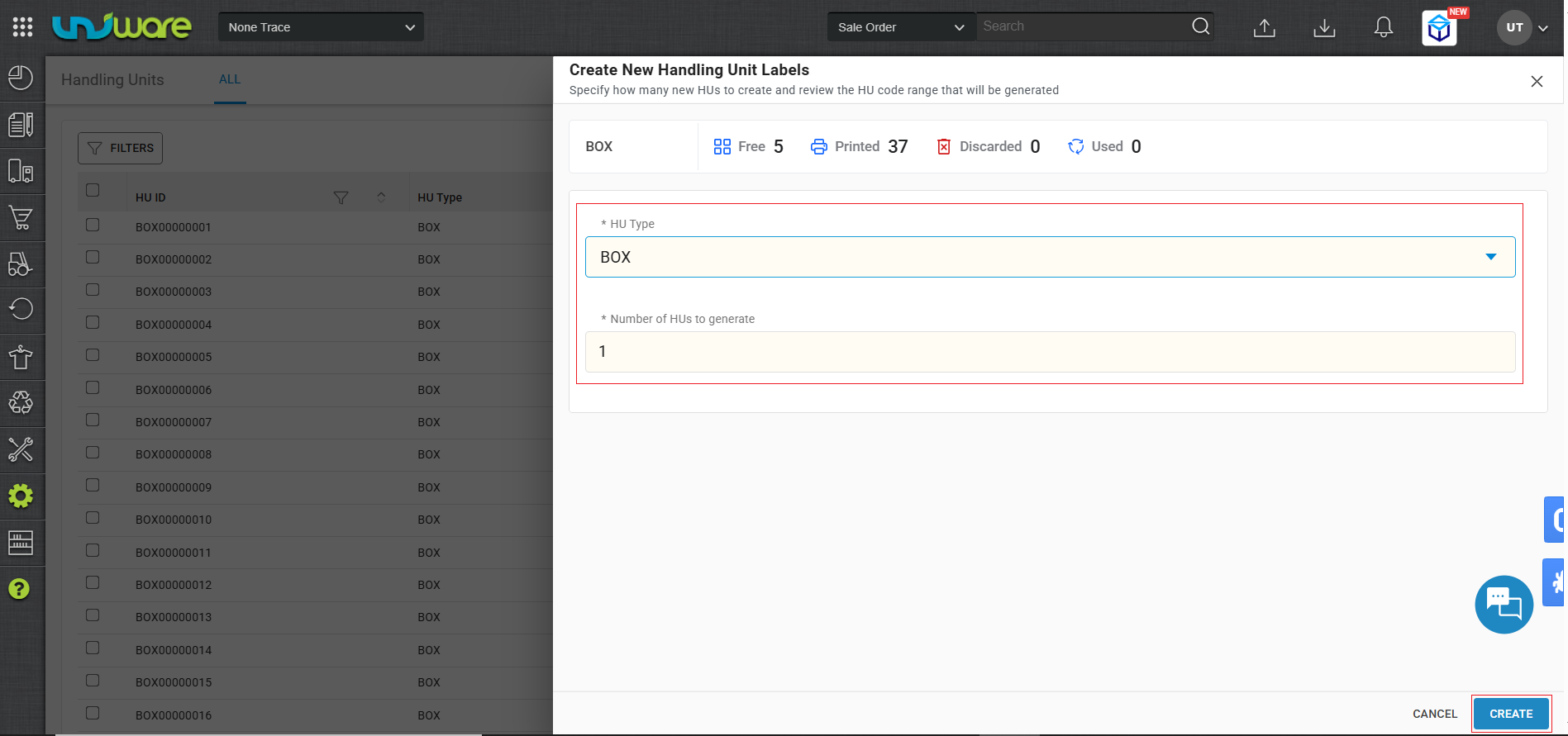
Generate HU Labels: select Box as the HU type, and enter the quantity required.
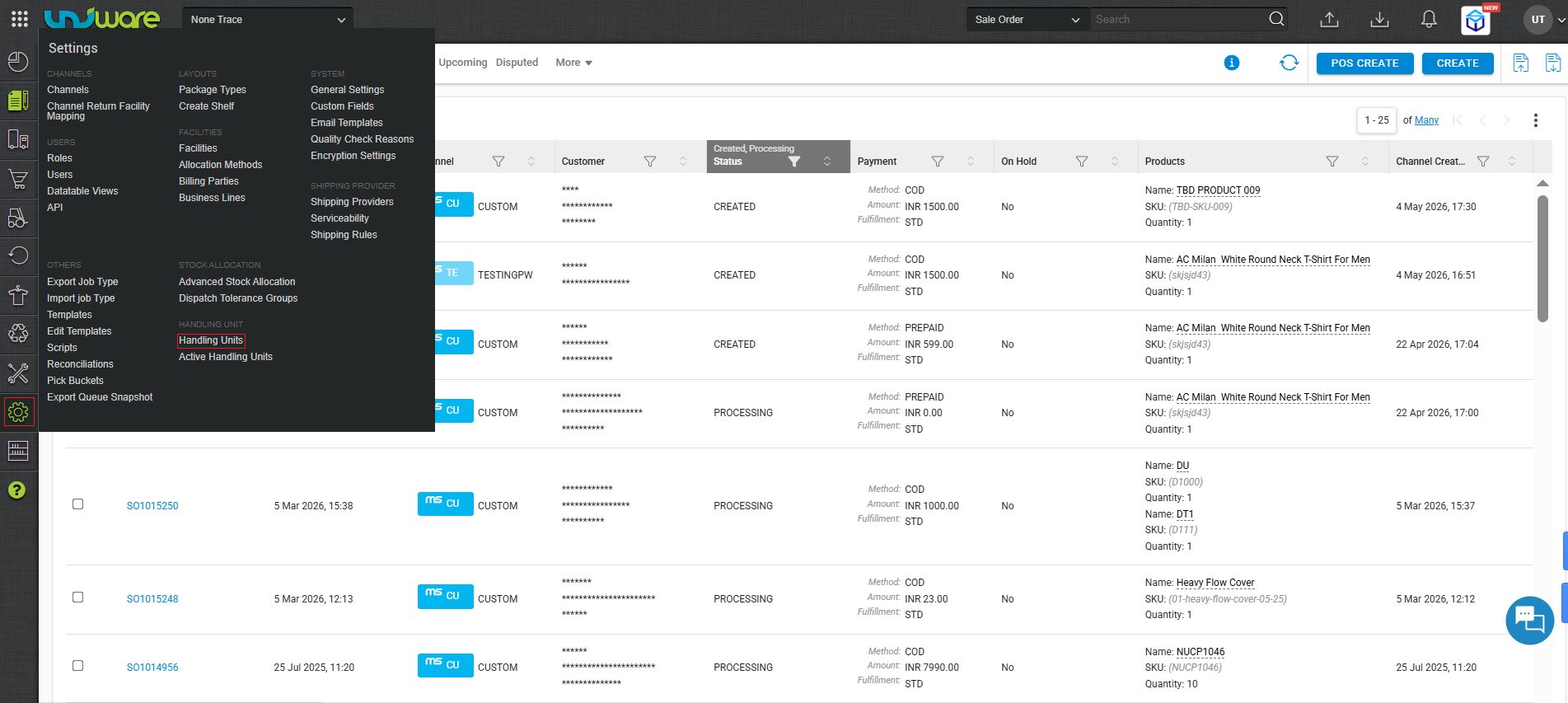
Step-1 : Login Uniware, Hover on Settings & Click on Active Handling units.
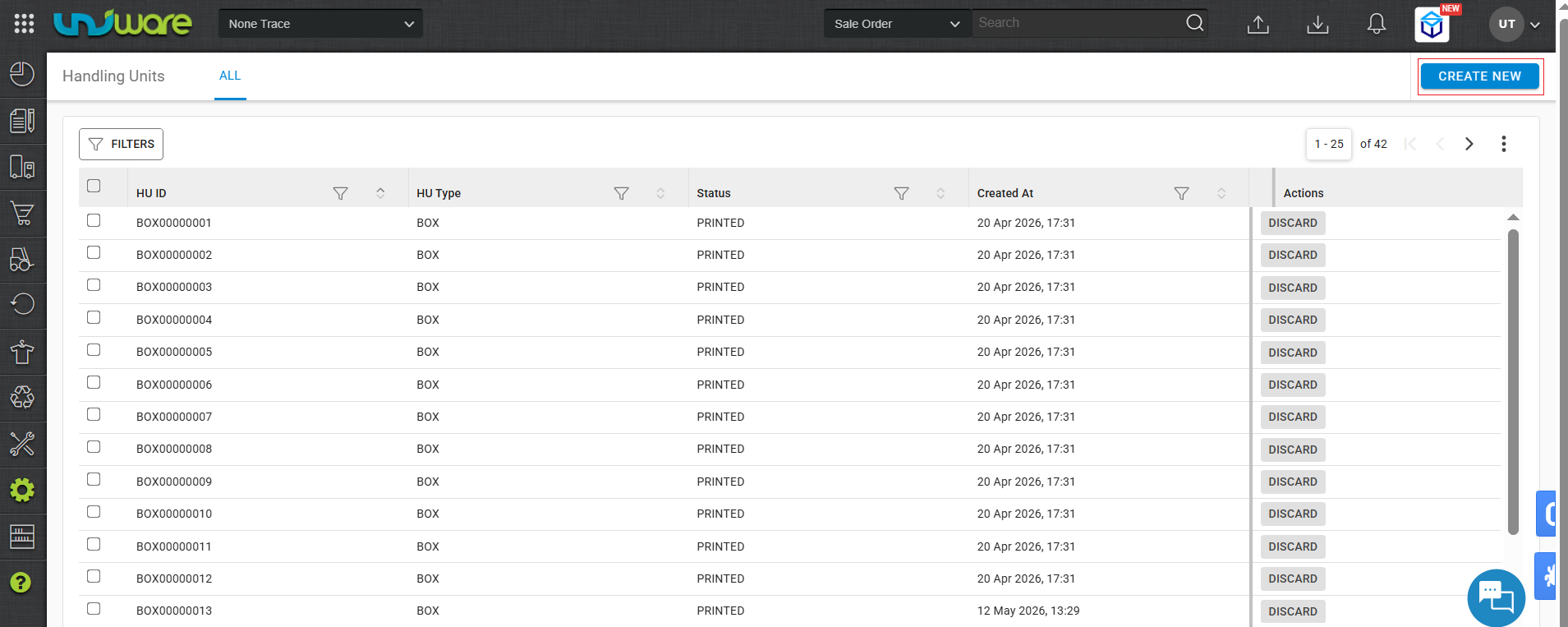
Step-2 : Click on CREATE NEW.
Step-3 : Enter Type , Numbers and click CREATE.
Print & Label: Print the generated barcodes and paste them onto your empty physical boxes.
Phase-2: HU-Based GRN (Inbound)
-
Activate HU: Open the GRN Screen. Before scanning any items, scan the barcode of an empty HU. This “activates” the box for the current session.
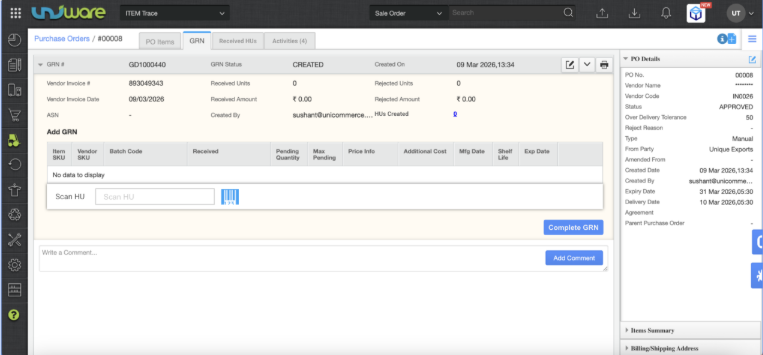
Fig: Scan HU vai HHD to Activate Box. -
Define Inventory Type: Select whether the box will hold Good or QC Rejected stock.
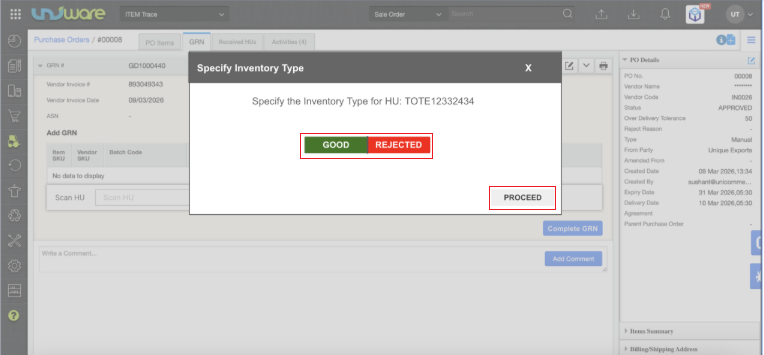
Fig: Mark Allocated Box Inventory Type Good / Rejected & Click PROCEED. -
Scan Items into HU: Scan all items belonging to the Purchase Order (PO) into the active HU. The system updates the “Received Quantity” in real-time.
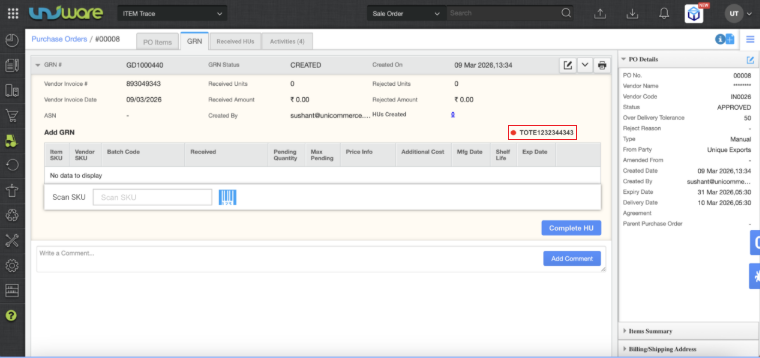
Fig: Scan SKU/Item Code into the active HU. -
Close the HU: Once the box is full, click Complete HU.
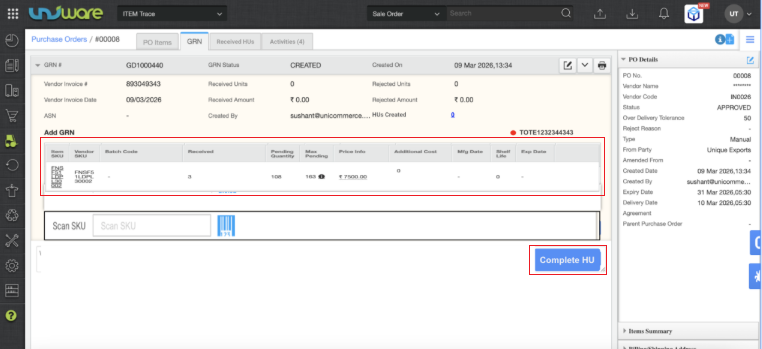
Fig: Tracked Received Quantity & Click Complete HU. -
Finalize GRN: After filling all necessary boxes, click Complete GRN to finalize the inwarding process.
Once all items across all boxes for the PO have been received, the user clicks Complete GRN.
A confirmation popup summarises exactly how many HUs and items will be marked as GRN Complete before the action is finalised preventing accidental completion.
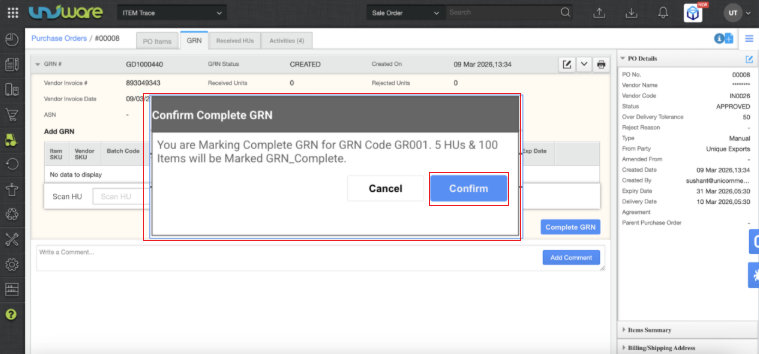
fig: Click on Complete GRN and Pop-up Showing and click on Confirm.
Phase-3: HU Putaway (HHD)
-
Locate Pending HUs: On the Scale App (HHD), navigate to the putaway section. The system lists HUs marked as Putaway Pending.
-
Scan HU: Scan the HU barcode once.
-
Scan Shelf: Scan the destination shelf barcode.
-
Complete Putaway: The system automatically maps every item inside that HU to the shelf location in one motion.
Frequently Asked Questions (FAQs)
Q: Does putaway at the box level mean I have to pick the whole box during order fulfillment?
A: No. While putaway happens at the box level, all items remain individual units in the system. You can still pick and ship items individually at the SKU/Item level.
Q: Can I mix ‘Good’ and ‘QC Rejected’ items in the same HU?
A: No. To ensure inventory accuracy, the system requires you to specify the inventory type for the entire HU before scanning items into it.
Q: What happens if I lose an HU label?
A: You can view the status and ID of all HUs in the Active Handling Units screen and reprint labels as needed.
Q: Does this feature support item-level serial numbers?
A: Yes. The feature preserves full traceability for both SKU-level and Item-level tracking modes.