
Pink N Blu is available with uniware under Marketplace in channels.
Follow these simple steps to integrate in Uniware:
1- In the Uniware menu, select Settings > Channels

2- Then press the button
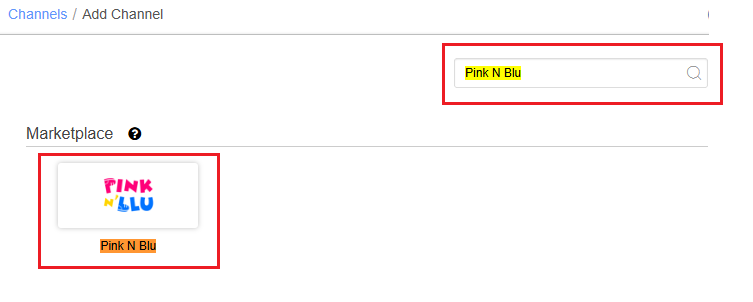
Search and Select “Pink N Blu”.
3- Fill and save the channel details.
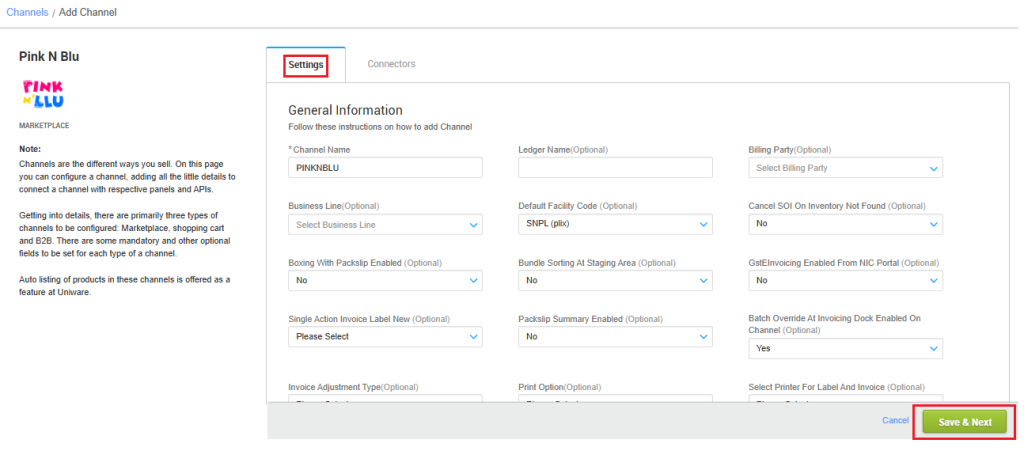
4- Add channel with both seller panel details. Fill the credential to configure the connectors.
The seller has to get credentials from the Pink N Blu channel team and use the same in the connectors page at the time of adding channel in Unicommerce.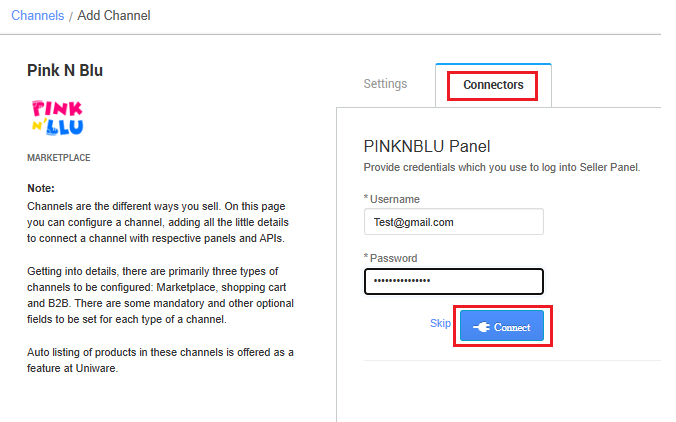
| Parameter | Value/ Description |
| Username |
will be provided by the Pink N Blu team for every seller.
|
| Password |
will be provided by the Pink N Blu team for every seller.
|
5- As soon as the channel is configured successfully, you can see the Channel Summary and You can trigger the respective sync processes from this page itself. For more detail Click here
Below are the important points that need to be kept in mind while adding the channel:
-
- Order sync, inventory sync and catalog sync are available.
- Inventory Update: Inventory will be pushed from UC to channel.
- Invoices code, Invoice PDF and Tax details are provided by MP.
- Channel Shipping is present for this channel and the AWB no. and the shipping label will be provided by the MP Pink N Blu.
- Order split and multi box shipment are not allowed.
- Dispatched Update: UC will update dispatched details to MP once handover is done with Shipper.
- Make sure that the seller will not handover the packages without closing the Manifest in uniware to avoid status mismatch.
- Status sync will work for Cancelled, Delivered and Return cases from channel to UC.
- Seller side cancellation: Allowed, Both full and partial order cancellations are allowed.
- Customer side cancellation from channel: Allowed, both Full and Partial order cancellations are allowed. Cancelled status will get synced in UC.