
Overview
Introduction
The Put at Shelf flow lets a Putaway Operator (PO) place received inventory onto warehouse shelves using the Unicommerce Scale handheld app.
The operator scans each item and confirms a shelf for it, while the app validates every scan and tracks quantities in real time.
The flow supports two independent inventory types on the same screens:
- SKU / non-traceable inventory — tracked at the SKU level only.
- ITEM / USN (unique serial number) inventory — tracked at the individual unit level, for items that require serial-level traceability.
Purpose
This flow replaces manual, paper-based putaway with guided, validated scanning cutting down inventory errors, segregating good and bad stock at source, and capturing operator productivity automatically.
Key Features / Advantages
- Two entry points — scan SKU first or scan shelf first, both leading to the same outcome.
- Self-assignment — operators pick up unassigned lists or view only lists assigned to them.
- Shelf Suggester — recommends shelves that cover the most SKUs, with the option to override.
- Running quantity counts — quantities auto-increment on every repeat scan; no manual entry.
- Built-in scan validation — blocks any SKU, USN, or barcode that doesn’t belong to the list.
- Close-shelf confirmation — prevents accidental shelf closure.
- Good / Bad quality segregation — routes good and bad stock to the correct shelf automatically.
- Unit-level traceability — every USN scan is logged and searchable against its SKU.
- Safe concurrent operations — runs alongside Picking and Cycle Count without inventory conflicts.
- Automatic productivity capture — performance rate feeds the Putaway Tracking tab and Report on completion.
Prerequisites
Before an operator starts a Put at Shelf task, confirm the following:
- A putaway list already exists, generated from a completed GRN.
- The operator has handheld access to the Inbound → Putaway widget.
- Shelves are created and mapped in the system for the receiving zone.
- he Enable putaway shelf suggestion configuration is on, if shelf recommendations are needed.
Step-1 : Login Uniware, Hover Settings and Click General Settings.
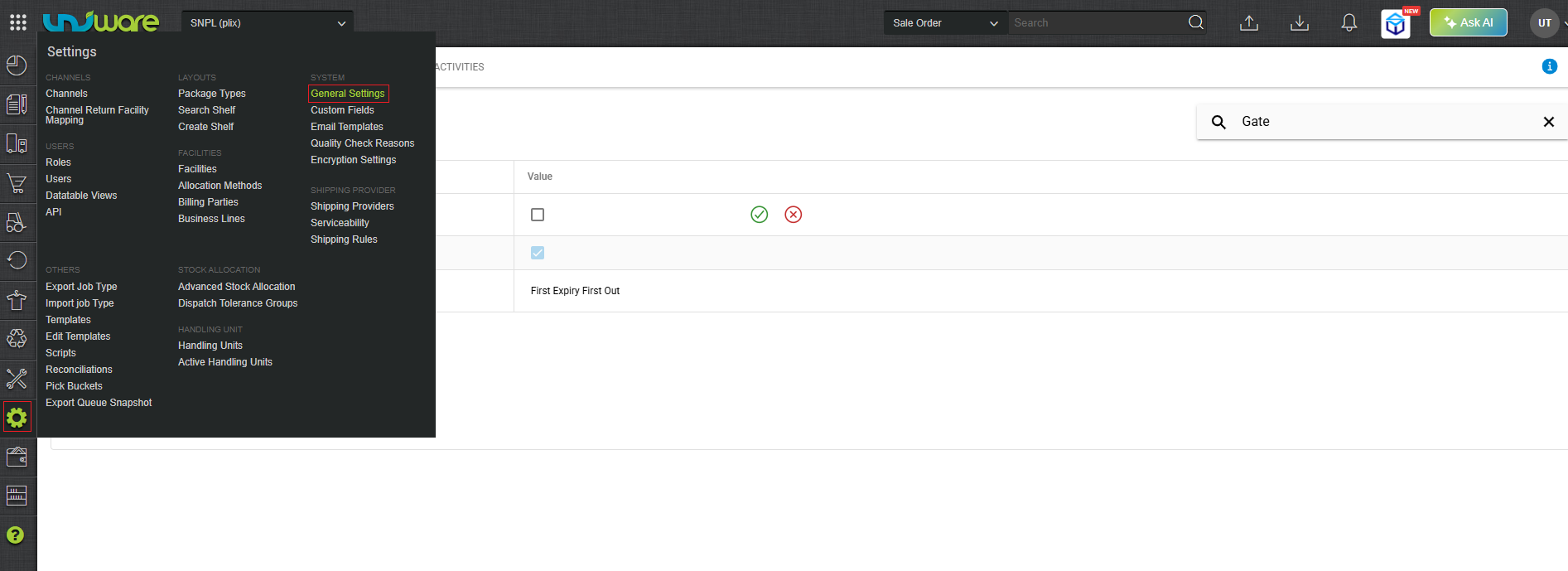
Fig: Login Uniware, Hover Settings & Click General Settings. Step-2: Enable Putaway Shelf Suggestion.
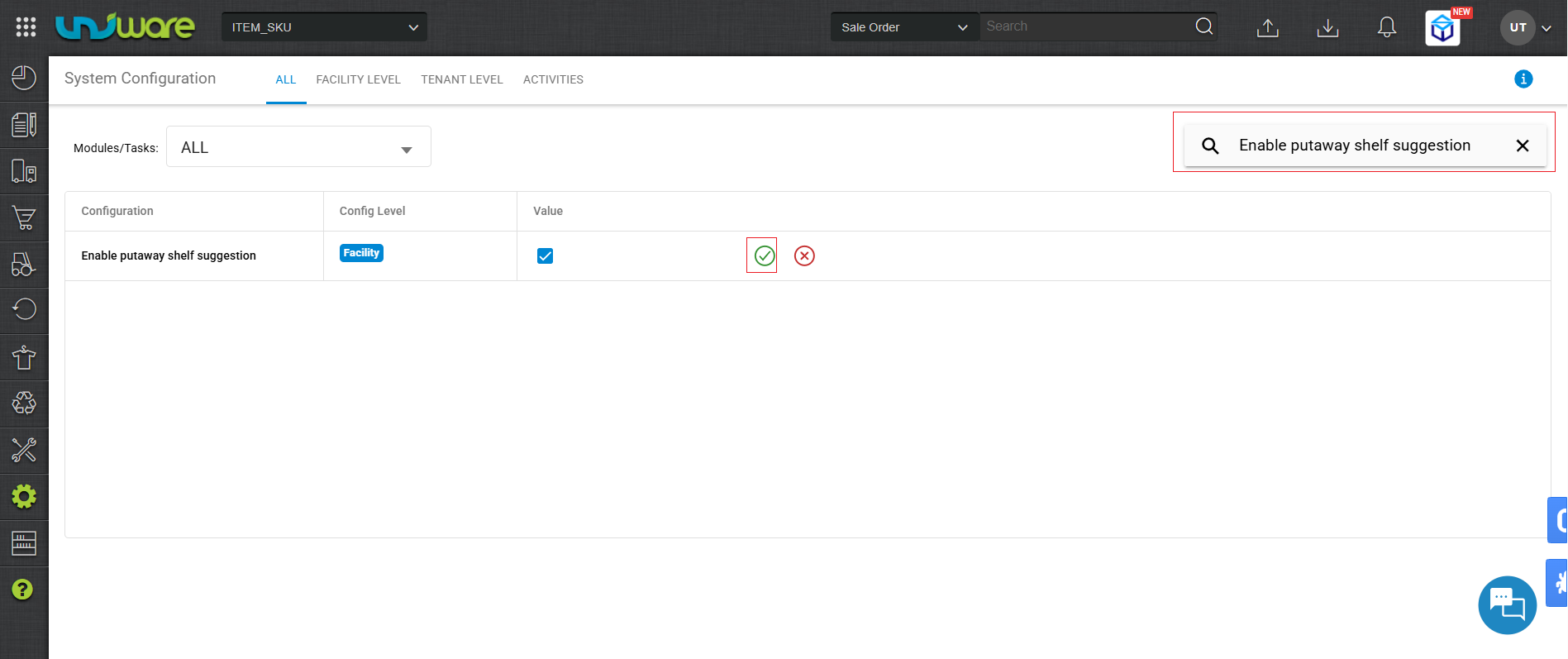
Fig: Enable Putaway Shelf Suggestion - Good, bad, and “any” shelves are defined and mapped, for quality-based putaway.
- Valid USNs already exist against the SKUs in the list, for USN inventory.
- The putaway list is unassigned or assigned to the logged-in operator.
| Note: If configuration 4 is off, the app skips shelf suggestions and the operator scans shelves manually.
If configuration 6 isn’t met, the app rejects any USN it doesn’t recognize. An operator cannot start a list assigned to someone else. |
Workflow
Step-1: Login Scale App, Inside Inbound section & Click Putaway.
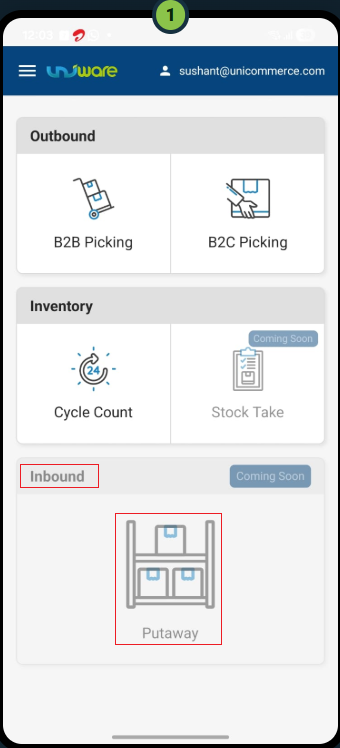
Step-2 : Click on Assign to Me.
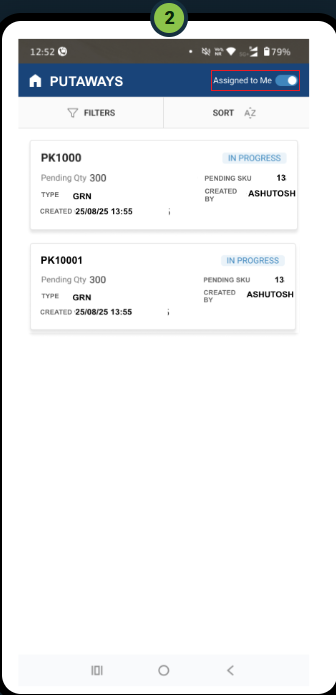
Workflow A: Scan SKU First
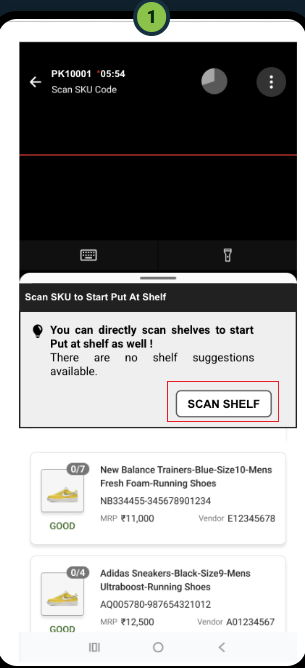
Step-1 : Start to scan SKU.
The app shows “Scan SKU to Start Put At Shelf” along with the list of pending SKUs.
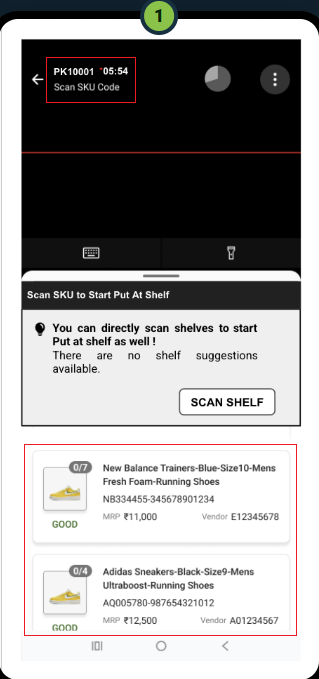
Step-2 : Aftre SKU Scanning Complete, Screen open to scan Shelf to Activate it.
The app confirms “SKU scanned successfully” and prompts the operator to scan a shelf. Scan shelf barcode to activate shelf.
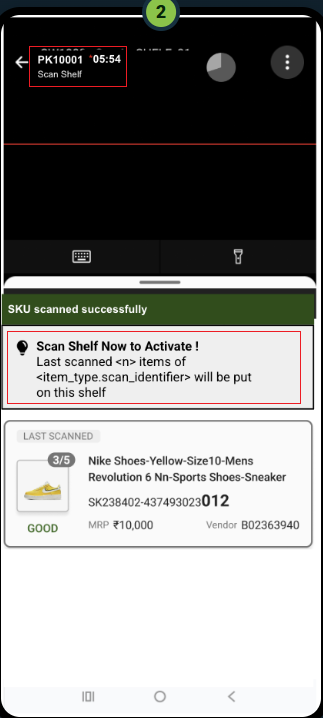
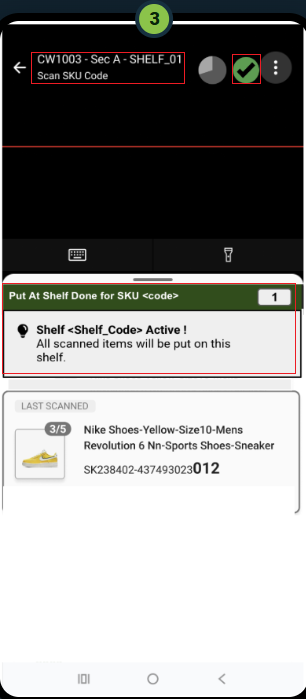
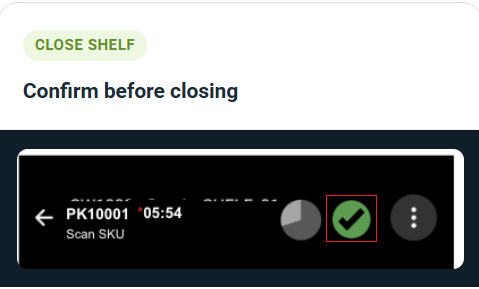
Step-3: Click on Green Tick Mark, to Close the activated shelf.
The app confirms “Put at Shelf Done,” activates the shelf, and increases the quantity with every additional scan.
On Clicking on Green Tick Mark Close the Activated Shelf.
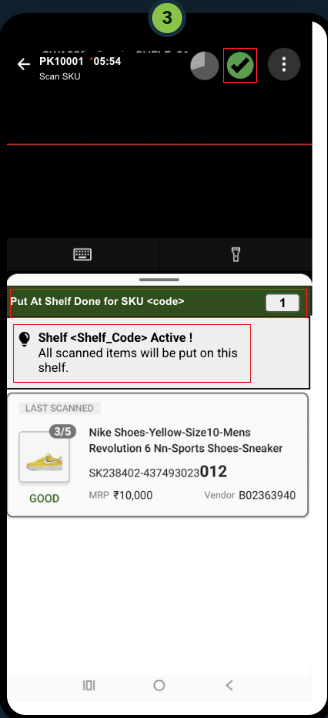
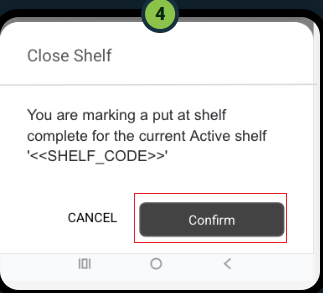
Step-4: Click on Confirm to close the shelf.
The app asks for confirmation, then returns the operator to scanning for the next shelf.
| Running counts: Scanning the same SKU again increases its quantity (1 → 2 → 3…) on the active shelf. Scanning a different SKU updates the “last scanned” card, but every item still lands on the same active shelf until the operator closes it. |
Workflow B: Scan Shelf First
Scan shelf to activate (with suggestions) → scan items onto it → close shelf.
Step-1: Tap Scan Shelf to Activate helf first.
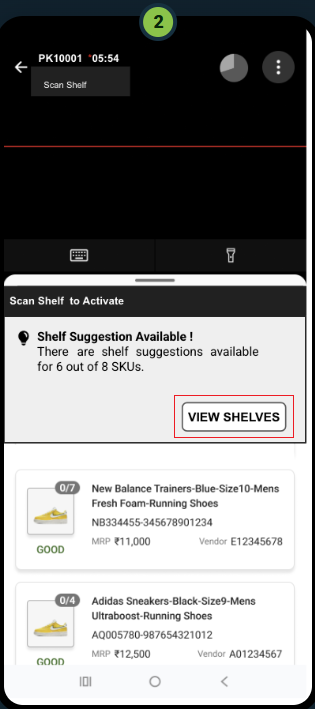
Step-2 : Suggestion Available for 6 out of 8 SKU’s.
The app shows a message such as “Suggestions available for 6 of 8 SKUs” and offers a View Shelves option.
Step-3 : Close the shelf.
The shelf activates, quantities update on every scan, and the operator closes the shelf once done.
| Shelf Suggester: This recommendation only appears when the facility enables the Enable putaway shelf suggestion configuration. The operator can always override the suggestion and scan a different valid shelf. |
Guardrails & Inventory Quality
The app enforces the following checks so an incorrect scan never becomes an inventory error:
| Guardrail | Behavior |
|---|---|
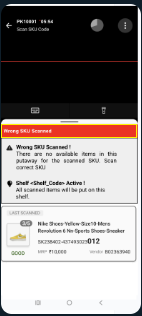
| Wrong SKU scanned | If the scanned SKU isn’t part of the current list, the app shows “Wrong SKU Scanned” and keeps the active shelf intact. Invalid or mismatched barcodes are rejected the same way.
|
| Close-shelf confirmation | Tapping the green tick prompts a confirmation step before the shelf actually closes, which prevents accidental closure.
|
| Good / Bad quality marking | The operator selects an inventory type at scan time. Good items must go to a good shelf and bad items to a bad shelf; an “any” shelf accepts good stock first and bad stock only afterward. The app blocks any mismatch with a clear prompt, which quarantines damaged stock right at Putaway. |
Putaway for USN (Item-Traceable Inventory)
For SKUs that carry a unique serial number (USN), the operator follows the same scan-first or shelf-first screens described above, with these differences:
| Behavior | What the Operator Sees |
|---|---|
| Scan nudge | “Scan USN to Start Put at Shelf” instead of “Scan SKU…” |
| USN scanned successfully | “USN Scanned Successfully” — the app adds the unit to the SKU’s quantity and shows the last-scanned USN first on the card. |
| Multiple USNs per SKU | Tapping the SKU opens a View USNs sheet listing every USN linked to the putaway, with a global search. |
| Invalid USN | A non-existent USN is rejected. On shelf-accuracy warehouses, the app flags a USN scanned from the wrong shelf. |
| Shelf activation & close | Identical to the SKU flow — scan a shelf to activate it, scan USNs onto it, and tap the green tick to close it. |
| Runs alongside other operations: Putaway can proceed on shelves that Picking or Cycle Count also use. The app blocks the operator only when the same shelf is being actively scanned elsewhere, or the same SKU has a cycle count pending approval — and it displays a clear reason when it does. |
Completing the Putaway
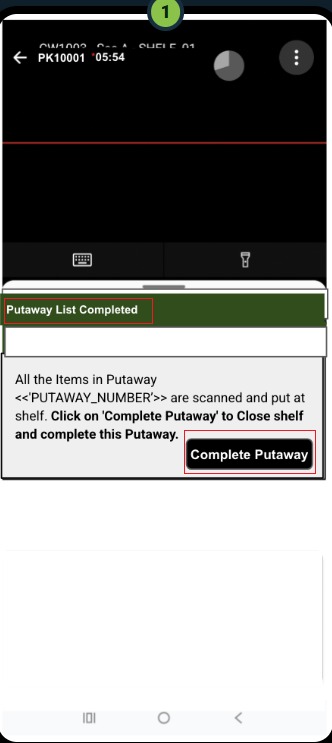
All items scanned → Complete Putaway → productivity summary.
Step-1: Ensure All SKU Scans & Click on Complete Putaway.
Step-2 : Click on Confirm Putaway.
The summary shows the performance rate (pieces per hour against target), total time taken, and the size, quantity, SKUs, and shelves covered.
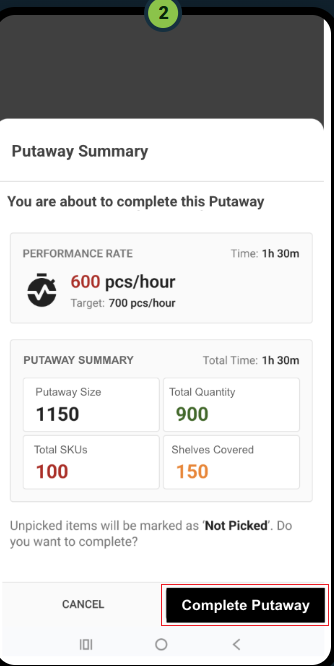
| Closing the loop: The app records the performance rate, total time, and shelf coverage against the operator, and makes them visible to supervisors in the Putaway Tracking tab and the Putaway Report. Any item left unscanned at completion gets marked Not Picked. |
Frequently Asked Questions (FAQs)
Q. Can an operator switch between Scan SKU First and Scan Shelf First within the same list?
Ans. Yes. Both workflows sit on the same list and lead to the same shelf-activation screen, so the operator can pick either entry point for each new shelf.
Q. What happens if the operator scans a SKU or USN that isn’t part of the current list?
Ans. The app shows a “Wrong SKU Scanned” message and rejects the scan. The active shelf stays intact, so the operator can continue scanning valid items.
Q. Does the Shelf Suggester always cover every SKU in the list?
Ans. Not always. The app shows how many SKUs the suggestion covers (for example, “6 of 8 SKUs”) and lets the operator scan a different valid shelf for the remaining SKUs.
Q. Can Putaway run on a shelf that Picking or Cycle Count is also using?
Ans. Yes, in most cases. The app blocks the operator only when the same shelf is being actively scanned by another operation, or when the same SKU has a cycle count pending approval.
Q. What happens to items that are never scanned before the operator completes the putaway?
Ans. The app marks any unscanned item as Not Picked in the Putaway Summary, so supervisors can follow up on the shortfall.
Q. How does the app calculate operator productivity?
Ans. The Putaway Summary compares the operator’s actual pieces-per-hour rate against a target rate, alongside total time, quantity, SKUs, and shelves covered. This data feeds the Putaway Tracking tab and the Putaway Report.
Q. Can good and bad inventory land on the same shelf?
Ans. Only on shelves configured as “any.” An “any” shelf accepts good stock first and bad stock only afterward. Good-only and bad-only shelves reject any mismatched scan.