
Introduction
Shift is a logistics aggregation platform used to provide seamless shipping solutions & handle logistics part across India.
Purpose
Unicommerce integrates with Shift to help sellers automate tracking shipments based on AWB, both forward & reverse shipment, sellers able to reallocate it for reverse shipments.
Key Features
- Smart Tracking : The system automates AWB tracking for both forward and reverse shipments.
- Bi-Directional Shipment : Shift Supports only forwards directional shipment.
- Label Generation : Shift generates and provides the PDF shipping labels for Forward shipment.
- Shipper Reallocation : Shift enables sellers to reallocate on cancelled shipments.
How to Configure Shift in Uniware
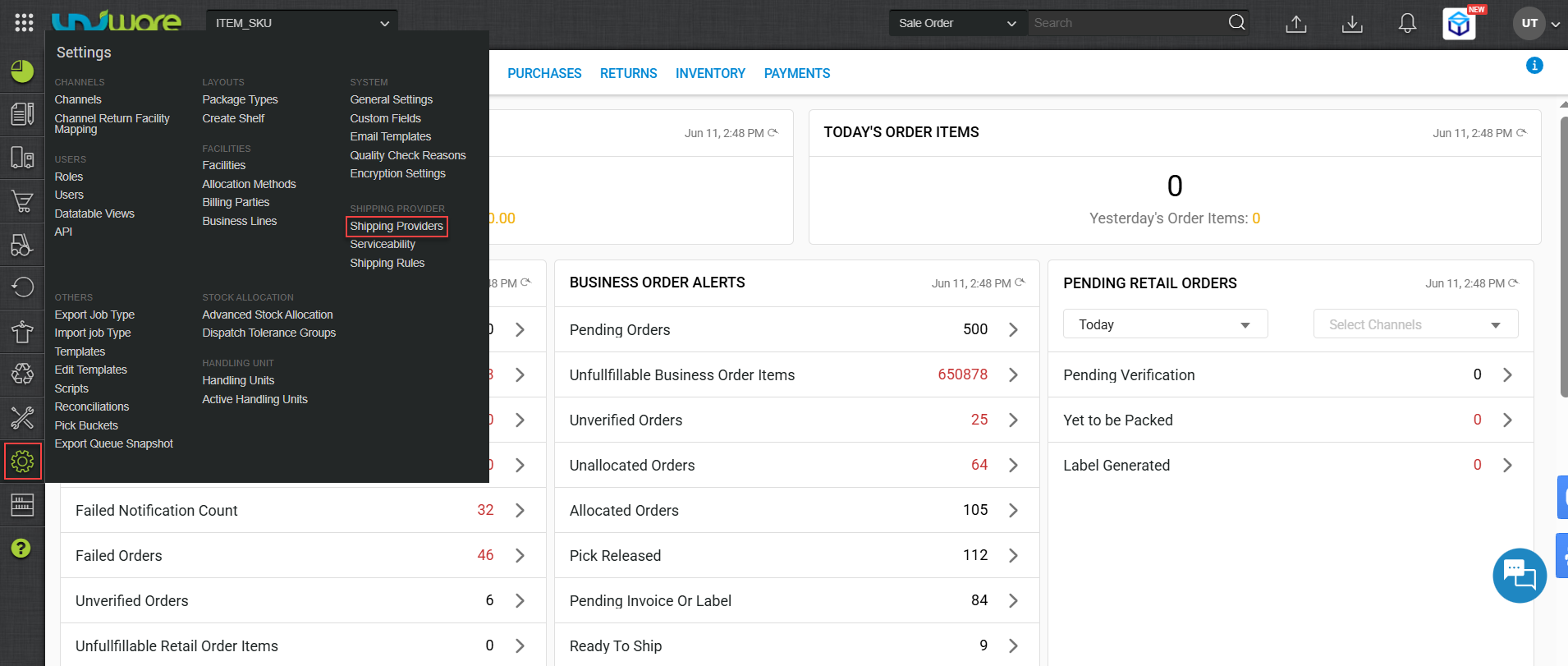
Step-1 : Login Uniware, Hover Settings & Click Shipping Provider
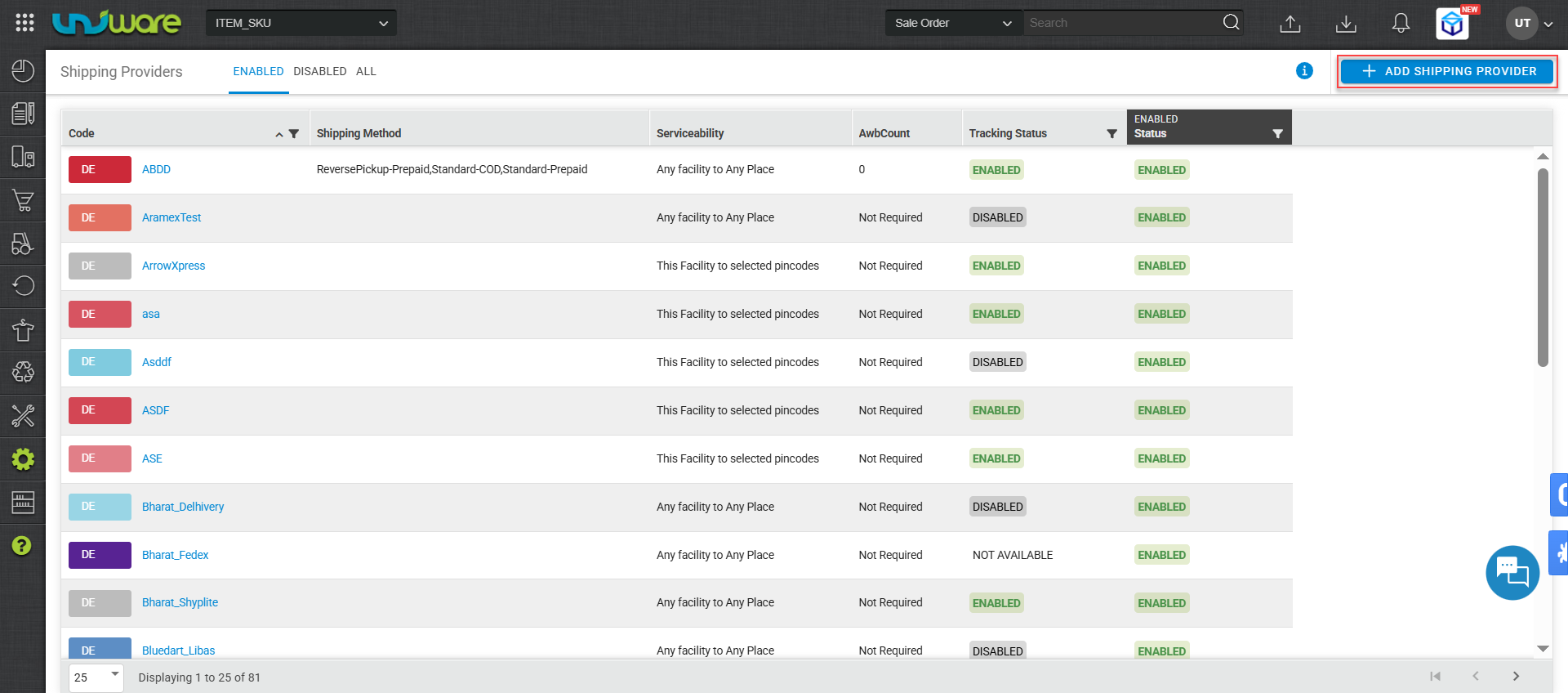
Step-2: Click Add Shipping Provider.
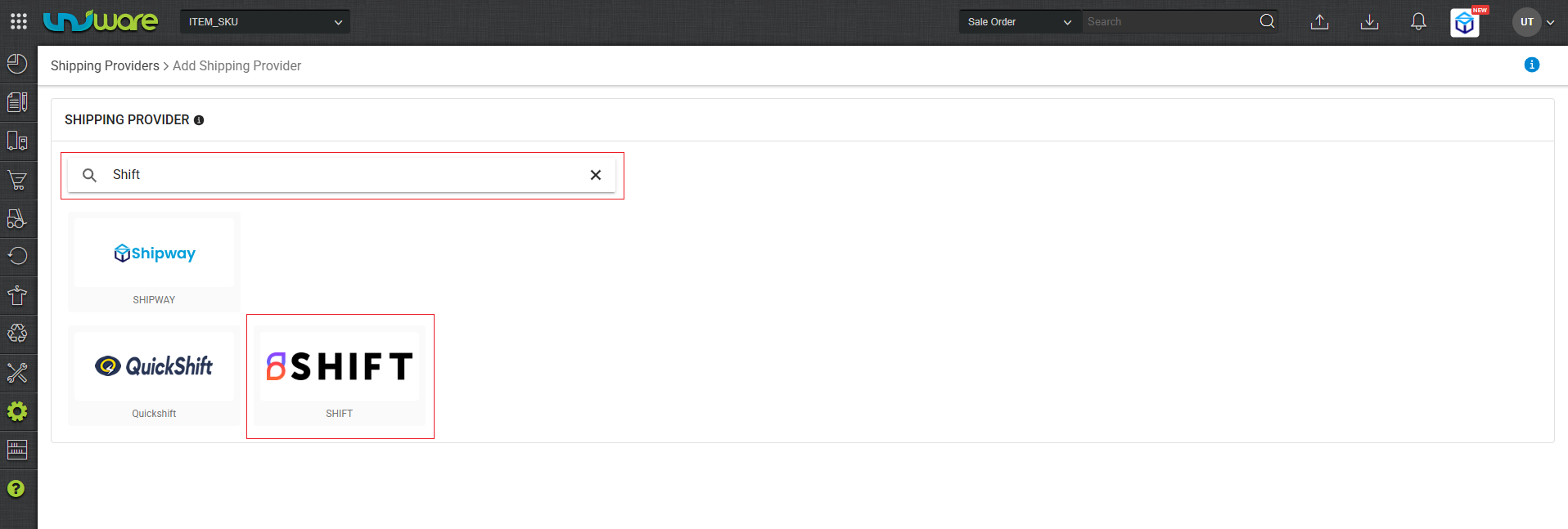
Step-3: Search & Select Shift
Step-4 : Navigate Settings Window, Enter Information & Click Save.
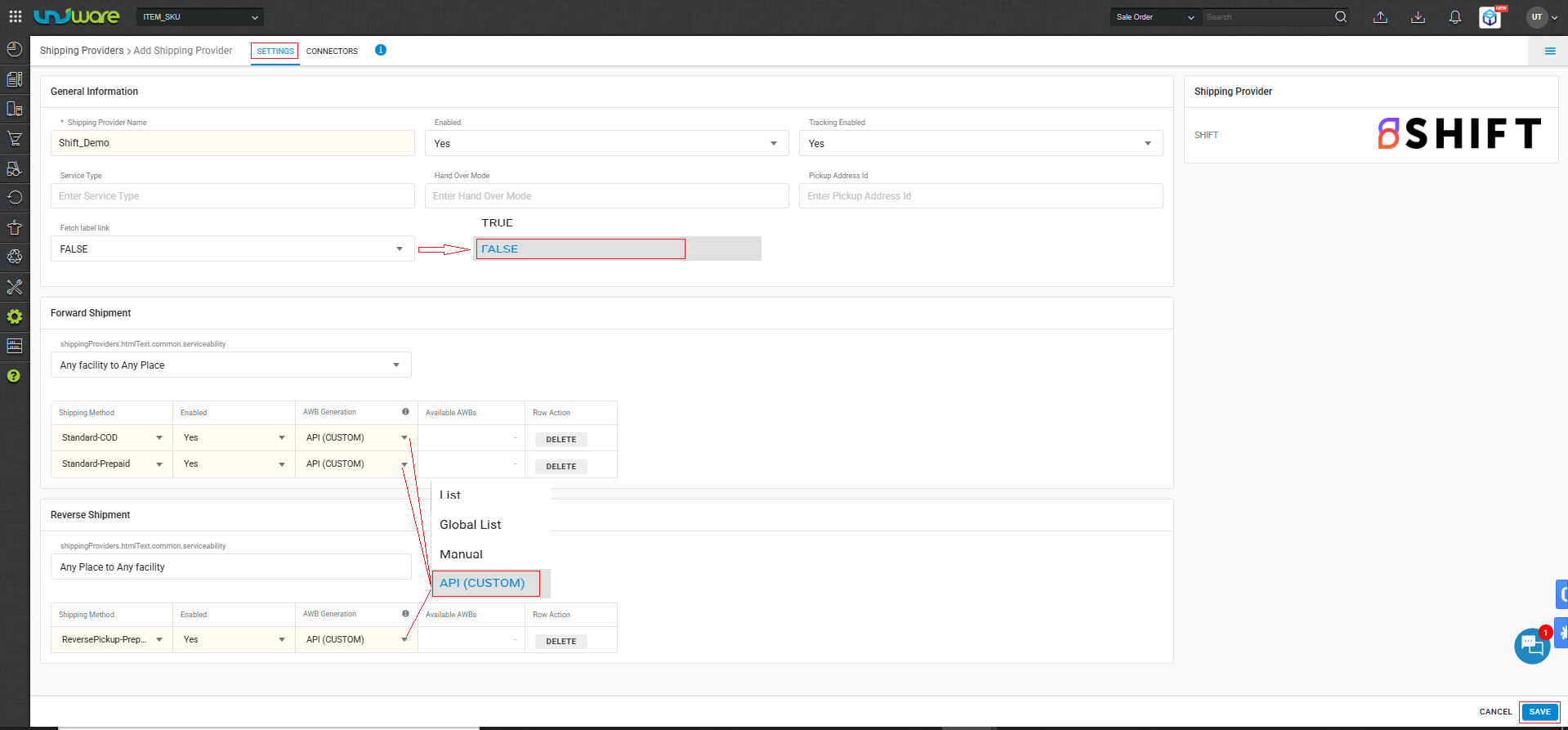
| Fields | Parameters |
| Service Type | Leave Blank |
| Handover Mode | Leave Blank |
| Note : Must ensure ‘Fetch label link’ set to False. |
| True : Forward Shipping label generates by Unicommerce. |
| False : Forward Shipping label generates by Shift. |
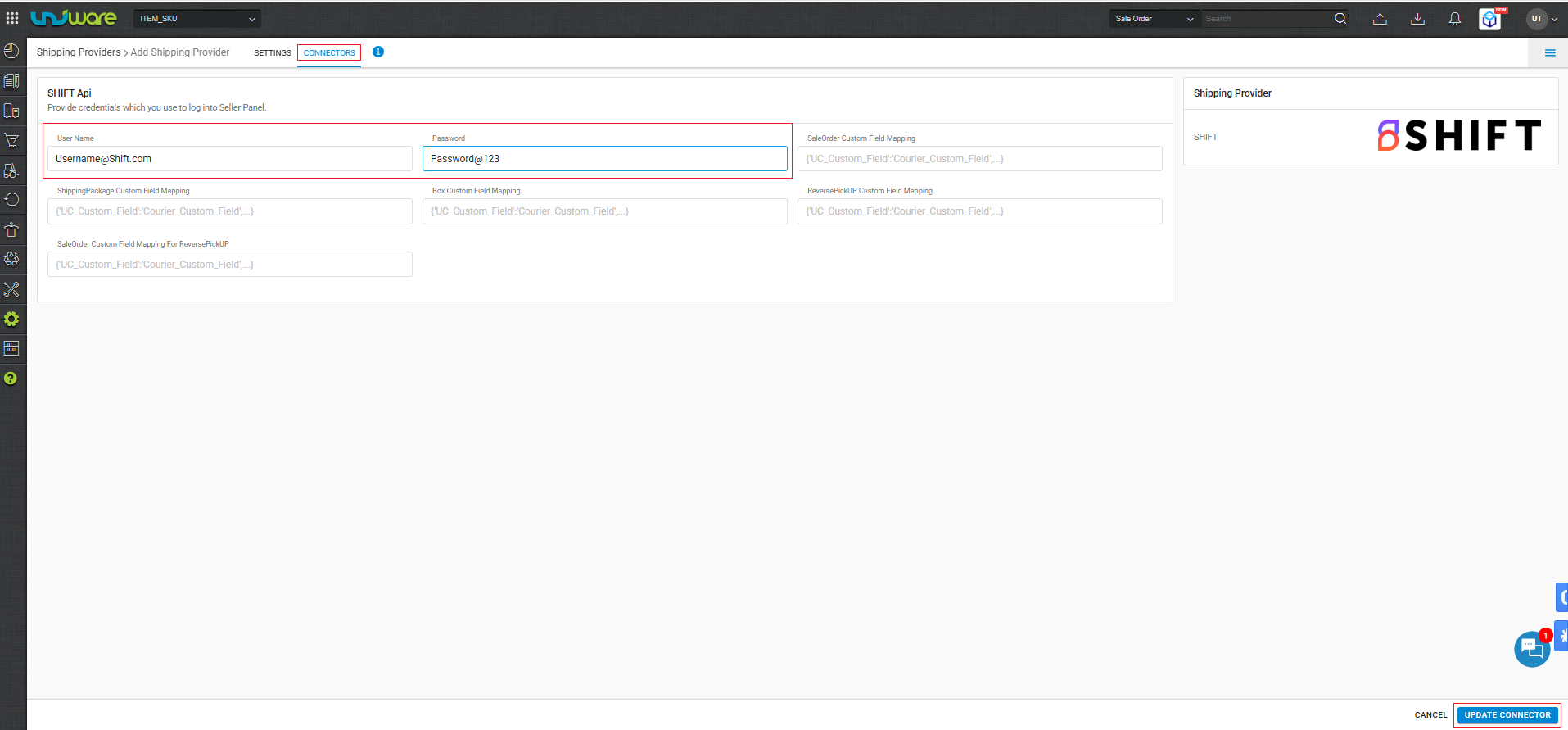
Step-5: Navigate to Connector Window, Enter Credential & Click Update Connector
Frequently Asked Questions (FAQ’s)
Q1. Which Shipment Method does Shift support ?
A. Shift supports both forward & Reverse Shipment method.
Q2. Does Shift provide the shipping label ?
A. Yes, Shift generates and provides the PDF label, but only for forward shipments.
Q3. Can sellers reallocate a shipper if an order is cancelled ?
A. Yes, Shift enable sellers to reallocate cancelled shipments.