
Overview
UniCapture now integrates with the Flipkart–Myntra VMS via API.
This integration synchronizes recording activities across both platforms, with UniCapture serving as the primary controller for start and stop events.
Captured recordings are automatically shared with Flipkart systems to ensure data consistency and facilitate claim processing.
Key-Features
Synchronized Recording : This integration provides Synchronized recording simultaneously on both platform i.e. Uniware, Flipkart & Myntra.
Centralized Control: Manages recording start and stop events via the UniCapture but ensures consistency across both platform.
Automated Data Sharing: Delivers recordings directly to Flipkart systems for immediate claim processing.
| Caution ⚠️: You only need to perform this setup once. Follow the instructions accurately to avoid errors during integration. |
Prerequisites
Folder Creation: You must create a destination folder in Uniware before beginning the integration. This folder will store and map your recording sessions.
How to Create Folder
Follow below mentioned steps to create a folder.
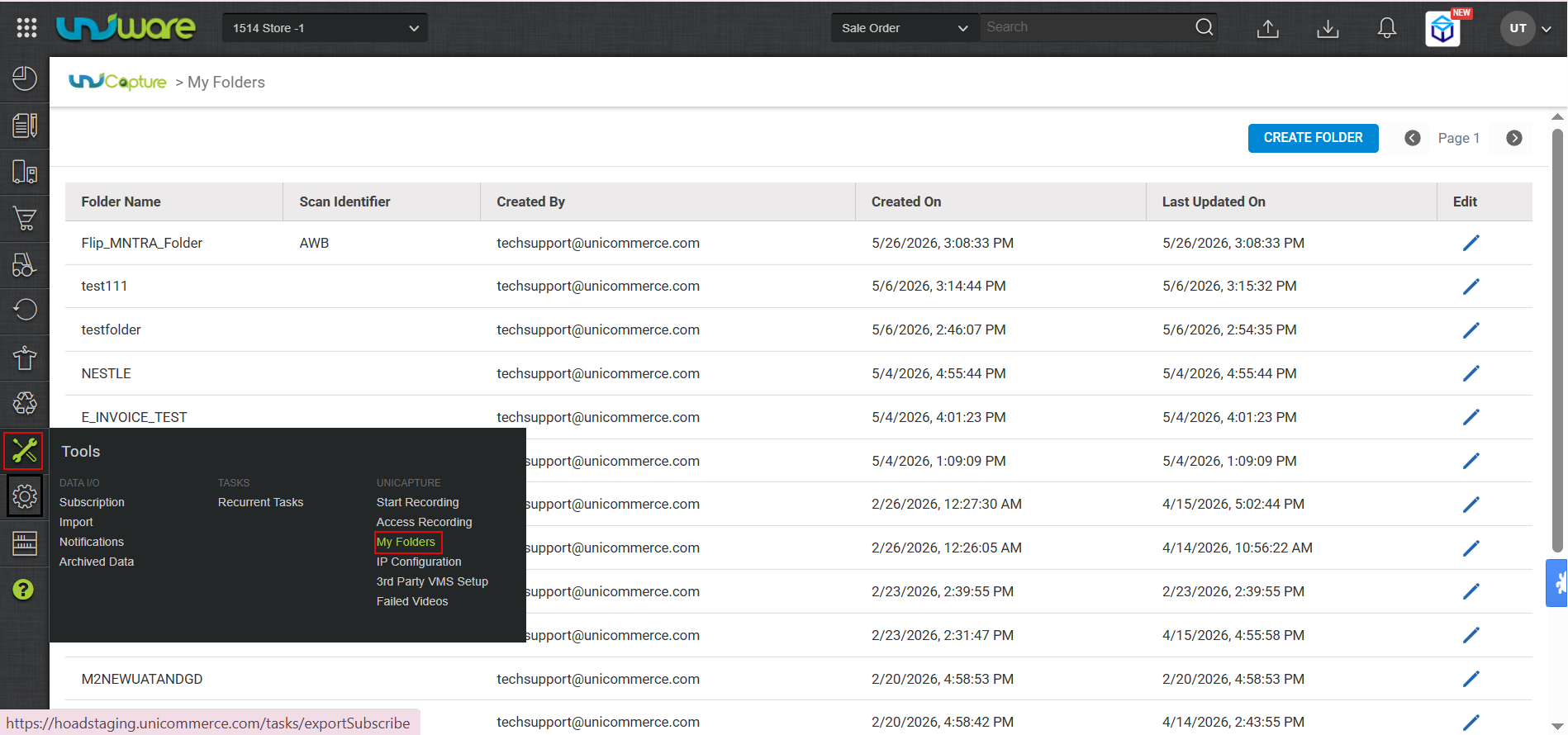
Step-1 : Visit Uniware Menu, Hover Tools & Click My Folder.
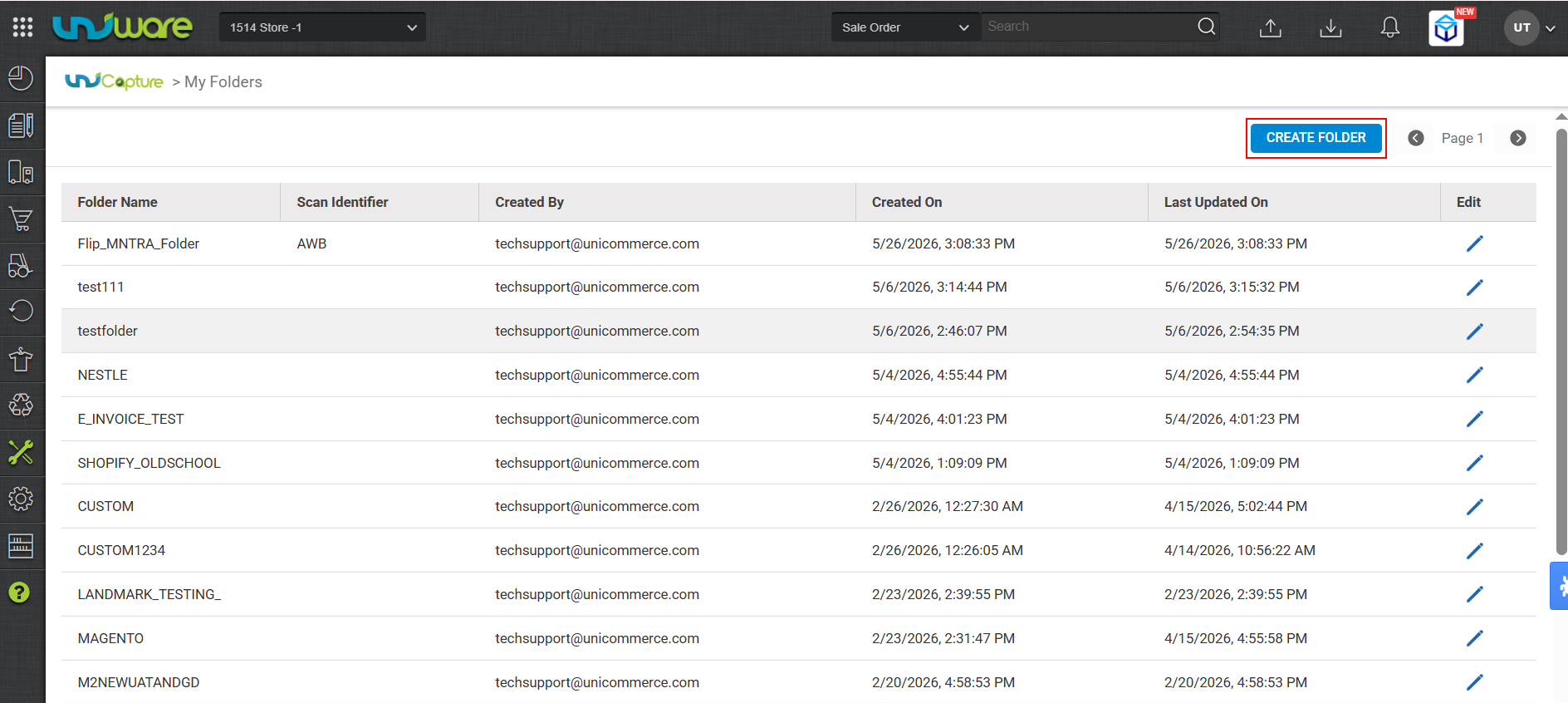
Step-2: Click Create Folder
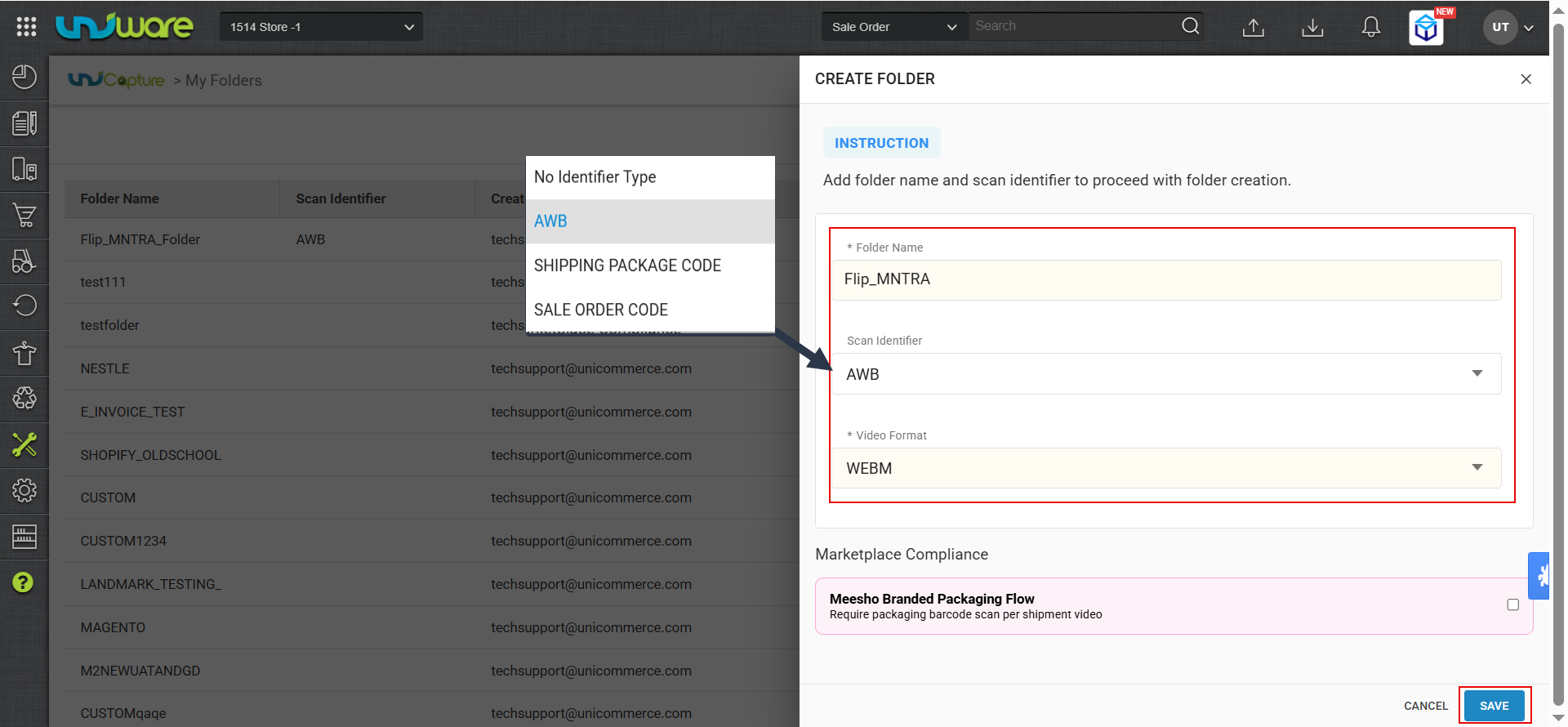
Step-3: Select Identifier, Video Format & Click Save
How to Integrate
Follow these steps to integrate UniCapture with Flipkart and Myntra via the 3rd-party VMS setup:
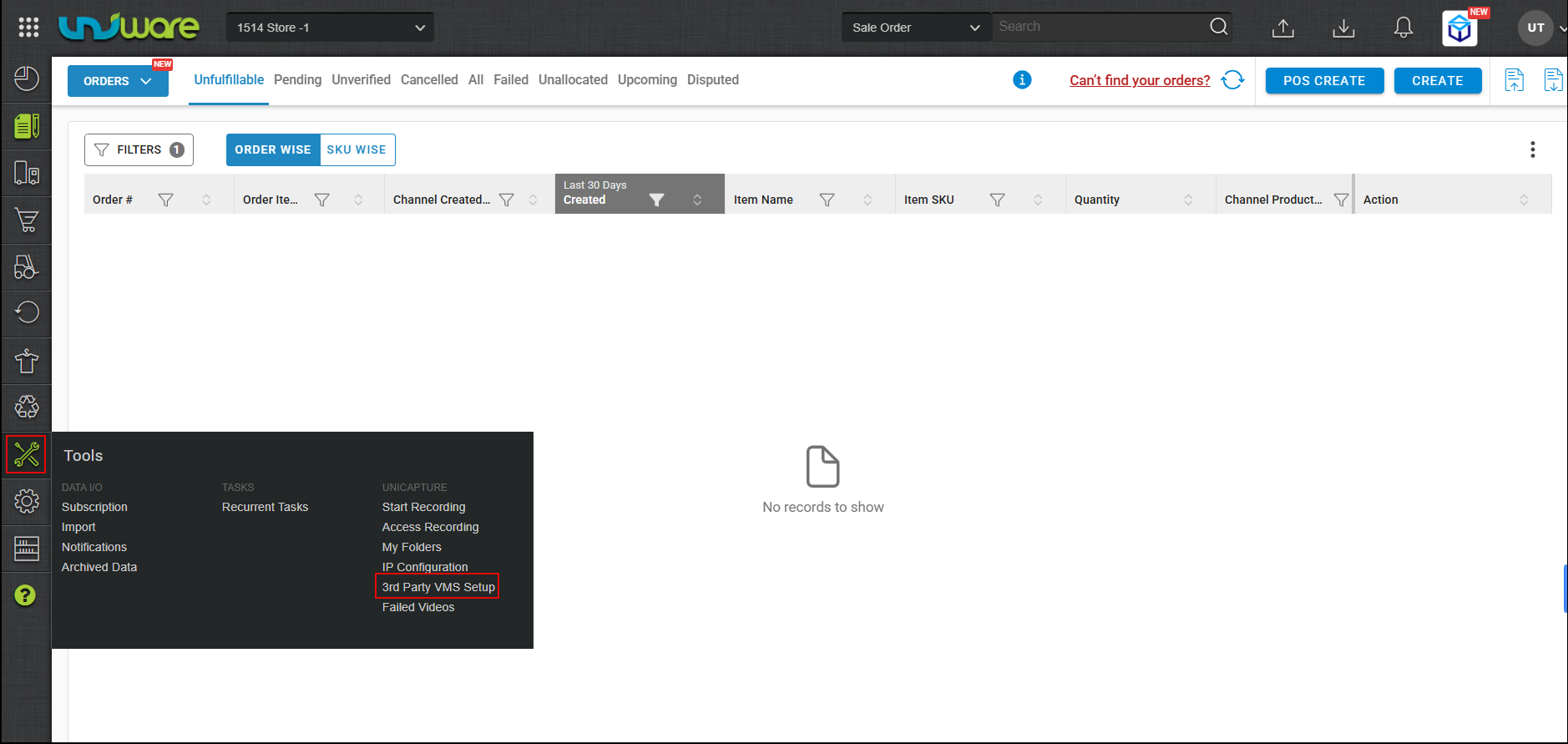
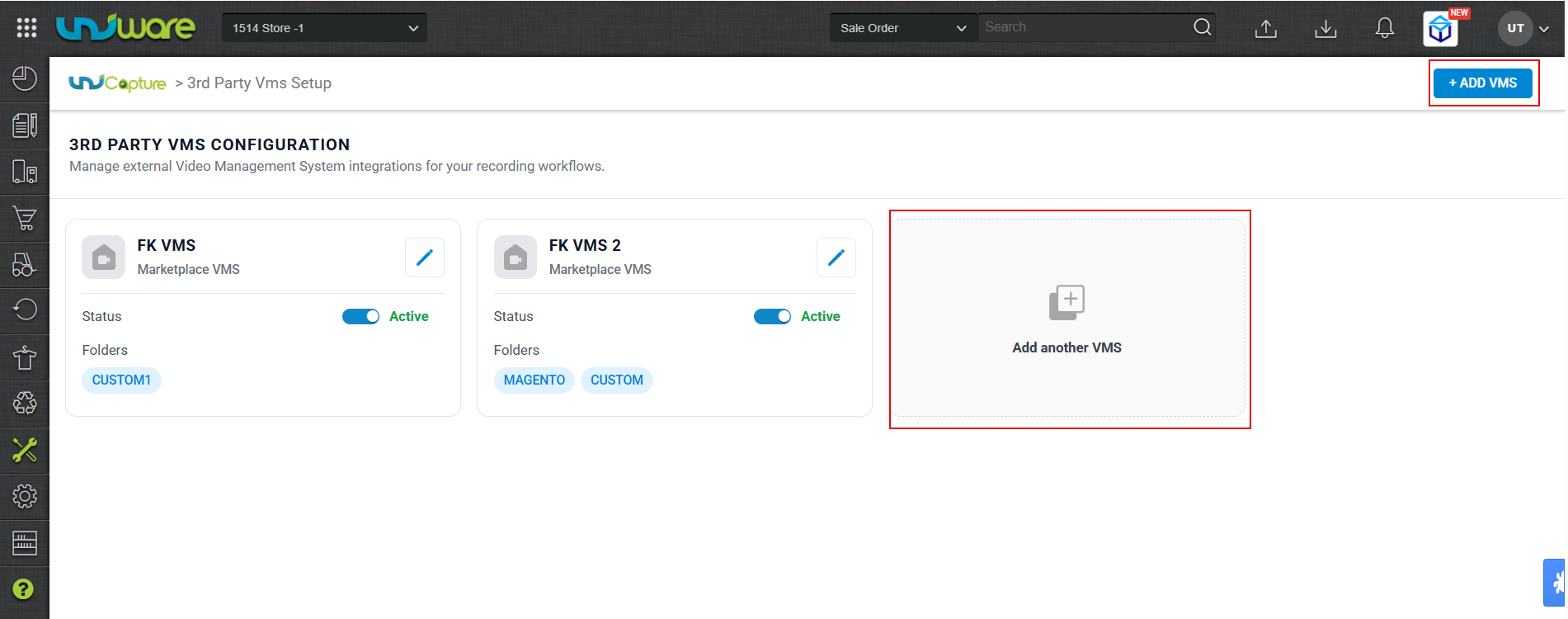
Step-1: Visit Uniware, Hover Tools & Click 3rd Party VMS.
Step-2: Click Add VMS or Add another VMS
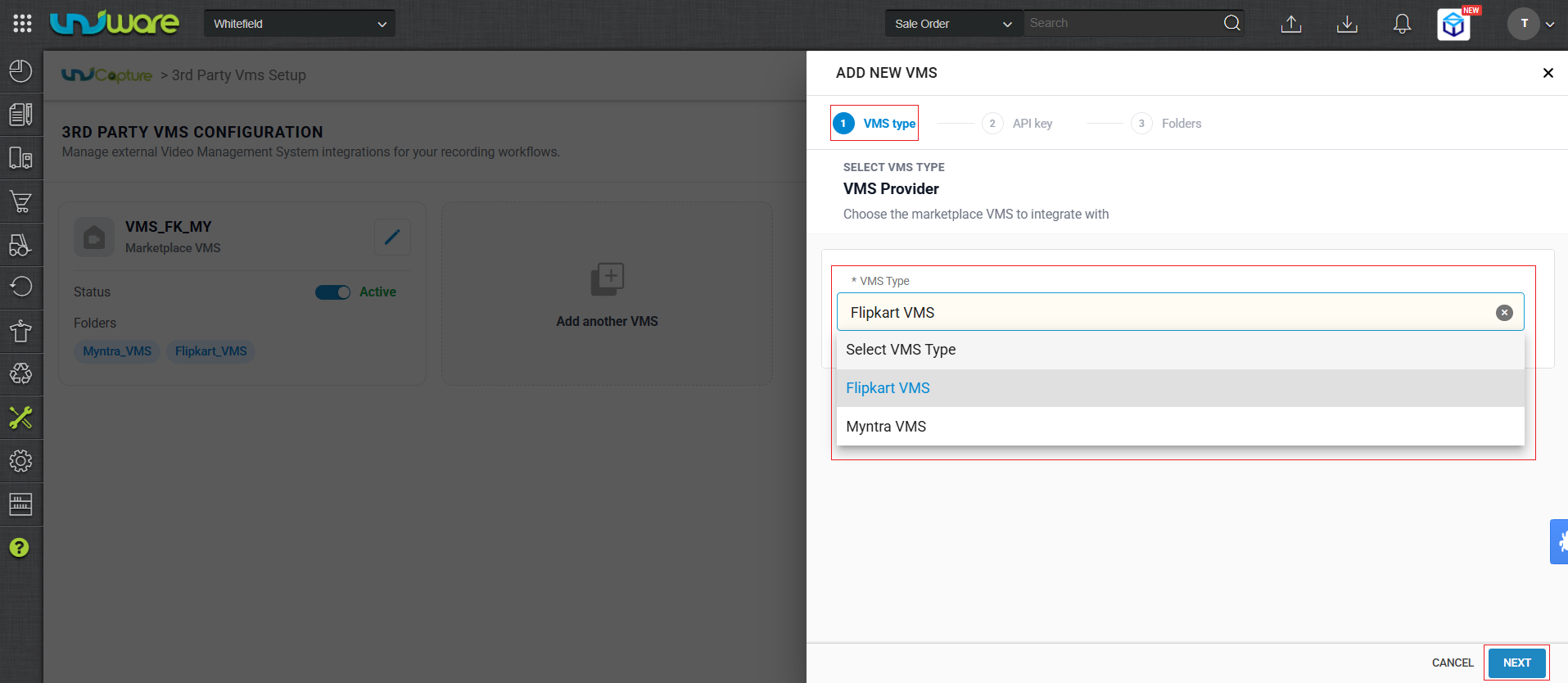
Step-3: Select VMS Type as Flipkart VMS and Click Next.
Step-4: Enter the API Key & Click Next.
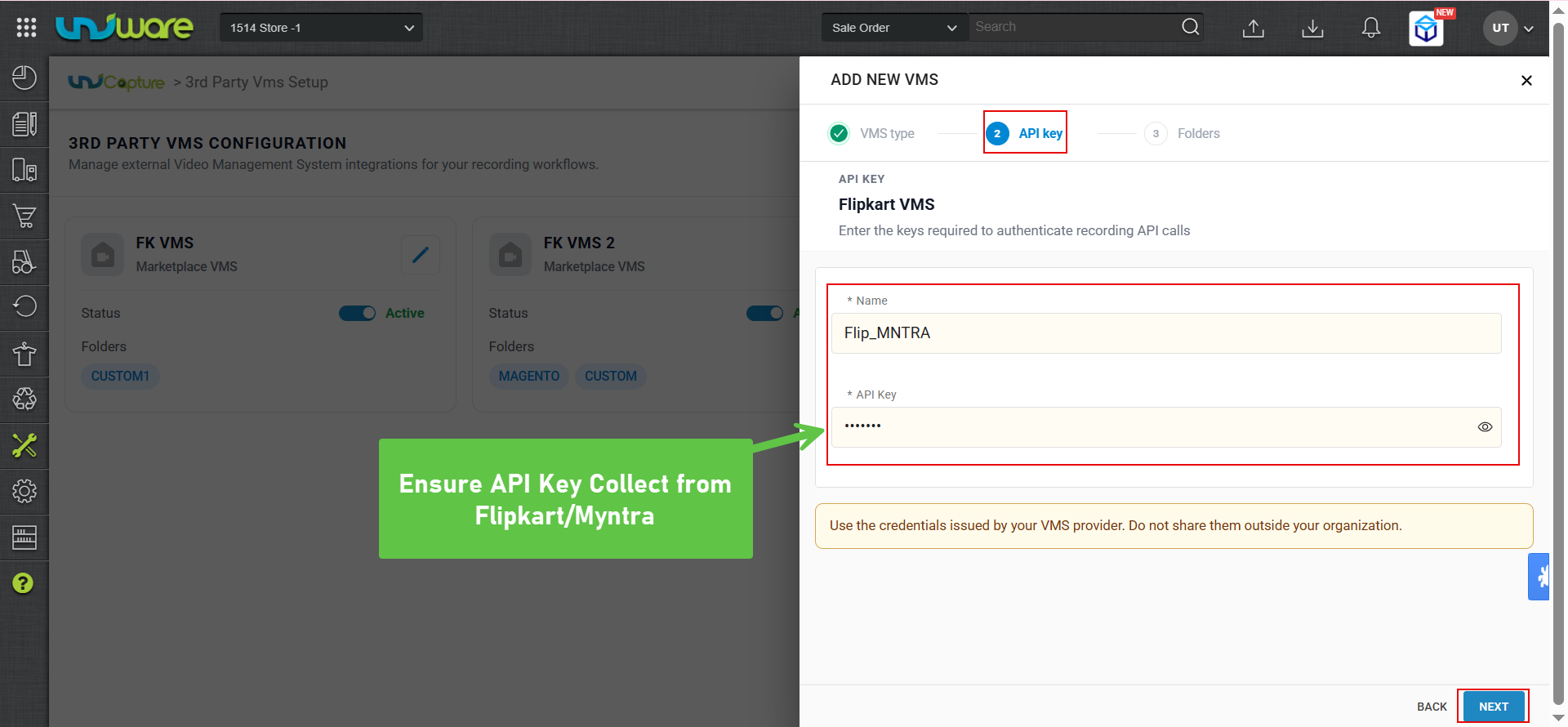
| Parameter | Description |
| API Key | Received from Flipkart/Myntra Account Manager/Team. |
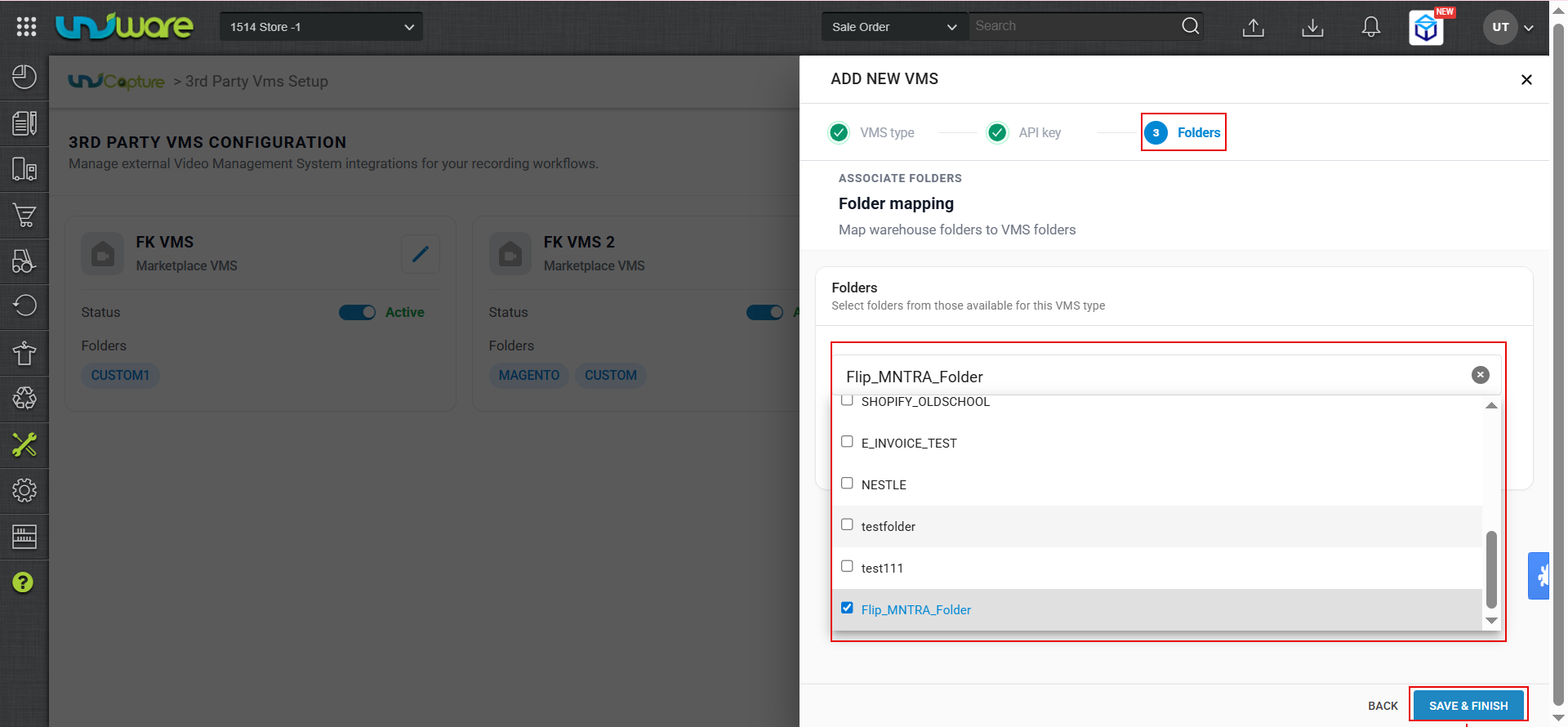
Step-5: Select Created folder and Click SAVE & FINISH.
You must create a folder before mapping it to Flipkart VMS for future recording sessions.
| Note: Ensure you are logged in to Flipkart or Myntra in background, before starting the recording. If you are a first-time user or still not log in before proceeding. |
Frequently Asked Questions ( FAQ’s)
Q: Do I need to start and stop recordings on both Uniware and Flipkart & Myntra?
A: No. UniCapture acts as the controller. When you start or stop a recording in UniCapture, the action automatically synchronizes across both platforms.
Q: Where do I get the API Key required for the integration?
A: You can obtain the API Key directly from your Flipkart or Myntra Account Manager or team.
Q: Can I complete the VMS integration without creating a folder first?
A: No. You must create a folder in Uniware (Tools > My Folder) before starting the integration.
The setup process requires you to map the VMS to an existing folder. You can complete the VMS integration without creating a folder, but ensure that must have already created folder and mapped with VMS Type.
| Caut : We do not recommend this approach because it causes confusion. |
Q: Do I need to perform this setup for every recording session?
A: No. This is a one-time configuration. Once you map the folder and complete the setup, the integration remains active for future sessions.
Q: How do my recordings reach Flipkart & Myntra for claim processing?
A: UniCapture automatically shares the captured recordings with Flipkart & Myntra systems once the recording session ends. You do not need to upload them manually.