
Integration With Jupiter Money
1. Introduction
Flow of the Work
The following chart illustrates how Jupiter Money and Uniware exchange data:
|
|
|
|---|---|
|
⇒ Pushes New Orders ⇒ |
|
|
⇐ Pushes Inventory Update ⇐ |
|
|
⇐ Pushes Dispatch Details ⇐ |
|
|
⇒ Syncs Order Status ⇒ (Cancelled, Delivered & Returned) |
|


2. How its Works
Follows steps to integrate in Uniware:
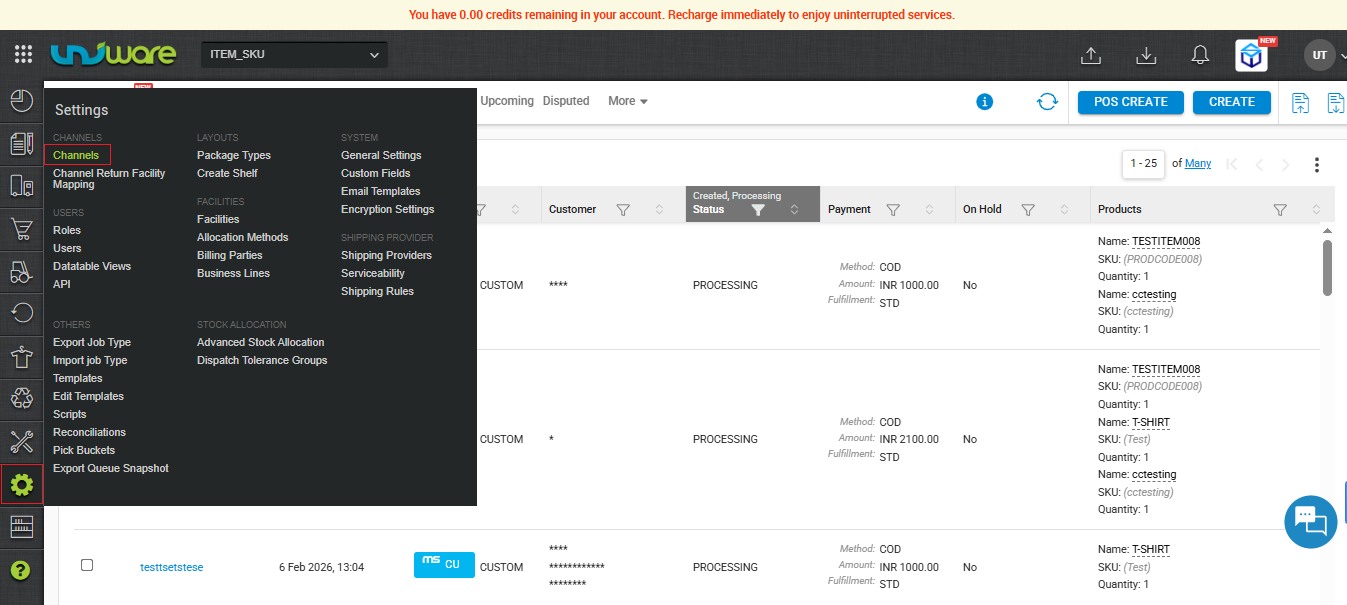
Step – 1 : In the Uniware menu, select Settings > Channels
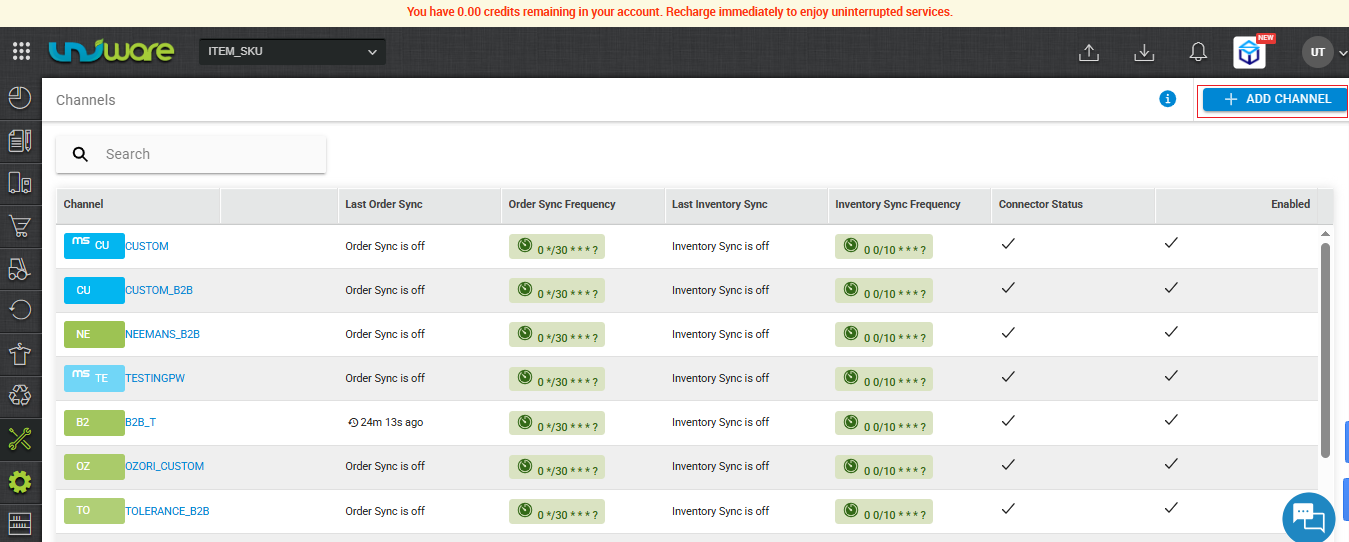
Step – 2 : Click on ADD CHANNEL
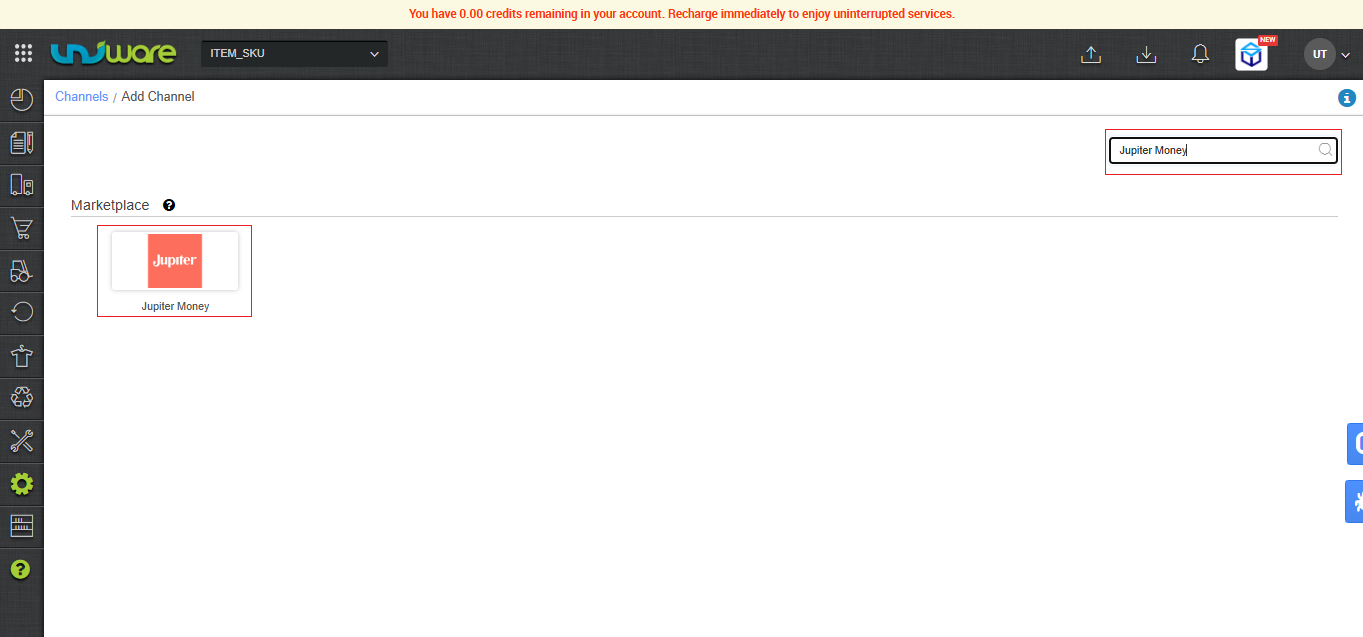
Step – 3 : Search and Select “Jupiter Money”.
Step – 4 : Fill Required Information and click on Save & Next.

Step-5 : Fill Credential , Vendor Code & Click on Connect
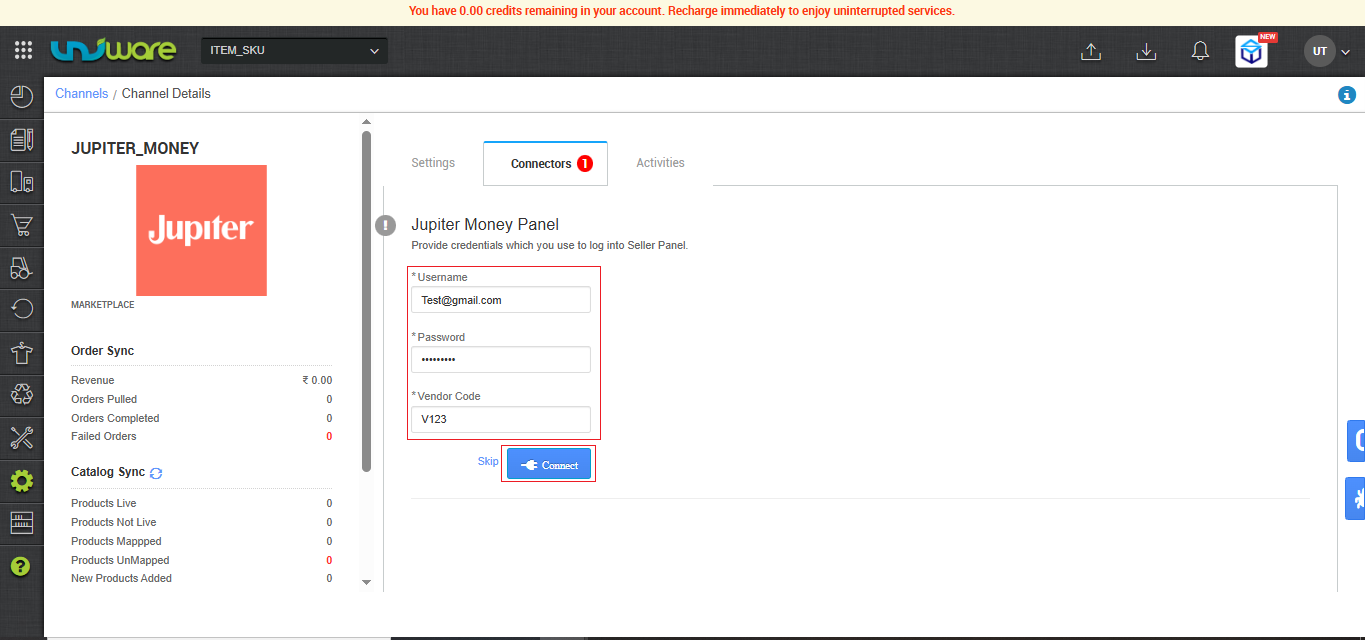
Must obtain your integration credentials directly from the Jupiter Money channel team. Enter these details on the connectors page when adding the channel in Uniware.
| Parameter | Value/ Description |
| Username |
will be provided by the Jupiter Money team for every seller.
|
| Password |
will be provided by the Jupiter Money team for every seller.
|
| Vendor Code | Same as the Username |
| Note : As soon as the channel is configured successfully, you can see the Channel Summary and You can trigger the respective sync processes from this page itself. For more details Click here |
|---|
3. Important Points
-
Order Sync: Jupiter Money/Marketplace pushes new orders directly to Uniware.
-
Inventory Update: Uniware pushes real-time inventory updates to Jupiter Money/Marketplace.
-
Cancellations:
-
Seller-side: Jupiter Money allows the seller to cancel orders.
-
Customer/Channel-side: Jupiter Money does not allow customer or channel-side cancellations.
-
-
Shipping Method: This channel supports Self-shipping. The seller handles the physical shipping process. Uniware provides the tracking details and generates the shipping labels for these orders.
-
Dispatch Updates: Uniware updates the dispatch details on the Marketplace once the seller hands over the package to the shipper.
-
Invoicing & Taxes: Uniware generates the Invoice code, the Invoice PDF, and all associated tax details.
-
Status Sync: Jupiter Money syncs Cancelled, Delivered, and Returned statuses back to Uniware.
-
Notifications: Uniware pushes notifications to the Marketplace whenever the shipment status changes within Uniware.
Note : You must enable the NotifyChannelOnDispatch setting in Uniware. This setting allows Uniware to successfully push dispatch notifications to the Jupiter Money Marketplace.
4. Frequently Asked Questions (FAQs)
Q1. How do Uniware and Jupiter Money synchronize orders and inventory?
Ans: Jupiter Money pushes new orders directly to Uniware. Conversely, Uniware pushes real-time inventory updates back to Jupiter Money.
Q2. Does the integration support order cancellations?
Ans: Yes, but only from the seller’s side. Jupiter Money allows the seller to cancel orders. Jupiter Money does not allow customer-side or channel-side cancellations.
Q3. Which shipping model does the Jupiter Money integration support?
Ans: This channel exclusively supports Self-shipping. The seller handles the physical shipping process. Uniware provides the tracking details and generates the shipping labels for the seller.
Q4. Who generates the invoices for Jupiter Money orders?
Ans: Uniware generates the invoice code, the invoice PDF, and all associated tax details.
Q5. When does Jupiter Money receive dispatch updates?
Ans: Uniware updates the dispatch details on the Jupiter Money marketplace as soon as the seller hands over the package to the shipper.
Q6. How does the system track the final shipment status (Delivered/Returned)?
Ans: Jupiter Money syncs the final order statuses—specifically Cancelled, Delivered, and Returned— back to Uniware.
Q7. Why is Jupiter Money not receiving dispatch notifications from my Uniware account?
Ans: You must enable the NotifyChannelOnDispatch setting in your Uniware account. This configuration allows Uniware to push shipment status notifications successfully to the Jupiter Money marketplace.